You’ve shared your feedback and we are listening! This platform update contains thoughtful enhancements to make your course easier to manage, strengthen the quality and flexibility of assessments, and support better outcomes for you and your students. Instructor Experience Directly Edit Lesson Scores You now have more control and flexibility. Adjust a student's lesson score directly on Detailed Student Grades or from the All Student Scores Report. Multiple student scores can be changed in bulk from the All Student Scores Report: see how. LMS Ease-of-Use Improvements We've refined the LMS integration with clear instructions for a more intuitive experience. Less friction, fewer clicks, more time for teaching! Deep Link UI Warning The right information at the right moment! You now see clear guidance within the deep linking tool with a reminder to return to the sync tool and complete assignment linking after creating deep links. Sync Tool Modal: Deep Link Setup Reminder You will now see a modal reminding you to create deep links before mapping assignments, with clear guidance. A “Don’t show this again” checkbox allows returning instructors to avoid the reminder in the future. Final Grade Tab Feature Flag To avoid confusion, the Final Grade tab option is now hidden inside a collapsed Advanced Settings accordion on the LMS Sync setup page. This is off by default for new instructors. Instructors who need the feature flag can expand Advanced Settings and enable it—no support call required. For Your Students New AI Literacy Lesson Equip your students with understanding and responsible use of Artificial Intelligence. Found in the Instructor Resources of every Hawkes Learning course, the AI Literacy for College Students: Thinking Critically, Ethically, and Creatively with AI lesson is highly relevant, student-centered information to help you prepare your students with tools and knowledge to boost their readiness for facing challenges in today’s academic and professional landscape. Student Onboarding Tutorial Quiz Help your students start off on the right foot with a short onboarding tutorial quiz that walks them through the platform before diving into coursework—reducing early confusion, saving you time, and setting students up for success from day one. Reach out to your Customer Success Representative to have this assignable video quiz added directly to your course! As always, if you have any questions or need assistance, please don’t hesitate to reach out to our Customer Success Team anytime at instructorsupport@hawkeslearning.com
![]()
July 23, 2026
You’ve shared your feedback and we are listening! This platform update contains...
Read More
As a new term approaches, the excitement of crafting an engaging learning environment is often paired with the challenge of course preparation. To ease this stress, our Customer Success team has created a series of course prep videos to make your life easier and your teaching smoother. Proper planning and preparation go a long way, so we’ve designed these guides to walk you through each setup task step-by-step, helping you lay the groundwork for a fantastic semester of improved learning outcomes and student success. By taking care of these essentials now, you’ll free up more time to focus on what you do best – inspiring your students! Jerome Lewis, Bellevue University “Hawkes Learning makes the tasks related to coordinating course sections simple, straightforward, and swift.” Your Hawkes Course Prep Playlist: Section Setup for Instructors This video is a must-watch for those new to Hawkes. It provides a comprehensive guide on setting up your sections correctly. New Instructors — video | pdf For those who have already used Hawkes and just need a quick refresher, this video covers the basics of setting up your sections. Returning Instructors — video | pdf Customize Lessons Tailoring your curriculum to meet specific course needs can make a huge difference. This video tutorial guides you through our curriculum builder and the course customization options available within it. Creating & Assigning Tests Tests are a crucial part of the learning process. The videos and documents below show you how to create and assign both online and pencil-and-paper tests that accurately assess student understanding using our integrated WebTests tool. Creating WebTest Assignments — video | pdf Assigning & Managing WebTest Settings — video | pdf Grading & Reporting Understanding student performance is vital. These videos and documents below provide an overview of the robust reporting tools available in the Hawkes Instructor Platform, including All Student Scores, Detailed Student Grades, and Assignment Reviewer. Grades: All Student Scores — video | pdf Grades: Detailed Student Grades — video | pdf Reports: Assignment Reviewer — video | pdf Integrating Hawkes with Your LMS Integrating Hawkes with your Learning Management System (LMS) is an easy way to streamline your workflow and save time. We’ve put together two helpful blog posts with video walkthroughs to guide you through the integration process whether you’re using LTI 1.1 or LTI Advantage (LTI 1.3). Preparation is everything, and when you pair thoughtful planning with the right tools and resources, you can build a learning environment that’s both engaging and truly effective for your students. From streamlining lessons to encouraging participation and supporting different learning styles, the right setup makes a real difference. Here’s to a productive, positive, and successful semester ahead! Still have questions? We’re here to help! Head to hawkeslearning.com/instructors/training-request to schedule a one-on-one training session.
![]()
July 14, 2026
As a new term approaches, the excitement of crafting an engaging learning...
Read More
Managing multiple instructors and student sections can be challenging, but Hawkes Learning makes it easier with Course Administrator access. As a Course Administrator, you have full control and access to: All instructor section settings All student settings and grade data The ability to update grades manually for any student The ability to add new instructors to Hawkes With these permissions, administrators can ensure courses are properly set up, assignments are aligned, and instructors have what they need to succeed. Here’s a closer look at the features that make course management smoother with step-by-step instructions on key processes. Adding New Instructors → Watch the Video Tutorial: Adding New Instructor, Permissions Explained, & Sending Course Invitation As a Course Administrator, navigate to Tools > Manage Instructors. Select Add Instructor. Enter the new instructor’s first name, last name, email address, select their role, and click Save. Once added to the course, the instructor will receive a course invitation email with steps to create their Hawkes Teach account and add the course to their Dashboard. If a newly added instructor cannot locate the invitation email, the Course Administrator can resend it by selecting the instructor, clicking Actions, and choosing Send Invitation Email. Creating & Configuring Sections for Instructors from a Templated Section → Watch the Video Tutorial: Using a Templated Section to Push Out for Instructors If you have an existing, templated section with assignments and settings already assigned and would like to use it to copy out to other instructors, follow these steps. Navigate to Tools > Manage Sections. Click on Add Section and use the dropdown to select the instructor for whom you’re creating the section for. Enter the request details: section name, section start date, section end date, meeting times (optional) and section visibility. Click Save or Save and Add Another if needing to repeat for another instructor. Once the section is created for the instructor, you can configure the settings to copy assignments and settings from the templated section. Configuring Section Settings Select the new sections by clicking the box next to the instructor(s) name and section(s). Click Actions and Configure Section. Select the templated section you want to copy settings from using the “Apply From” dropdown. Click Apply Settings to push out the configuration. Making a Templated Section Available for Instructors to Copy & Create Their Own → Watch the Video Tutorial: Making a Templated Section Available for Instructors to Copy Create the Templated Section. Navigate to Tools > Manage Sections. Select the Templated Section, Actions, and Manage Facilitators Share the Templated Section. Select "All Facilitators" to include all instructors, or choose specific individuals. Click Submit to push the section to each selected instructor's Teach accounts. Mark the templated section as "Inactive" using the "Visibility" column. October 2025 Update: Course Admins now experience an updated "Manage Sections" Simply toggle on "Manage Section Templates" as highlighted in the screenshot below to see all templates tied to a section in one place. From here, updates can be made directly, allowing you to ensure accuracy and save time. Self-Help PDFs Explore printable directions and more guidance with Course Admin permissions below. Course Administrator – Creating Sections for Instructors from Templated Section.pdf Course Coordinator – How to Add a New Instructor.pdf Course Coordinator- Making Templated Section Available for Instructors to Copy.pdf Platform Roles and Permissions.pdf
![]()
February 6, 2026
Managing multiple instructors and student sections can be challenging, but...
Read More
At Hawkes, instructor feedback is critical to guiding product enhancements. We actively seek input from educators and use those insights to guide updates that make a real difference in teaching and learning. In response to recent instructor feedback, we’ve added 283 new questions across 14 lessons in our Calculus courses—expanding both the quantity and quality of practice available to students. These new questions include: More lower-difficulty questions to help students build confidence Textbook-aligned exercises that integrate smoothly into existing courses Conceptual questions that emphasize reasoning, interpretation, and understanding For instructors, these additions offer more flexibility in homework and assessments while helping students engage more deeply with core calculus concepts. New Questions at a Glance Want to see what’s new and where these questions appear? Access the quick reference guide for your Calculus title below: Single Variable Calculus with Early Transcendentals, 2nd Edition See What's New → Calculus with Early Transcendentals, 2nd Edition See What's New → Calculus with Early Transcendentals Plus Integrated Review, 2nd Edition See What's New → Tips & Instructions for Incorporating These New Questions Which titles received the new questions? Single Variable Calculus with Early Transcendentals, 2nd Edition Calculus with Early Transcendentals, 2nd Edition Calculus with Early Transcendentals Plus Integrated Review, 2nd Edition Are serial numbers available for Hawkes instructors? Yes! Check out these quick reference guides for a breakdown of the latest questions in each title including what changed, corresponding lessons, and serial numbers. Are new questions automatically added to my assignments? New questions are not automatically added to the Hawkes Default Curriculum. You’ll need to take a few simple steps to incorporate them into your assignments or Custom Curriculum using the steps in the dropdown questions below. If you have any questions about this question bank expansion project or need help assigning them to your courses, our Customer Success Team is always available to help! Contact them any time at instructorsupport@hawkeslearning.com. How do I add these new questions to an existing assignment? In your instructor dashboard, select Assignments > Manage > WebTest. Select Manage in the top-right corner, then select the test name and Copy button. Select the Edit icon to the left of the copied test. Select “Default Curriculum” if you have not assigned the questions in a Custom Curriculum yet. Otherwise, select your Custom Curriculum. Select a Chapter, then Lesson from the left column. New questions will be labeled “New” and displayed towards the bottom of the left column as highlighted in the screenshot below. Select the +Add button to include the questions in your assessment. Be sure to Save your changes. How do I add these new questions to a custom curriculum? In your instructor dashboard, select Assignments > Manage > Curriculum. Select any course which has the Curriculum you would like to update assigned. Select a Lesson Name in the left column. New questions will be labeled “New” and displayed towards the bottom of the left column as highlighted in the screenshot below. Select the +Add button to include the questions in your Custom Curriculum. Be sure to Save your changes. We know that every new question is another opportunity for students to practice, build confidence, and make progress toward mastery. These updates reflect your feedback and our shared focus on student success. More enhancements are always on the roadmap, and we look forward to continuing to build alongside instructors like you!
![]()
January 14, 2026
At Hawkes, instructor feedback is critical to guiding product enhancements. We...
Read More
Great news Hawkes instructors…you can now see exactly how much time your students are spending with AI Tutor, directly in the Assignment Reviewer report! Within Assignment Reviewer, select a lesson to open the Assignment Results page. You’ll now see a new column showing how much time each student spent using AI Tutor for that assignment. This update makes it easier than ever to: Identify which students are actively engaging with the tool Spot students who might benefit from additional support Provide more targeted intervention strategies Connect AI Tutor usage patterns with student progress AI Tutor: Designed to Support Genuine Learning We know generative AI has a mixed reputation among educators; that’s why we intentionally designed AI Tutor to be different. AI Tutor doesn’t just give students the answer. It engages students in a conversational way, prompting them to think critically, work through problems independently, and build lasting skills by answering questions like: “Can you define reactant for me?” “Can you give me some background info on this?” “Can you walk me through each step of this problem?” “Can you explain this in a different way?” “I’m a nursing student. How does this help me with my job?” “How do I solve this using a TI-84?” For more practical examples and insights, check out “How AI Tutor Transforms Learning with Real-Time, Personalized Support”. Why Students and Instructors Love AI Tutor “[AI Tutor] was like having a 24/7 tutor who knew exactly where I was struggling and could guide me back on track. Instead of drowning in complicated terminology, it broke things down in a way that felt approachable.” – Inam O., Student at the University of Virginia’s College at Wise AI Tutor continues to provide just-in-time, step-by-step support that adapts to each student’s unique needs. Whether students are stuck on a specific question or reviewing foundational concepts, AI Tutor helps them move forward with confidence by: Offering real-time help—no waiting for office hours Promoting s independent problem-solving Providing personalized responses tailored to student input Being available 24/7 for anytime learning support Want to Explore More? This new engagement tracking feature is just one way we’re helping you better support your students’ learning journey. To discover additional AI Tutor features, access student tips, or learn more about maximizing this tool’s potential in your classroom, Need a refresher on AI Tutor features or student tips? Click here to explore more.
![]()
July 24, 2025
Great news Hawkes instructors…you can now see exactly how much time your...
Read More
Can courseware really make a difference? For one determined student and mom, the answer is yes. Meet Jessica Skinner, a full-time mom, full-time student, and aspiring mechanical engineer at the University of Arkansas – Fort Smith. While juggling parenting and college life, Jessica found that Hawkes Learning didn’t just help her stay on track, it transformed how she learned. With built-in instructional videos, step-by-step problem guidance, and a mastery-based approach, Hawkes gave Jessica the structure and flexibility she needed to succeed. But the impact went beyond the classroom. Her children often watched her work, celebrating every mastery check and learning the value of persistence by example—especially her seven-year-old, who began putting more effort into his own schoolwork. Read the full story to see how Hawkes is helping students like Jessica achieve their goals—while inspiring the next generation along the way. *Interview responses have been slightly edited for content and clarity. Hawkes has played a significant role in my strategies for success, both academically and personally. My children often watch me work on my assignments, and they celebrate with me whenever I achieve mastery. This visible demonstration of progress and perseverance has had a positive impact, especially on my seven-year-old, who has started to put more effort into his own schoolwork. I believe this is directly influenced by seeing me actively engage in my studies and strive for success. Unlike other courses I attend on campus, Hawkes provides a clear, visual representation of progress, which not only motivates me but also serves as a source of inspiration for my children to value hard work and determination. Hawkes Learning offers several features that support my engagement and promote a positive attitude toward learning. One of the most helpful aspects is the inclusion of instructional videos, which visually explain the lessons and make complex topics easier to understand. Additionally, the platform’s step-by-step guidance allows students to work through problems without simply giving away the answers. This approach encourages independent problem-solving and helps reinforce the learning process in a way that supports long-term understanding and success. I am a visual learner, and when I have somebody working out the problems and showing me how to work them out, it is a game changer. The biggest way that Hawkes Learning’s platform has assisted me in overcoming my challenges would be the Step-By-Step part of the Practice section. It helps me understand and work out the problems myself while teaching me how to solve them. I appreciate Hawkes’ mastery-based approach to learning. It functions like a quiz at the end of each lesson, ensuring that I fully understand the material before moving on. This method promotes deeper learning and helps reinforce key concepts. I also find the unlimited practice opportunities especially helpful, as they allow me to learn from my mistakes without added pressure. Overall, this approach reduces frustration and supports long-term academic success by focusing on comprehension rather than speed. In my experience, I would utilize all of the tools they offer you. Be sure to watch all of the videos along with doing the reading. While the professor is working out the problems and explaining them to you, I suggest working them out as well. If you don’t understand how to work a problem, the Step-By-Step option in Practice will help you work the problem out while letting you answer it yourself. Hawkes Learning has so many tools to help you succeed; all you have to do is utilize them. "Hawkes Learning has so many tools to help you succeed; all you have to do is utilize them."
![]()
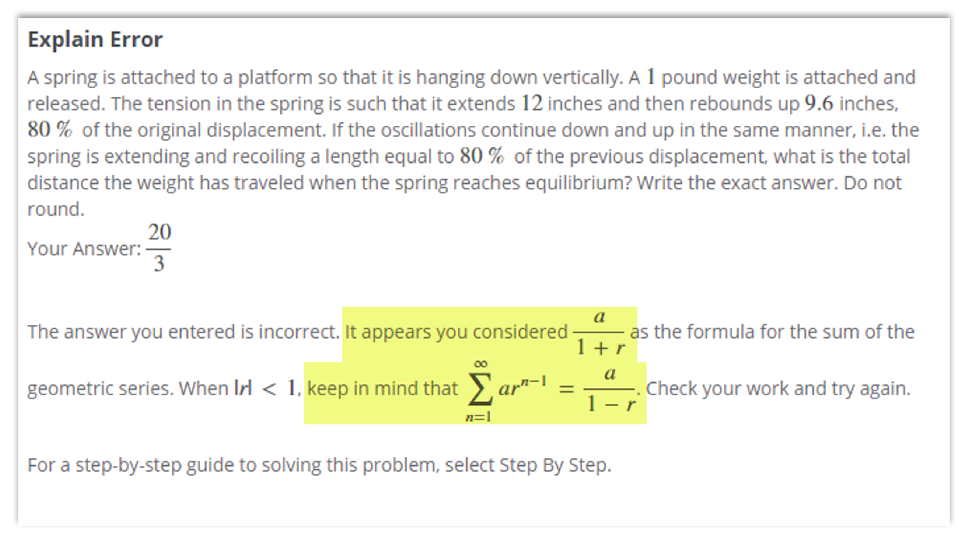
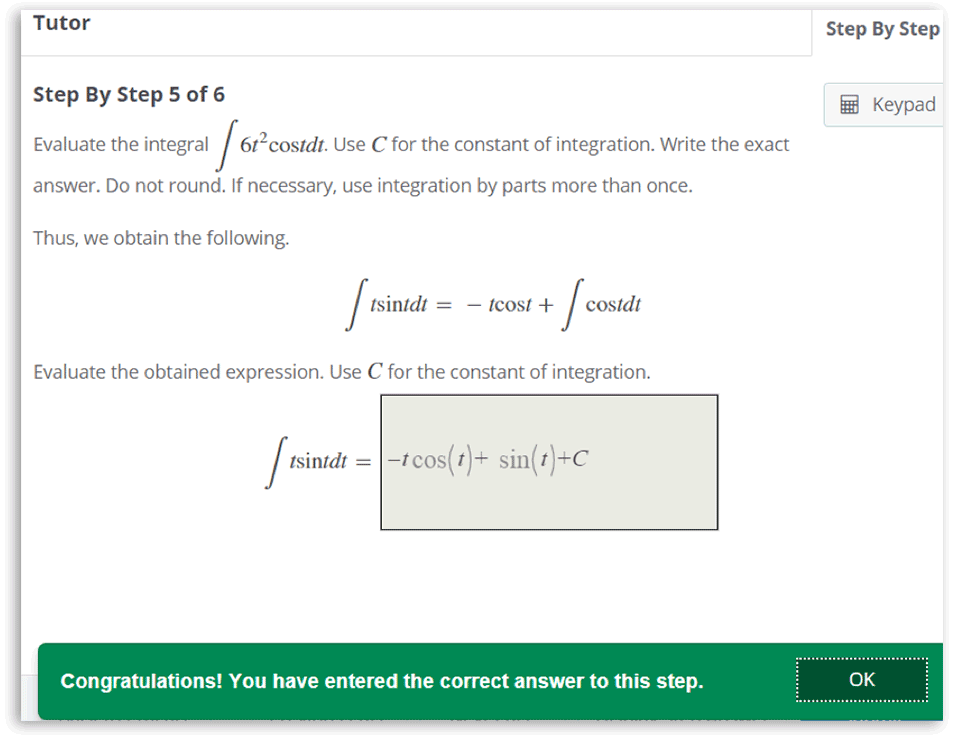
As a Hawkes Learning Student Ambassador, these are my top three favorite features within the Hawkes platform: 1. Explain Error Encourages the use of critical thinking skills Tells you what to do instead of just telling you it is incorrect Provides hints needed to solve a problem Sometimes we just need a quick reminder of what we need to do to be able to work through a problem. That is exactly what the Explain Error feature is there for! I used Hawkes for a math class, which is obviously a subject that needs specific steps in order to complete problems correctly. The small hints provided by the Explain Error feature gave me the small push I needed to get to the final answer without completely giving away the solution. This feature helps students use their critical thinking skills to figure out where they are going wrong and what they need to correct in the future! 2. Step by Step Gives you the confidence you need to do problems by yourself in the future Makes you provide the correct answer before moving on Will act as an instructor if you cannot reach yours When the hints provided in the Explain Error feature are not enough, Hawkes provides the opportunity to walk through the problem in a step-by-step manner. To move on to the next step, the “Step By Step” feature requires you to provide the correct answer for the step that is currently being displayed. By using this feature, it allows the students to see exactly how to find the correct answer without skipping any steps. In the long run, this helps the students when it comes to tests and real-life application because they have the exact knowledge they need to do it by themselves! 3. AI Tutor Offers immediate assistance within the courseware Provides a safe way to use modern technology Will answer any questions you have about the problem AI has become a huge part of the world we live in, but it can be hard to trust it because we do not know where the information is coming from. With the new AI Tutor feature in Hawkes, you can trust the fact that the information you are getting is accurate and pulled directly from Hawkes itself. This feature gives students a unique, safe way of being able to ask questions that will help lead them in the correct direction. The students are able to ask this tutor anything they need that is even remotely related to the problem and get an instantaneous answer. Meet the Author Piper Kinder is a freshman at Ball State University in Indiana who is currently studying Radiography. Next year, she will be at the IU Health Methodist Hospital in Indianapolis to complete her clinicals. After her graduation in August of 2026, she plans to work as a medical imaging professional in X-ray, CT, and MRI. When she is not busy with school, Piper enjoys spending her time with family and friends and working out! Student Ambassador Internship
![]()
March 28, 2025
As a Hawkes Learning Student Ambassador, these are my top three favorite...
Read More
Today’s educators face unprecedented challenges: growing class sizes that limit individual attention, increasingly diverse student needs, and limited office hours that can’t accommodate everyone. Imagine having a dedicated team of teaching assistants and tutors available 24/7 for every student. Not just any tutors, but ones that never tire, never judge, and always offer consistent, accurate assistance aligned with your course materials. This isn’t just a hypothetical scenario, it’s happening now with Hawkes Learning’s cutting-edge learning duo: Explain Error and AI Tutor. Meet Hawkes’ Personal Tutors Explain Error “I’ve used many of these types of online courses. This is the only one I actually like, because it explains WHY your answers are wrong and how to get the right one.” – Tera K., Student at Morehead State University Explain Error goes beyond merely identifying incorrect answers; it intelligently guides students through their mistakes, helping them understand how to reach the correct solutions. This first-of-its-kind feature offers: Immediate, error-specific feedback when students make mistakes. Personalized guidance that mimics the support typically available only during office hours. Insights into not just what went wrong, but why, fostering a deeper understanding. Preventative remediation that addresses misconceptions at their source, helping to correct errors before students commit them to memory and avoid common pitfalls in the future. AI Tutor “My favorite part of the new AI feature is that it never gives the students the answer. Instead, it forces the students to work through their confusion, mistakes, and misconceptions, and helps them to arrive at the right answer on their own. “ – Rebecca Snider, Instructor at Savannah Technical College Working alongside Explain Error and taking personalized learning to the next level, AI Tutor engages students in thoughtful, student-led conversations within a responsible and secure environment. Here, students can freely ask questions related to course material without the fear of judgment or encountering unhelpful information. Unlike other generative AI tools, this proprietary system: Draws exclusively from vetted Hawkes instructional content Delivers real-time, contextualized support Encourages critical thinking through guided conversations Creates a safe, contained learning environment that not only prevents academic dishonesty but also safeguards personal data The Future of Educational Support As education continues to evolve, tools like Explain Error and AI Tutor represent the future of learning support. They don’t replace educators – they enhance their ability to provide quality education at scale. By handling routine explanations and providing personalized support, these tools allow instructors to focus on what they do best: inspiring students and facilitating deeper learning experiences. Want to see these revolutionary tools in action? Hawkes Learning offers free demo accounts for educators to experience firsthand how these tools can transform their teaching. Step into your students’ shoes and discover the power of personalized, AI-enhanced learning support.
![]()
January 28, 2025
Today’s educators face unprecedented challenges: growing class sizes that limit...
Read More
When I first experienced the AI Tutor tool, I was very impressed by its interactive design and ease of use. It felt like having access to my own personal tutor available 24/7 to help guide me through challenging concepts and questions. It gave me confidence to ask questions in order to get clarification on a specific topic. I was curious to see how well it would assist in providing feedback and explanations. It certainly did not fall short of my expectations. I believe the most helpful aspect of the AI Tutor tool is its ability to provide immediate, personalized feedback to complex inquiries. Instead of emailing a professor back and forth or waiting for a response, a student can receive guidance and clarification in real time. This will be especially beneficial when working on assignments or preparing for exams because it enables the student to understand the task at hand and move onto the next topic without remaining stuck. The AI Tutor tool will significantly enhance students’ learning experiences in their Hawkes Learning classes by offering individualized support. It can explain in detail complex material in simpler terms, provide breakdowns of step-by-step solutions, and challenge students to think critically about the course material. "This kind of interaction promotes independent learning, helping students to build their confidence and deepen their understanding of the content of the course." Meet the Author Lauren is a freshman Nursing major at Nassau Community College, where she maintains a 3.9 GPA and a spot on the Dean’s List. She aspires to one day become a Psychiatric Nurse Practitioner specializing in mental health. Her favorite classes are psychology and English. She is proud to serve as Treasurer of the ASAP (Advancing Success in Associate Pathways) program at NCC. While she does occasionally enjoy a good Netflix binge, her true loves are reading, poetry, and audiobooks. Lauren has a three-year-old pitbull, Luna, who loves to play and run, which keeps her active.
![]()
December 18, 2024
When I first experienced the AI Tutor tool, I was very impressed by its...
Read More
Today’s college students face a wide variety of challenges, both academically and personally, that can hinder their academic success. From struggling to grasp complex subject matter to general feelings of being overwhelmed by the demands of college life, many learners find themselves just scraping by, particularly in introductory-level courses, rather than truly thriving. To help address this need, a fresh pedagogical approach is necessary- one that puts the individualized needs of students at the center of instruction and provides the tools and support they need to take an active role in their own learning journeys. Diagnostics-Driven Instruction One major component of this student-centric model is the use of robust diagnostics. By assessing students’ strengths, weaknesses, and knowledge gaps, educators can develop personalized learning plans that target their specific areas of need. This data-driven approach ensures that instruction is tailored to each individual, rather than taking a one-size-fits-all approach. Maximizing Efficiency Diagnostic insights provided by innovative learning platforms can help optimize the educational experience for both students and faculty. By allowing students to identify and focus on their areas of weakness, diagnostic tools enable them to maximize the impact of their study time. Automated diagnostics and grading capabilities also streamline administrative tasks, freeing up valuable time for true instruction and engagement. “The diagnostic abilities of Hawkes are a game changer.” For UofL, this feature saved them from grading over 1,000 pen and paper assessments each term, allowing them to devote more resources towards direct instruction and support. Read more about how the REACH program uses Hawkes in their award-winning Learning Center. Carrye Wilkins Associate Director of the REACH Learning Center at the University of Louisville Fostering Deep Understanding Rather than simply pushing students through the material, this pedagogical approach of basing instruction on diagnostic insights focuses on cultivating a deep, lasting understanding of the subject matter. By encouraging active engagement, critical thinking, and problem-solving, students develop the skills and knowledge they need to succeed, not just in the short term, but throughout their academic and professional careers. Embracing Innovation As the landscape of higher education continues to evolve, so too must the methods used to educate and support students. By embracing cutting-edge technologies, adaptive learning platforms, and data-driven insights, implementing a student-centric pedagogical approach with diagnostics and individualized instruction ensures that you can stay at the forefront of innovation, constantly evolving to meet the changing needs of today’s learners. Empowering Students to Succeed with Hawkes By placing individualized student needs at the center of the learning experience, this pedagogical model empowers learners to take charge of their educational journeys and position themselves for long-term success. Hawkes Learning has embraced this student-centric approach, seamlessly integrating robust diagnostic tools into their courseware. These tools help students identify and address their knowledge gaps in real-time, creating personalized learning paths right in their student dashboards. With this data-driven insight, learners can maximize the efficiency of their study time and gain true mastery of the material by clearing the clutter and allowing them to focus on the concepts they need to develop further. To see how Hawkes’ diagnostic capabilities and other student-centered features can help drive student success, submit this short contact form to connect and chat with a Hawkes expert.
![]()
August 27, 2024
Today’s college students face a wide variety of challenges, both academically...
Read More
Hawkes Learning, a pioneering educational technology provider, is pleased to announce the appointment of Kuljit Dharni as its new Chief Technology Officer (CTO), effective July 23, 2024. This strategic appointment reinforces Hawkes Learning’s position as a market leader in adaptive courseware and signals the company’s commitment to accelerating growth and innovation in the competitive EdTech landscape. With over 25 years of technology and leadership experience, Dharni has a proven track record of driving data-informed innovation and digital transformation across the education sector, spanning both EdTech companies and higher education institutions. Dharni has significant experience with major industry players, including leadership roles at Ellucian and McGraw Hill Education. Throughout his career, Dharni has held technology leadership roles, spearheading digital change at Harvard University and most recently as the CTO at Babson College. “Hawkes was founded on the key pillars of service, innovation, and pushing the boundaries of what is possible in EdTech. Kuljit’s extensive experience and future-focused approach align seamlessly with this continued vision, ensuring we remain at the forefront of educational innovation. We are growing rapidly in a space filled with old, tired print publishers who are struggling to remain relevant. Adding a digital leader like Kuljit to our team sets us up for even faster growth.” – Scott Virkler, CEO of Hawkes Learning Dharni’s appointment comes at a pivotal moment for Hawkes Learning and the educational technology sector, which is experiencing rapid advancements in personalized learning, AI-driven analytics, and cloud-based solutions. The global education technology market, estimated at USD 142.37 billion in 2023, is projected to grow at a compound annual growth rate (CAGR) of 13.4% from 2024 to 2030 (Source: Grand View Research, 2023). In this expanding landscape, Dharni’s expertise will play a crucial role in accelerating growth at Hawkes Learning. “I’m excited to build on the existing infrastructure at Hawkes to harness the transformative power of technology. I thrive on being able to directly improve learning solutions and being close to the customer.” – Kuljit Dharni As Hawkes Learning continues to advance its mastery-based software and integrates AI into the learning process, Dharni’s leadership will be instrumental in optimizing learning support and improving course outcomes for hundreds of thousands of higher education students annually. His strategic vision, coupled with the company’s commitment to remaining at the forefront of educational innovation, positions Hawkes Learning to deliver cutting-edge solutions in an ever-evolving digital landscape. About Hawkes Learning Partnering with the higher education community since 1979, Hawkes Learning has harnessed the transformative potential of technology to provide reliable course materials and exemplary service in the shared pursuit of student success. By combining student-centered innovation with AI-based tutoring and a proven, mastery learning approach, Hawkes cultivates an effective learning experience for students while simultaneously supporting educators. For more information, please visit www.hawkeslearning.com.
![]()
July 30, 2024
Hawkes Learning, a pioneering educational technology provider, is pleased to...
Read More
In the world of education, clarity is key. Whether you’re an educator crafting course materials or a student navigating through assignments, clear instructions can make all the difference. One often overlooked aspect of this clarity is specifying the number of correct answers expected for each question. Why is this so important? While these key benefits may seem small, implementing this practice across all your course materials can significantly enhance the learning process and improve outcomes. It’s a simple change that can yield substantial benefits for both educators and students. Providing Clarity: Clear instructions allow students to focus their efforts on addressing the content of the question. By eliminating ambiguity about the format or requirements, students can more confidently engage with the subject matter rather than second-guessing what’s expected of them. Minimizing Frustration: Ambiguous instructions can lead to unnecessary stress and wasted time. When students struggle to decipher expectations, they may become discouraged or disengage from the learning process. By clearly stating the number of correct answers required, educators can eliminate this source of frustration and create a smoother, more engaging learning experience. Optimizing Efficiency: With clear expectations and instructions, students can direct their energy toward understanding and answering the questions effectively, ensuring that they make the most out of their study time and engage meaningfully with the course material. For students, if you encounter a multiple-choice question that doesn’t specify the number of correct answers, or the instructions provided seem unclear, don’t hesitate to seek clarification. Understanding the expectations is the first step towards successfully demonstrating your knowledge. For educators developing course materials, consider reviewing your question banks and ensuring that each question clearly states what is expected in the student’s response including how many correct answers are required. By implementing this practice, we can create a more streamlined, less frustrating, and ultimately more productive educational environment for all. Hawkes has taken the initiative to implement this practice across our own question banks. Watch this quick video to learn more. Interested in implementing the student-friendly courseware in your own courses? Request a software demo to learn more about how Hawkes intelligently adapts to students needs while simultaneously simplifying course management for instructors.
![]()
July 25, 2024
In the world of education, clarity is key. Whether you’re an educator crafting...
Read More
A guest blog by Student Ambassador Molly Linck, University of Mississippi When I started my first college math course, I was a little nervous about how well I would learn in such a big classroom without any one-on-one time with my professor. But when I first started using Hawkes to do my homework, I instantly realized I had more access to learning materials than ever before. As a Hawkes Ambassador at the University of Mississippi, I want to tell you about some ways you can utilize Hawkes to make the most out of your study time. Practice Makes Perfect The Hawkes Practice Mode is a great way to solidify your understanding of the material before moving on to Certify. Practice features a Tutor mode which can either give you an example problem with a hint, or even a full step-by-step answer to the solution if needed. Utilizing the Practice mode can ensure you fully understand the material and how to complete the problems step-by-step before going into Certify mode. Watch the Videos In Learn mode, Hawkes offers lessons on the topic you’re studying along with an instructional video on how to do the problems. These videos can be very helpful for those times where you don’t remember some parts of your professor’s lesson or you just need a little refresher. Sometimes it’s easiest to watch a video explaining the topic, and this is when the instructional videos are perfect. Take a Practice Test The Practice Test feature, found under the WebTest section, can help you test your knowledge before an upcoming test. By creating a Practice Test, choose which topics you would like to practice, and Hawkes will do the rest in creating the test. Taking Practice Tests until you’ve mastered them can help ensure you know all of the materials and are ready to go on test day! About the Writer Molly Linck is a Hawkes Learning Student Ambassador from the University of Mississippi. Learn more about Hawkes’ Student Ambassador Program here.
![]()
July 22, 2024
A guest blog by Student Ambassador Molly Linck, University of Mississippi When...
Read More
Embarking on my educational journey with Hawkes has been a game-changer, and I’m excited to share my observations about the features of this courseware that have been crucial to my success in the classroom. As a committed user of the platform and Hawkes Student Ambassador, I’ve had the honor of delving into several platform features that have improved my educational experience. The Practice Test feature has been a game-changer in my exam preparation. I was able to recreate actual exam settings and identify my areas of weakness by customizing practice exams. This feature helped me feel less nervous about the test and gave me significant guidance about what to focus on during my study sessions. The Learn mode and Practice mode are two more intriguing features that have helped me to solidify my grasp of the course material. Practice mode provided limitless application possibilities, while Learn mode allowed for in-depth topic reviews. I was able to review difficult ideas at my own pace because of the flexible and encouraging learning environment that was created by the inclusion of options like Skip and Tutor in Practice. I believe in staying organized and that is the key to academic success, and the notification feature on Hawkes proved to be a reliable companion. Because it highlighted important tasks according to their due dates, it helped me stay on track. This function helped me organize my time so that I never missed a deadline and continued to be proactive with my academics. Hawkes provides more than study materials. The Practice Tests provide personalized performance overview charts, displaying an all-encompassing assessment of my progress. Additionally, after each Certify session, a Certify Review would provide a visual picture of my performance and opportunity to review my question attempts. By examining these resources, I was able to spot patterns and concentrate on the areas that need more care, which enabled me to make improvements over time. These particular aspects of the platform have been crucial to my academic success, and my experience with Hawkes has been transforming. My overall learning experience has been enhanced by the platform’s dedication to customization and flexibility, while also providing me with the resources I need to succeed. Looking back on my academic journey, I can see that Hawkes has been a dependable teacher who has helped me achieve academic success. I am excited to share my success with fellow students and encourage them to leverage these features for their academic wins. "Hawkes has been a dependable teacher who has helped me achieve academic success." Meet the Author: Lakshmi Nikhitha Tellakula, an MBA student at the University of North Texas specializing in Business Analytics, is recognized for her unique blend of analytical prowess and business acumen. With a focus on enhancing student experiences through data-driven insights, she aspires to become a senior business analyst post-graduation. Actively engaged in campus activities such as the Asian Student Association, and Public Relations Club, and serving as a Volunteer Social Media Coordinator, she demonstrates dedication to both academic and extracurricular excellence. In her leisure time, she finds enjoyment in playing chess and badminton, reflecting her varied interests. Lakshmi served as a Hawkes Student Ambassador throughout the spring 2024 semester. If you’re interested in learning more about Hawkes Learning’s Student Ambassador Internship Program, please click below: Hawkes Student Ambassador Internship
![]()
June 28, 2024
Embarking on my educational journey with Hawkes has been a game-changer, and...
Read More
Faculty often have many roles at their university. We serve on committees, maintain office hours, perform volunteer work, attend graduations, conduct research, do a hundred other unnamed things, and sometimes we teach. Given the plethora of roles that we have at our universities, many of us doggedly seek out anything that can remove some of the administrivia from our calling. As a full-time professor and part-time course coordinator for Introduction to Psychology at my university, I am responsible for setting up and overseeing multiple sections of a course that is taught by a legion of invaluable instructors. Hawkes Learning makes the tasks related to coordinating these course sections simple, straightforward, and swift. Getting a course up and running in Hawkes is simple. You set up the class on the Hawkes Learning website and then link it to your learning management system via a few straightforward steps. First, you choose your eTextbook. Second, you create your Master Shell for the course. Third, you add the specific details for that term such as due dates, assignments, and values. Once your Master Shell is the way you like it, you can add instructors with a few clicks and assign them to duplicate sections of your Master Shell; this is especially convenient when you are asked to set up a new section 48 hours before the term starts. Finally, if you are using Blackboard like me, you can go into each instructor’s Blackboard page and connect their section to their Hawkes Learning course for them. This is exceptionally useful if you want to ensure all the instructors have their Hawkes Learning materials linked with their Blackboard course pages on day one. Whereas the first-time setup can be done swiftly, my favorite part about the Hawkes Learning platform is how easy it is to clone a course. The simplicity of the cloning process keeps you from having to reinvent the wheel (or in this case, Master Shell) each term. It is as simple as making a copy of the Master Shell from a previous term and shifting the dates. Bellevue University is on a trimester system, which means I am making duplicates of my Master Shell multiple times each year. Having used many other platforms for managing Introduction to Psychology classes, I have stuck with Hawkes Learning in part because this platform is by far the most straightforward and simplest to use. Case and point, it takes me less than half an hour to set up seven or eight sections each term. “My favorite part about the Hawkes Learning platform is how easy it is to clone a course.” I believe using the Hawkes Learning platform to coordinate multiple sections of a course is simple, straightforward, and swift. However, I would be remiss if I did not emphatically state that Hawkes Learning has an exceptional support team that is readily available, should you run into technical difficulties. With regular workshops, first-time setup camps, and lightning-fast support, troubleshooting assistance is a simple phone call or email away. The Introduction to Psychology textbook landscape is an embarrassment of riches. Nevertheless, Hawkes Learning is peerless in terms of technical and student support. Both in my personal experience and in the feedback I receive from my instructors and students, Hawkes Learning’s support team consistently comes through. So, if you are like many other faculty and course coordinators who are trying to find a way to make just one of your roles more manageable, consider Hawkes Learning for your next eTextbook. Hawkes Learning has the platform and the support you have been looking for. Having used many other platforms for managing Introduction to Psychology classes, I have stuck with Hawkes Learning in part because this platform is by far the most straightforward and simplest to use. Case and point, it takes me less than half an hour to set up seven or eight sections each term. Dr. Jerome Lewis About the Writer Dr. Jerome Lewis is an Associate Professor in Psychology at Bellevue University. His research focuses on the victim role and the psychology of morality. Dr. Lewis has a keen interest in service and the teaching of psychology. In 2022, he received BU’s Excellence in Service Award.
![]()
April 12, 2024
Faculty often have many roles at their university. We serve on committees,...
Read More
There are many aspects of Hawkes Learning that I could label as my favorite. Philosophically, I dig the mastery-based approach to math education. Practically, my students overwhelmingly report loving the preparation that creating a Practice Test allows them. But lately, I have been exploring student choice and rubric-based grading when utilizing the section and chapter projects that are embedded in the Hawkes Learning math curriculum. Our institution offers four math pathways to satisfy the general education math requirement of various degree programs: Quantitative Reasoning, Elementary Statistics, Functions and Modeling, and Precalculus for Engineering/Computer Science. Since navigating to this structure approximately five years ago, our focus has been to provide relevant and practical mathematical scenarios for students in each pathway as related to their degree program and ultimately their career. Subsequently, I have integrated problem-based learning into my instruction and have appreciated the discourse that is an organic byproduct of this practice. Student engagement is apparent both online as students use a discussion board to reflect and give feedback on their problem-solving processes/solutions and also in the traditional face-to-face courses as classroom conversations abound, reflecting on the project scenarios. With the recently adopted new edition of Viewing Life Mathematically, the addition of projects for each section got my instructional wheels turning. While I utilize some of these brief problem-solving scenarios to activate prior knowledge during instruction or a summative activity after teaching a particular section’s concepts, I started exploring student choice as I presented several varying projects for students to utilize at the end of each chapter to assess their understanding. I would draw from the Viewing Life Mathematically section and chapter projects but also from other Hawkes texts, and even created a few of my own! The results of a quick and painless instructional shift were quite astounding. The completion rate of projects in both my online and face-to-face courses increased drastically as students were more engaged in the activity, given they had a chance to choose an assignment that more closely aligned with their interest or degree/career goals. Since this outcome was my intent, I was encouraged but not surprised by the result of integrating student choice into an instructional practice in place. What did come as an astonishment was the connection between peers that I witnessed as students began to share with their classmates regarding their prior knowledge on the topic and/or how they planned to use these skills later in their education or career. These discussions happened face-to-face in the classroom conversations and online on discussion boards. I am still unsure if this increase in meaningful dialogue was a byproduct of the students’ overall engagement in the activity or because they felt more autonomy in the coursework given they had a choice in which how to provide evidence of their knowledge of the chapters’ concepts. Either way, I was sold! Student choice in projects/performance assessments is the way to go! Student choice in projects and performance assessments is the way to go! The biggest challenge with these types of assignments, quite arguably though, would be the grading. It takes time, especially when you are differing the assignment, and can be difficult to grade objectively given there are sometimes multiple ways to approach the project. With the integration of student choice into this instructional practice, I decided that a rubric grading system was the most systematic way to evaluate students’ projects and provide constructive commentary. Although the practice itself varied by course modality, the use of a rubric grading system enabled me to efficiently provide meaningful feedback to students while objectively formulating a grade for their project. Photo by Tirachard Kumtanom on Pexels.com I introduced this practice in my face-to-face class by allowing students to self-assess their first project using the rubric I had created. Ironically, they were more critical than I probably would have been with their evaluation, but I did encourage students to revise their project and then regrade considering their own feedback they had provided on the rubric. This activity not only increased students’ ownership in the product but also in our overall classroom procedure. I was able to gather valuable feedback from students on the rubric and made some revisions before utilizing it for the next project based on their observations. In my online course, I garnered the courage to finally try out the rubric tool in our LMS. Several instructors in our Language Arts Division had been bragging about the tool’s capabilities, but I had not determined how to put it to use in my course yet. With a quick YouTube tutorial and about an hour’s worth of work manipulating the point scale, it was all set up! Although I had been giving students broad commentary on their overall project to this point, now I was able to give students specific feedback on the various aspects of the product they had uploaded. It was a much more efficient and purposeful way to grade the assignment once I had the rubric created. Since I can track if and when feedback is read, I was excited to see more students reading the feedback on their assignment, and many even reached out to me to answer the follow-up questions I had provided as a part of the feedback. Now, students were also making more connections with me as the instructor through the grading process after further engaging with their peers during the project itself. As a part of our institution’s math pathways philosophy, our focus is to provide relevant situations that help students utilize the concepts they are being taught experientially. Through the implementation of problem-based scenarios and a structured, specific critique, students should walk away from their general education math courses with increased confidence in the math concepts acquired/refined but also in the fundamental life skills acquired as well. Meet the Author Professor Emily Carpenter has been an educator for over 15 years with experience ranging from early childhood education to higher education. Most recently, she has had the privilege of teaching various math courses at Seminole State College (SSC) in rural Oklahoma where she also serves as the Transitional Math Coordinator. With a master’s degree from Oklahoma State University in special education, she is passionate about the exciting transition to corequisite classes as SSC continues to strive to provide rigor yet equity in their mathematics courses. Professor Carpenter serves as a helpful resource to new Hawkes instructors as a Hawkes Faculty Consultant. Learn more about Professor Carpenter here in her Hawkes Instructor Spotlight.
![]()
April 3, 2024
There are many aspects of Hawkes Learning that I could label as my favorite....
Read More
For many years in my 1101-1102 first-year writing courses, I have assigned the Hawkes Learning courseware to remediate grammar and mechanics and to complement manuscript and research content. In 2015, I met with a group of unusually weak writers; although nice people with a sketchy familiarity with the essay format, none brought basic editing skills to the class, not to mention any general awareness of grammar or mechanics. They wrote on autopilot; well, everything they did seemed conducted in a haphazard, inattentive manner. Their failure to meet deadlines or work independently also suggested a lack of personal responsibility and an inability to listen to or follow instructions. And yet they showed up regularly for class. After a panicky review of all the support available through the publishers, I chose Hawkes to supplement my course at first because I liked The Reading and Writing Handbook, a well-selected collection of focused information presented in a simple, direct, well-designed format. As I reviewed the Hawkes courseware and the accompanying books, I particularly liked the editors’ recognition that proficient writing reflects reading skills, and reading skills inform the quality of skillful writing. It seemed to me that the approach in both Foundations of English and English Composition would be accessible at every skill level, but also to at-risk students. Best of all, I could quickly integrate the materials with no changes to my existing syllabus. From my first attempts to implement the materials, I enjoyed excellent support from Hawkes representatives, making the set up and the first attempt in a class painless. To my surprise, these first-year students were amenable to the lessons and quizzes probably because Hawkes’ homework formatting was more familiar than with the more speculative kinds of writing prompts that they were preparing for class. From the first weeks, the format worked very well, and positive results were at once evident in their work. I have made very few changes since that first attempt. Along with a reader, I require 1101-1102 students to buy the Hawkes software bundled with the Handbook. For a more in-depth look at the materials the students have access to, the eBook for English Composition that goes with the “Compositions” lessons is included in the software. To motivate the students and encourage self-motivation, I set the Hawkes average as 25% of the final course grade. The general format is simple: each week I assign 5-6 lessons from a selection of chapters and topics and a quiz, about 45 minutes or less to completion. I have never needed to set late penalties for the lessons. With an email request, I make all quizzes available until the student is satisfied with the grade. I realized assigning a little at a time and spreading out the topics, I could keep their attention on general and specific editing details without much comment in class. For example, a week’s lessons from English Composition involve only five questions for each of the six topics doled out week by week as the paper process develops. While getting the paper started, the week’s six lessons could be drawn from Chapter 3.1, 2 “Writing Process” [pre-writing, drafting, etc.], Chapter 4.2, 3 “Parts of the Essay” [introduction, thesis], Chapter 5.4 “Reading & Rhetoric” [understanding purpose], and Chapter 9.2 “Basics of Grammar & Mechanics” [characteristics of a sentence]. For me, planning involves only a weekly setup. I usually post on Fridays for the following week’s Monday to Sunday night due dates. The entire process of setting up the curriculum, the due dates, and the weekly quiz takes me about 20 minutes. For me, there has been no downside. Each semester I have seen positive results and enjoyed collaborating with my colleagues at Hawkes! Dr. Stephen Whited Assignments vary according to my syllabus for content expectations and class discussions, developing in complexity as we move through the semester. By the conclusion of the course, they have moved through all chapters and nearly all topics. Hawkes’ excellent range of diagnostic reporting and analytics makes monitoring for “Outcomes” amazingly easy. I usually assign a low-stakes diagnostic quiz in the first week of class, and I add a post-course quiz to the final exam as a warm-up for the final writing sample, which I compare with the in-class midterm. In every class, I can point to data that suggests improvement for most students. About the Writer Dr. Stephen Whited has taught at Piedmont University in Demorest, Georgia, for 30 years. He studied at Georgia State University, where he earned his bachelor’s and master’s degrees, and he earned his doctorate at the University of Kentucky. Stephen’s dedication to teaching leaves a lasting impact on his students, reflecting his ultimate goal of nurturing young minds and creating lasting impressions. Stephen also serves as a resource to other instructors as a Hawkes Faculty Consultant. Outside of the classroom, Stephen enjoys poetry, art, music, theology, philosophy, and history. Stephen and his wife, Jo, have two children. Learn more about Stephen in his Hawkes Instructor Spotlight here.
![]()
March 27, 2024
For many years in my 1101-1102 first-year writing courses, I have assigned the...
Read More
We recently received valuable feedback from Doris Bennett, a respected member of the educational community at Jacksonville State University. Doris has had a profound experience with Hawkes Learning and our Mastery approach, prompting us to showcase her insights on our blog and social media platforms. With her gracious permission, we’re excited to provide a glimpse into her educational journey with us. Mastery-Based Learning: A Pragmatic Approach Doris emphasized the significance of Mastery-based learning in the realm of economics. According to her, “almost everything students learn is important for understanding later in studying economics.” She values the Hawkes system’s allowance for multiple attempts in the Practice and Certify phases, enabling students to refine their skills until they achieve proficiency. This approach empowers students to earn the grades they aspire to, contingent upon their commitment to mastering the subject matter. Student Perspective: Fostering Comprehensive Understanding From a student’s standpoint, Mastery-based learning ensures a thorough grasp of topics before moving forward. Doris underscores the essential nature of a solid foundation in subjects like economics, emphasizing its role in comprehending subsequent topics and applying newly acquired concepts to diverse situations. Learn Mode: A Holistic Learning Environment Doris shed light on the Learn mode, an invaluable resource for both online and in-person courses. This feature significantly aids students in successfully navigating Practice modes and, ultimately, the Certify mode, shaping their lesson grades. To enhance the learning experience, Doris encourages students to utilize interactive elements such as ‘On Your Own’ and ‘Reflection Questions’, ‘Work it Out’, and ‘Quizlet’. She also recommends exploring ‘Further Resources’ for additional lesson information. Mastery Approach: Meeting Student Needs Doris addresses potential student resistance to the Mastery approach with a positive response. She joyfully shares unsolicited positive comments from her students, highlighting their appreciation for the ability to fully grasp crucial concepts before moving forward. This approach makes a substantial difference in their educational journey, particularly in the field of economics. We extend our sincere gratitude to Doris for sharing her experience with our Mastery approach at Hawkes Learning. It’s truly gratifying to know that our educational tools play a significant role in enhancing the lives of educators and students alike. When I started in 1974 classes were all lectures in the classroom on chalkboards. A university had one computer, the size of a large classroom. We wrote programs on punch cards to solve statistics problems. Now we each have our own laptop with adaptive learning courseware. What a long, wonderful trip it’s been. —Professor Doris Bennett
![]()
March 20, 2024
We recently received valuable feedback from Doris Bennett, a respected member...
Read More
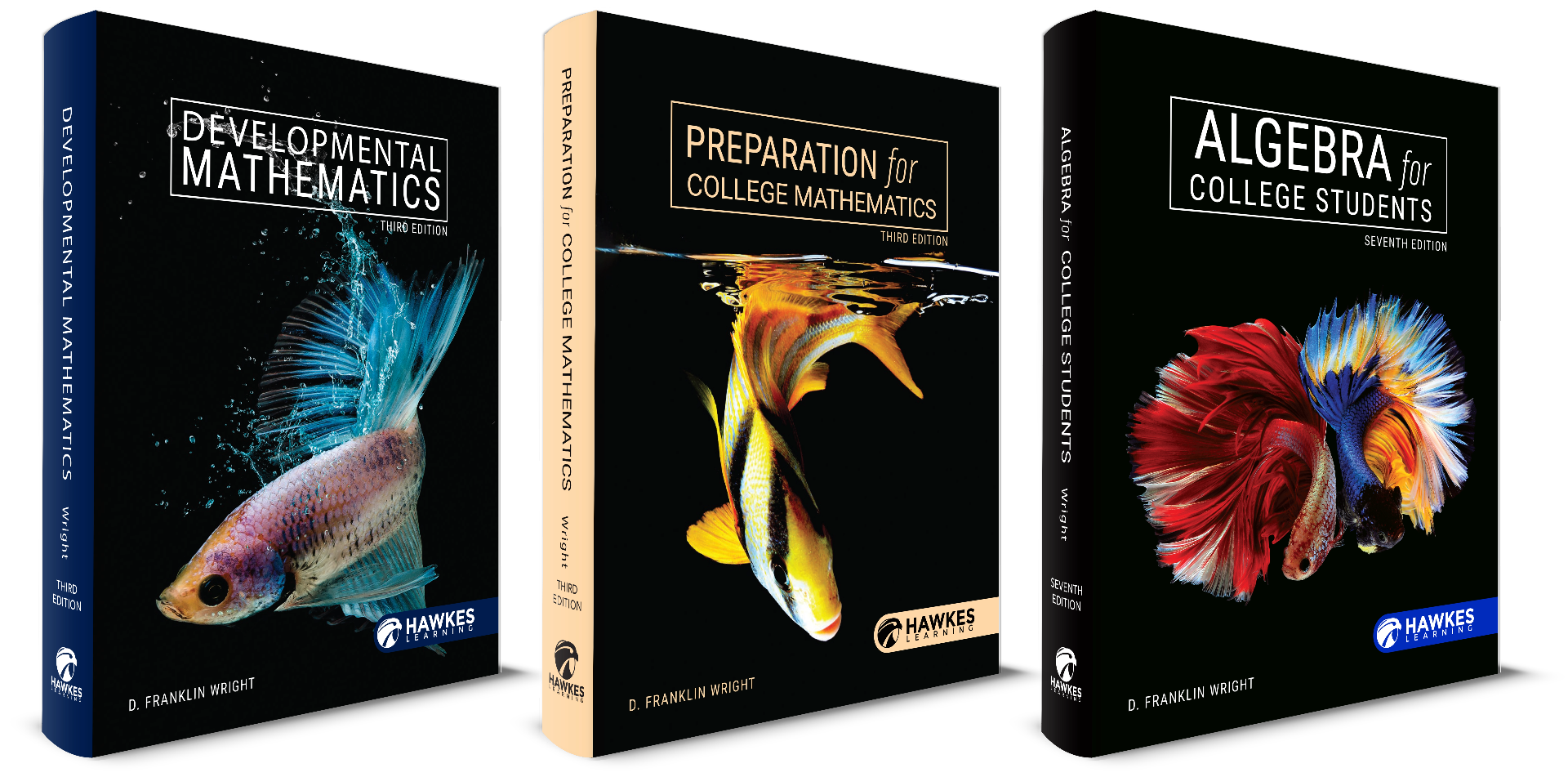
In math education, there’s a paradigm shift happening—one that is centered around understanding and engaging students in a way that makes sense to them rather than assuming a one-size-fits-all approach. Traditional materials can often feel like a foreign language, filled with complex symbols and abstract ideas. But what if course materials were designed to be more than just a manual of theories and formulas? The latest editions of Developmental Mathematics, Preparation for College Mathematics, and Algebra for College Students are designed to enhance the way mathematics is both taught and learned. From practical application-based projects to user-friendly layouts, these titles focus on creating a learning environment where math becomes a subject students can comprehend and, dare we say, even enjoy. Real-World Application-Based Projects: Move beyond theoretical concepts by incorporating real-world application-based projects that ground mathematical ideas in practical scenarios and provide an engaging and enriched learning experience. Click here to access 36 of these math projects, completely free! User-Friendly Layout: Simplify teaching and enhance learning with the eBook’s user-friendly layout integrated seamlessly into the software’s Learn mode. The platform’s intuitive interface is created with WCAG accessibility in mind, ensuring an enriched instructional experience for increased engagement and comprehension for all students. Extensive Exercise Sets and Custom Question Builder: Extensive exercise sets in the book, supplemented by a robust question bank in the software, offer a plethora of practice. Each lesson features diverse exercise types such as Fill-in-the-blank Concept Checks, True/False Question Concept Checks, Practice Questions, Applications, and Writing & Thinking, to enhance your teaching while simultaneously catering practice to individual learning styles. Beyond that, our custom Question Builder tool in the courseware empowers instructors to provide personalized assessments tailored to the unique needs of their class and assess knowledge in a more specific, targeted way. Watch this 15-minute webinar with Professor Nathaniel Raak of Mitchell Technical Institute to hear about his experience with using Hawkes’ content authoring tool in his courses. Approachable Language: Written in an approachable tone and presented in more digestible chunks, the textbooks break down algebraic concepts into easily understandable segments. This student-centric approach promotes a more accessible and enjoyable learning experience, fostering increased comprehension and retention. Updated Content with Real-World Relevance: These new editions (published 2023) include recent content and examples with real-world relevance, ensuring that students not only grasp mathematical concepts but also make meaningful connections to the world around them. Keeping the content current and relatable enhances students’ ability to apply their knowledge beyond the classroom. At the end of the day, the hope is that students leave their developmental-level math courses with a level of mastery to support their further educational goals and essential mathematical skills. We’re not promising a magic solution, but rather a shift in perspective—a move towards making mathematics more accessible, more relatable, and perhaps a little more enjoyable for both educators and students alike. Get A Free Textbook
![]()
February 5, 2024
In math education, there’s a paradigm shift happening—one that is centered...
Read More
This whitepaper can help! Navigating the digital courseware landscape can feel like a maze of details where you may feel unsure of where to even begin. To help you identify some essential factors for consideration when reviewing new materials, we’re excited to share this strategic (and free!) whitepaper authored by Michael Feldstein, Chief Accountability Officer of e-Literate, “The Common Sense Guide to Courseware Selection.” This whitepaper isn’t just another opinion piece; it distills the complexities of materials selection into a strategic guide, spotlighting what’s truly important when choosing not just a product, but a partner in education. 6 Key Considerations: Thinking Big Picture Alignment with Your Own Approach Evaluating Your Invisible Workload Flexibility Is King Supplemental Features vs. Needs Support When It Counts Check out the whitepaper here and get the free EdTech Evaluation Scoring Guide to help you make a data-driven decision for your courseware. Get the Free Whitepaper Get the Scoring Guide PDF & Excel Tool About the Author Michael Feldstein Chief Accountability Officer, e-Literate Michael Feldstein is a lifelong educator who has spent much of his career as an ambassador between educators and educational technologists. Best known for his eclectic writing on the e-Literate weblog, Michael’s equally eclectic career has taken him wherever he could find interesting problems to solve at the intersection of education and technology. He has been an administrator at the SUNY system serving the 64 campuses, product manager for Cengage MindTap in its early days, and product manager for Oracle designing better roster and grade integration between the Oracle’s Student Information System and LMSs. He also co-founded a start-up for courseware based on technology from Carnegie Mellon University. Most of his career, Michael has been a consultant to both universities and EdTech vendors, working with both to help educators and students get the most support they can out of their technology. Michael has also served in a variety of volunteer positions over the years, such as Advisory Board member for the University System of Maryland’s Kirwan Center and Board of Directors member for the Sakai Foundation.
![]()
January 30, 2024
This whitepaper can help! Navigating the digital courseware landscape can feel...
Read More
Discover the inspiring journey of Robert Hunt, a seasoned professor at the University of Mississippi, as we spotlight educators who are truly impacting their students’ lives at Hawkes Learning. Join us for an insightful interview where Robert reflects on his teaching experiences, navigates through challenges, and unveils the transformative role of technology in reshaping the modern classroom. *Interview responses have been lightly edited for content and clarity. How long have you been teaching, and how long have you been teaching with Hawkes? I started teaching as a grad student in the fall of 2002, and did that for a year. I was an adjunct professor in 2003, then full-time in 2004, and I’ve been here at Ole Miss ever since. I’m from Louisiana originally, but I came here and I really liked the lifestyle. Luckily, three positions became open after my adjunct year, and I managed to get one. As far as Hawkes goes, we were just using Statistics way back then. That was when you had the physical codes on the computer and it was offline! Eventually, we migrated to Hawkes with other classes, so I’ve probably been using it for 18 years. What is your favorite thing about the University of Mississippi? It’s a big school, but it still feels small. We have a smaller campus compared to some of the other southeastern universities, but here it’s compact. Even though you’ve got so many students, you’re close to everything. I don’t have to jump on a bus if I want to go to the physics building. It’s an easy walk. We’re always getting ranked as one of the most beautiful campuses in the country and there are tons of programs for young kids growing up. It’s been a great place for me! I’ll always be here. Do you have a secret to teaching? Or a most valuable lesson that you’ve learned in your teaching career? What I’ve learned is that different classes and different courses require different teaching styles. For example, when I’m teaching quantitative reasoning or even linear programming, I’m more hands-on. We do stuff in groups, and I walk around the room talking with people; I’m not just lecturing the whole time. Then, if I’m in a Business Calculus class, I find lecturing works well for that. So, it depends on what you’re teaching and the kind of students you have. What other structures and classroom setups have you tried? What have you found does work well and didn’t work out? You did touch on that already, but is there anything else you’d like to share? I’ve had traditional lectures and it’s okay, but most of my classes are what I’d call a hybrid. Normally, the classes meet for 150 minutes a week, but our classes meet for 100 minutes a week and then have another 50-minute component for homework and quizzes. We used to make them come to the lab but we don’t have enough space anymore, so we let them work from home on this section, so, it’s like a hybrid structure, and we get everything we need covered. And the students like it so – works for me! What would you say is the biggest challenge that students are facing today? Well, during COVID when the high schools were online, I don’t think a lot of them were taught very well. Of course, it was hard then, right? But now, we’re having a lot that come in, and they can’t factor. They can’t deal with fractions. There’s always been a little problem with that in the past, but since COVID, it’s a bigger problem! Hopefully, in a year or two, things will be a little bit back to normal, but that’s the biggest thing right now. What would you say is the biggest challenge that teachers are facing today? With inflation and everything – the tuition going up and the price of books going up – we seem to have more students who are having a hard time buying the materials for the course. Obviously, if they can’t buy the materials for the course that affects the teacher, too. We want to help them. At the same time, I can’t buy materials for everybody who can’t afford it. Hawkes is cheaper than basically every other company. Really, the only way we could make it cheaper is to do freeware or something and those are usually not very good. How do you engage and motivate underperforming students? Constant communication – every week. Also, one thing that’s different about my classes versus most is that we do flex mastery in Hawkes. However, I require 100% mastery so I don’t allow strikes. With 100% mastery, it forces them to look at all the questions and at least get it right once. I think that’s part of the reason our test grades are so good. I also use Hawkes’ Reporting tools when reviewing my sections. I really rely on the WebTest Summary Report and the Search by Criteria Report. I appreciate how I can choose certain parameters to quickly search through my sections in the Search by Criteria Report. I can look at assignment groups or specific assignments and see who’s completing it, who’s not, who’s logging in, and who’s not. I also use the certification status report. I check on that a good bit to see who’s doing the work. Can you tell me about a favorite breakthrough moment that you’ve experienced with a student? 10 years ago there was a student in my class who was not a math person, and he would tell you that. This was in my Quantitative Reasoning course which gives students basic overviews of different things in math that could help with everyday life. I saw him in the Walmart parking lot 3 or 4 years ago. He just thanked me so much for that class, because it was practical. I’m not saying we don’t need Algebra and Calculus, but for a lot of people, they just need the practical side of math – something that they will use. You know, the K-12 teachers always complain about students saying, how am I going to use this in real life? When a student comes back and says, “This really helped,” it feels good! I know that you’ve been teaching with Hawkes for a long time, and you’ve seen Hawkes evolve throughout the years. Can you tell me how your outlook toward technology in the classroom has evolved over time? I used to be against technology in the classroom. However, if you think about 15 years ago, there really wasn’t internet like we use it today! I’ve learned how technology can be useful to bring people together. For example, I can have my students use Hawkes or Desmos to graph certain things to visualize what we are learning versus me trying to draw a rough sketch on the board. There’s more interaction and movement. I used to have a hard time when we would do the limit definition of derivatives, trying to demonstrate the overall concept. Now they have these apps where you can show moving those points together and how the tangent line changes. So teaching is a lot more visual now; I’m all for using technology in a classroom. I Zoom every class, and I didn’t do that until COVID, but I liked it. So, even though I’m teaching in person, I’m still using Zoom. I can walk around the classroom now with a little tablet in my hand, and I can talk to students while showing them my tablet. I think technology’s done a lot more good than it’s done harm for teaching and for education. It’s also more helpful with the data review piece. As you can imagine, we were strictly relying on Excel spreadsheets before. Now, we have all these other tools we did not formerly have. We used to have to report to the Accreditation board – that used to all be on scantron machines! It’s a lot easier to go on Hawkes and pull up the item analysis right there. What led you to Hawkes and what keeps you back? Carolyn Warren was the first one to use Hawkes at Ole Miss. She wrote a Statistics book with Hawkes, and it just grew. We’re a Hawkes school, probably more than a lot of schools. When we were reviewing for the course, it was between Hawkes, Pearson, and another company for the Stats classes. We found that students who used Hawkes got much better on the final exam than all the other ones, so we kept using it, and then we started using Algebra and Business Calculus titles. Hawkes’ Customer Support is so far ahead of all these other education companies. It’s not even up for discussion. To me, it’s the support more than more than anything. That’s why I’m going to use Hawkes if it’s my choice. I’ve used a lot of Pearson in the past, too, and I’m not going to disparage them, but I like the setup of Hawkes. If I need something, or if I need your team to create a feature for me, I can ask you! Hawkes will actually think about it, and you do create a lot of them! Even if you don’t do it, at least you consider my suggestions. Nobody else is going to put the time into creating instructor-requested features. Do you have anything else to share about how the Hawkes mastery approach has really made a difference in your courses, and any other areas in the platform that have really helped your students the most? With Hawkes’ mastery, there is an expectation to master a certain percentage of the homework. With other companies, the students are graded with a raw score and they aren’t challenged to attempt the tougher questions of the lesson. With mastery-based learning, the students are forced to be exposed to all the question types in the lesson. My grades are great, so it seems that with this approach, there come higher expectations and more accountability. Students share in their evaluations that going through Hawkes’ Practice mode with step-by-step guidance really helps them. What are some of your interests outside of campus and in teaching? I’m married and have two kids, ages 10 and 12. I really value my family time! I enjoy sports, and I go to all the football games, plus a lot of baseball games. I go to as many basketball games as I can here on campus, too. My family and I really like traveling. We just went to Virginia and North Carolina over the summer. We took the kids to Williamsburg so they could explore some history. I love music and am big into classic rock but I like other genres, like the blues and old country, too. If you had a colleague, either at Ole Miss or at another school, who is considering using Hawkes in their courses, what advice would you share with them? I would sit them down and log in, and I show them everything. My old officemate at the University of Montevallo in Alabama has been using Hawkes now for about 4 or 5 years. He had a choice between Hawkes and Pearson and at his university. I told him, “Hawkes is going to have everything correct. It’s going to recognize student’s answers during the online answer entry process. Their tech support is great. It’s going be easy for the students to follow along.” Then I logged in, and I showed him the instructor side and the student side. If someone is considering Hawkes, I’ll sit down and show it to them! What would you like your students to take from their learning experience with you? Even if what we’re doing in class is something that you’re not going to be doing every day forever, there is a place for it. It is useful. It is needed. I tell my business students, “You might not ever take a derivative again, but you’re going to have to go talk to an analyst one day and you need to know what they’re talking about.” I always want them to realize that everything we do in math has a purpose, even if they don’t necessarily see that purpose yet. There’s a reason we’re giving it to you. We would like to thank Robert Hunt for sharing insights and experiences with Hawkes Learning. If you’re interested in sharing your own experiences with Hawkes Learning or if you have any questions, please don’t hesitate to reach out to us. We’d love to hear from you!
![Robert Hunt]()
December 6, 2023
Discover the inspiring journey of Robert Hunt, a seasoned professor at the...
Read More
In the ever-evolving landscape of educational materials, the latest editions of Developmental Mathematics, Preparation for College Mathematics, and Algebra for College Students have been improved to support today’s learners with expanded exercise sets, additional context, example- and lesson-level videos, and more. Let’s dive into the key enhancements that make these editions a valuable asset for both students and instructors. Developmental Mathematics, 3rd Edition & Preparation for College Mathematics, 3rd Edition Developmental Mathematics and Preparation for College Mathematics cover a wide breadth of introductory material from prealgebra to conic sections. Designed for use in a 2- or 3-semester course, this holistic approach offers potential cost savings by eliminating the need for multiple textbooks. Emphasis on Real-World Applications: In the latest editions, 700+ application-based software questions and 1600+ application-based textbook exercises work in conjunction with two projects in each chapter to bridge the gap between theoretical knowledge and practical math skills. 260+ NEW questions in the student software offer better coverage of course content Every lesson and example has corresponding videos in the student software, providing a visual aid to enhance comprehension. Every textbook example has a corresponding margin exercise to immediately test students’ understanding of what was taught in the example. Robust Exercise Sets: Over 10,000 textbook exercises offer ample opportunities for students to practice and master newly acquired skills. 10,236 exercises in Developmental Mathematics 10,277 exercises in Preparation for College Mathematics 100+ new side bars offer an improved student learning experience with additional information such as math tips, historical context, and more. Strategies for Academic Success: This chapter has been updated and restructured to emphasize time and stress management methods for success in a developmental math course with 6 lessons and 25 new software questions. Not sure the difference between these two titles? While the content covered in each of these developmental-level titles is essentially identical, the key differentiator between the two titles lies in the order of topics covered. Do you introduce integers early in the semester or later? When do you introduce equations and how to solve them? Based on questions like these, our Hawkes experts can match you with the title that best suits your teaching methods and course structure. Chat with a rep here. Algebra for College Students, 7th Edition This seventh edition offers a seamless transition from prealgebra to advanced algebra, ensuring that students build a rock-solid foundation for success in credit-bearing courses. This title is designed to help students progress through their coursework at an accelerated pace while prioritizing a comprehensive understanding of key concepts. Students don’t just scratch the surface, but master algebraic concepts and skills thanks to the following features: Strategies for Academic Success: A new addition to the seventh edition, this dedicated chapter equips students with valuable study skills, time management, and more. Emphasis on Applications: 2 NEW application projects for every chapter, enhancing the practical relevance of algebraic concepts. These projects engage students in practical problem-solving, fostering a deeper understanding of the material. 260+ NEW application-focused questions in the software question bank, highlighting the importance of applying concepts to real-world scenarios Every lesson and example has corresponding videos in the student software, providing a visual aid to enhance comprehension. Every textbook example has a corresponding margin exercise to immediately test students’ understanding of what was taught in the example. Robust Exercise Sets: With, 6,800 textbook exercises and nearly 3,000 unique software questions, (approximately 1,300 of which are new to this edition) Algebra for College Students provides ample practice opportunities. Intermediate Algebra Topics: As the highest level offering of the developmental algebra titles, Algebra for College Students introduces several topics that are not found in Developmental Mathematics or Preparation for College Mathematics including: Sets Determinants Sequences Series The Binomial Theorem Permutations Combinations All three of these new editions prioritize the application of mathematical concepts in real-world scenarios. With robust exercise sets, multimedia resources, and additional content, these textbooks are powerful tools that help students build a solid mathematical foundation and develop essential problem-solving skills. Interested in learning more? Request free exam materials today!
![]()
November 13, 2023
In the ever-evolving landscape of educational materials, the latest editions of...
Read More
In the vibrant field of biology education, providing resources that engage students, make the subject matter relevant, and help them build meaningful connections is essential. Embedded directly into the instructional content of Biology are 1,013 “Further Resources” with links to outside sources including events, research, TED Talks, instructional videos, studies, and more that help bridge the gap between course content and students’ daily experiences. We’ve handpicked a collection of these Further Resources from the text that serve as powerful educational tools, enhancing student engagement and cultivating an increased comprehension of biological concepts along with a quick guide incorporating them into your classroom. Understanding Soap’s Magic (Micelles) In the Classroom: Use this animation to explain how soap cleans hands through micelles. It’s a tangible example that connects chemistry and everyday life, making the concept of micelles more relatable to students. Resource : YouTube—ScienceWorld (2021) Pyruvate Dehydrogenase Demystified In the Classroom: Introduce the concept of pyruvate dehydrogenase with this video. It’s a great way to illustrate complex metabolic processes, making it easier for students to grasp. Resource: HHMI BioInteractive (2021) Neutrophils in Action In the Classroom: Show students the incredible process of neutrophils in action. It’s a visual demonstration of immune system function, making immunology more accessible. Resource : YouTube—Ninja Nerd (2021) River Otter Adaptations In the Classroom: Explore the adaptations of river otters, connecting ecological principles to the real world. Resource : YouTube—Texas Parks and Wildlife Education (2021) COVID-19 Vaccine Insights In the Classroom: Explore the science behind the COVID-19 vaccine, helping students understand the importance of vaccination in a global context. Resource: YouTube—Vaccine Makers Project (2021) Watch the Video Sickle Cell Anemia Exploration In the Classroom: Discuss sickle cell anemia as a case study. It’s an opportunity to explore the genetics and health disparities related to this condition, fostering discussions about diversity in biology. Resource: American Society of Hematology (2022) Learn More Algae’s Brain Connection In the Classroom: Delve into the cutting-edge research on algae and brain health. It’s an excellent example of how biology is at the forefront of scientific innovation, engaging students with real-world applications. Resource: ScienceDaily (2021) Learn More Arthropods Unveiled In the Classroom: Use the interactive lesson on arthropods to encourage hands-on exploration. It’s a valuable resource for understanding biodiversity and ecological interactions. Resource: Berkeley University of California (2021) Learn More Elephant Development Unveiled In the Classroom: Dive into the unique biology of elephants, sparking curiosity about evolutionary adaptations and reproduction. Resource: BBC Earth (2021) Learn More Breastmilk’s Antibody Power In the Classroom: Discuss the role of breastmilk in transmitting antibodies. This study can be a starting point for exploring immunology and maternal-infant health. Resource: eClinicalMedicine (2022) Learn More These resources offer additional opportunities to make the subject matter come alive in your classroom. They help students see the relevance of biology in their daily lives, building meaningful connections and sparking a deeper appreciation for the natural world. Explore an application-driven approach to introductory-level biology with our NEW Biology textbook, e-book & student software! Click here to explore the Table of Contents.
![]()
November 8, 2023
In the vibrant field of biology education, providing resources that engage...
Read More
As a Certified Instructor, Professor Brandon Ford of Navarro College has used Hawkes Learning for years and is a big proponent of our Mastery-based learning pedagogy. All homework and testing platforms are not built the same– Hawkes’ mastery approach can be challenging for students to adopt when they’re accustomed to being able to “turn in an incomplete assignment, make a 50 and move on” says Professor Ford. He explains Mastery-based learning like this, “You cannot learn without doing. You do not become the Quarterback for the Cowboys by simply stepping onto the field for the first time with a football. You must practice the skill to learn it. Math is no different. When I was in school, I would get a limited number of problems to practice and would be expected to learn the material (much like running a play 10 times and expected to have learned the play). Mastery-based ensures that you can practice an infinite number of problems with NO PENALTY! You can make mistakes, learn from them, and not lose points. You are offered unlimited attempts – something I wish I had when I was in school. As long as you complete the assignment by the deadline, it is a 100. Further, if you do well on the first part of the Certification, you don’t even have to complete every homework problem assigned.” Wondering how to explain Hawkes’ 3-mode “Learn, Practice, Certify” learning path to your students who are new to our Mastery-based approach? Professor Ford explains it like this: 1. Learn This is for if you do not understand my lecture or miss class. This offers a different way of presenting the information. If you struggle to understand my teaching style (or even just a particular lesson), Learn is for you! You can see examples, read the book (if reading is your learning style), or watch videos to help you understand the topics. These videos are closed-captioned for students with auditory disabilities. 2. Practice “The only way to learn mathematics is to do mathematics.” -Paul Halmos Practice is a way to “practice” problems with absolutely no penalty. Unlimited attempts, unlimited strikes, unlimited help. Practice allows you to send your instructor a copy of the problem for personalized videos, offer hints (to guide you to the answer without giving you the answer), or even give you a step-by-step walk-through. Practice is the perfect way to feel comfortable with the material. It is designed to build your confidence before “flying solo” in Certification. 3. Certify Certify is your homework. It’s a little like “Super Mario Brothers” – unlimited continues, but you only have a certain number of “lives”. Make sure you know what you are doing before jumping into Certify to reduce frustration. Can you go into Certify without Practice and Learn? Sure – but you are risking getting frustrated quickly. How many “Continues” do you use before stopping in “Super Mario Brothers”? While you can always replay the level, you will find more enjoyment if you aren’t frustrated. Once you hit Mastery, you can continue to work (with Navarro’s settings), or you can stop. By practicing (see above), you can shorten your actual homework (which gives you something to strive for).
![]()
February 3, 2023
As a Certified Instructor, Professor Brandon Ford of Navarro College has used...
Read More
Please see the instructions below for assistance setting up your desired Hawkes-compatible online proctoring solution. If you are interested in integrating Hawkes with any of these online proctoring services, please connect with your Customer Success Specialist or email instructorsupport@hawkeslearning.com. Respondus Monitor With Blackboard With Canvas With Brightspace by D2L With Moodle *Please note that we do not provide direct integration with Respondus Monitor. The directions below walk through a workaround that allows Hawkes tests to be accessed within Respondus Monitor should you be required to use it for remote testing. Please ensure that you carefully follow all setup instructions in order for testing to function correctly within your LMS and Respondus Monitor. Students will also need to closely follow the directions that you include in the LMS quiz to successfully submit the assignment in both Hawkes and their LMS. Examity With Blackboard With Canvas With Brightspace by D2L With Moodle ProctorU Auto How to set up ProctorU Auto with Blackboard. HonorLock – Requires Google Chrome View a detailed walk-through. Proctorio-Requires Google Chrome Link your LMS gradebook to Hawkes Create a quiz within your LMS Add one question to the LMS quiz that contains a link to Hawkes courseware through Deep Linking or Single Sign-On. The linked question can be as simple as “TRUE or FALSE: I completed my Hawkes Exam” Make sure that the Hawkes courseware opens in a new tab. If there is a setting for this, ensure that it is enabled. NOTE: Some LMS platforms allow you to create a question that does not require an answer Proctoring is ready at this point, and everything will submit properly as long as the student submits the LMS test. Note: Proctorio requires your students to take the proctored exam using a Google Chrome browser ProctorFree Link your LMS gradebook to Hawkes Create a quiz within your LMS Add one question to the LMS quiz that contains a link to Hawkes courseware through Deep Linking or Single Sign-On. The linked question can be as simple as “TRUE or FALSE: I completed my Hawkes Exam” Make sure that the Hawkes courseware opens in a new tab. If there is a setting for this, ensure that it is enabled. NOTE: Some LMS platforms allow you to create a question that does not require an answer 4. Proctoring is ready at this point, and everything will submit properly as long as the student submits the LMS test. BioSig-ID/Bio-Sight-ID Create a WebTest in Hawkes Link your Hawkes section to your LMS and create SSO/direct assignment links Create a quiz within your LMS Add one question to the LMS quiz that contains a link to Hawkes courseware through Deep Linking or Single Sign-On. Enter the following as your question text: Access the test in Hawkes using the following link, then navigate to your To Do list to take the [Exam Name] test in Hawkes: Click here to access Hawkes [add SSO or direct assignment link to italicized portion] Complete and submit your test in Hawkes Close the Hawkes tab to return to the LMS tab Answer this question and submit to finish 5. Finish creating your LMS quiz and enable BioSig-ID, BioSight-ID, etc 6. Proctoring is ready at this point, and everything will submit properly as long as the student submits the LMS test. Zoom (Free!) Schedule a meeting in Zoom. Have students join the meeting via provided meeting link. Once the Zoom meeting is live, select the Share Screen option at the bottom of the meeting window. From the drop-down menu, select Multiple participants can share simultaneously. Ensure that under Advanced Options, all participants can share their screen at all times, not just the host. 5. Have all students share their screen and begin proctoring. Zoom + Respondus Lockdown Browser Hawkes can whitelist programs running in the background while the Respondus Lockdown Browser is open for testing. Contact us to learn more about this functionality.
![]()
August 2, 2021
Please see the instructions below for assistance setting up your desired...
Read More
Online whiteboards can be an excellent tool to utilize as you navigate virtual and hybrid classrooms. They are interactive learning spaces that can be accessed from almost anywhere, whether on the computer, tablet, or even smart phone. Instructors need only share the board with their students, and everyone instantly has a real time display of notes, concepts, and other materials as they are shared. What’s more, many online whiteboard options allow you to save and/or download boards, providing additional study materials for your students to access during the course. However, no two online whiteboard programs are totally alike, whether in functionality or price. Since there are so many options to sort through, we’ve stepped in and done some research on our own! Below are 5 free online whiteboard options that you can try with your classes. Canvas Canvas is a great free option for those with a Google account. This Chrome application give you many customization options to expertly illustrate course concepts, even allowing you to upload images that you can then mark up during class time. Additionally, you can download boards (“drawings”) as images to pass along to students for use as study aids. If you’re looking for a basic online whiteboard option, give it a try! Jamboard* Jamboard is another Google application with a ton of features, including the ability to share boards with other Google accounts for real time collaboration! It’s completely free, and within the application, you can add sticky notes, text, images, doodles, and even utilize a laser pointer feature. This application is highly interactive, allowing you to add students to boards for more hands-on learning activities. Alternatively, you could choose to keep the board private and mark it up via a Zoom screenshare during class time, emailing PDF versions of that board to students for their reference. It is a truly customizable, versatile option to explore. *While Google does offer a physical, cloud-powered Jamboard hardware, you do not need to purchase it to use the application. The only features you lose with the application alone are handwriting and shape recognition. WhiteboardFox WhiteboardFox is a free online whiteboard tool that enables you to collaborate with others on the same board by simply sharing that whiteboard’s link via email. No account setup is needed; once you have the link, you may add to the board in real time. You can add text and images to the board, draw on it, and take screenshots of it, making it another good option for hands-on learning. While not as in-depth as some of the other options listed, its features certainly add to the virtual learning environment! Try it out. OpenBoard OpenBoard is a free, downloadable whiteboard software available for Windows, Mac and Linux. It works well on computers and smart phones, but it really shines on tablets. When writing in the software using your stylus, it is sensitive to the pressure applied to the screen, producing thinner and thicker lines depending on the force behind your writing. The program, when opened, does not need to be used exclusively within the bounds of your specific whiteboard—you can annotate other windows, too, using the tools at your disposal. If you want to share whiteboards with students, simply export it as a PNG file. These abilities and more make the software a standout worth exploring! Note.ly Note.ly is a free virtual note platform, meaning that is it not a full-on whiteboard, but it certainly deserves a place on this list! This collaborative tool can be used to take polls, outline ideas, and provide a brainstorm space. Instructors can make their wall public and provide students with a link that gives them access to it. A solid supplemental tool that can make online learning more organized with to-do lists and outlines. Check it out! Do you have another preferred tool? Let us know in the comments! Happy teaching!
![]()
September 21, 2020
Online whiteboards can be an excellent tool to utilize as you navigate virtual...
Read More
Mistakes are part of the learning process; however, many software systems lack the necessary detail to pinpoint specific errors, take corrective action, and foster content mastery. Understanding the WHY behind the mistake is crucial to student success. Hawkes’ Explain Error feature uses artificial intelligence to anticipate and diagnose common student errors and provide targeted feedback that corrects mistakes as soon as they occur. This just-in-time adaptive intervention prevents erroneous practices from becoming habit, showing students exactly where they went wrong and how to proceed correctly in the future. The iteration-specific feedback, available across all Hawkes’ courseware, leads to deeper content understanding that translates to higher scores on quizzes and tests. Watch Explain Error in action below!
![]()
June 22, 2020
Mistakes are part of the learning process; however, many software systems lack...
Read More
In online testing, asking students to support their answers can give insight into their thought processes. Not only can you provide partial credit should you choose based on their supportive comments, but it might also help ensure that students are completing assessments without outside help. In a math course, ask students to input the steps of their solution. If you choose to review student work, you might identify common mistakes or conceptual misunderstandings. “I think this would be a great way to see if my students truly understand a concept. If they are able to type out how they arrived at an answer, explain their process to me, and it makes sense, then I know they understand the concept. However, if they can not do so, it can either help me see where they become confused, or, it indicates that they may be cheating with PhotoMath or another way.” – Instructor at Methodist University In a humanities course, asking students to explain their thought processes or provide additional explanations to support their answers can help ensure comprehension of key concepts. You might even ask students to provide an alternate example or explain why an answer is correct for bonus credit. There are many opportunities to ask for deeper level learning and explanation from your students using the “Show Work” feature of Hawkes’ online tests. On the Instructor’s Side In WebTest’s Assignment Builder, there is a button for each question to Enable Show Work. Answers are evaluated completely independently of Show Work, however, as you review each question in the student’s WebTest attempt you’ll be able to see whether or not they submitted via the Show Work feature. Reviewing Questions with Work Attached Navigate to the Tools tab > Assignment Reviewer You can also get to our Test Reviewer tool from All Student Scores and Detailed Student Grades reports Select the WebTest you’d like to review Choose the student whose test you’d like to review Select ‘Review Attempt‘ in the bottom, right corner As you review each question in the student’s attempt, you’ll be able to see whether or not they submitted via the Show Work feature. On the Student Side A Show Work textbox appears for any question that has the feature enabled, giving students the option to upload an image file of their work, type supporting evidence, or justify their answer. All images uploaded must be png, jpg, gif, or tif file format. The maximum file size allowed for upload is 10MB per question. Students receive full credit for correct answers and no credit for incorrect answers regardless of whether they entered anything into the Show Work box. We hope this feature will be helpful to you and your students, especially in the online testing environment! As always, please don’t hesitate to reach out if you have any questions about this feature or any of our other Hawkes Grade Book features.
![]()
April 2, 2020
In online testing, asking students to support their answers can give insight...
Read More
How do you get and keep students engaged in an online course? This is a critically important question. Personal connection – that’s our answer. Promoting social interaction, staying in constant communication, and building collaboration into the online learning environment is vital to student engagement. We are by nature very social creatures. Interaction and the feeling of connection to others is an incredibly motivating force. In fact, when someone feels part of a team or connected to others, they are far more likely to do what’s asked of them or persevere when things get tough. How is it that so many employees can successfully telecommute or work remotely? Because there’s so much technology at our fingertips that allows us to stay connected, even over great distances. You’re an expert at teaching your course content, so let’s talk about ways to intentionally build personal interaction into the online classroom. Use Video Webcams should be on whenever possible! Students feel more connected when they can see you. Using your webcam humanizes you and makes the course more interactive. Otherwise, they’ll go through readings and assignments without ever seeing a real person. Students stay more engaged when they know you can see them too! If you hold live sessions, make video sharing a requirement. Worried about test proctoring? Have no fear! Just ask students to log in to an online meeting and turn on their videos during testing time (or check out our Hawkes-compatible proctoring solutions). Schedule At Least One Class Meeting Even if meetings are infrequent, have at least one early touch point so students see they’re not alone. Seeing peers’ faces early on increases participation in discussions and forums. Tools like Zoom, WebEx, and Google Hangouts make virtual meetings simple to host. Usually, it’s as easy as creating an account and sharing a link. Personalized Email Email is your go-to form of communication for individual outreach. A quick call can work too, but regular personal emails build connection. In addition to class-wide announcements, reach out directly. Personal attention increases engagement. If someone is falling behind, email them! Show them that someone cares and is paying attention. Consider automated messages triggered by activity, such as reminders or late notices. You can even personalize them with names using tags. Host Virtual Office Hours Office hours can easily be hosted online through video conferencing. Students can join whenever you’re available. Student satisfaction often depends on instructor availability. Virtual office hours make you accessible and supportive. For those who need extra help but won’t ask, personally invite them to attend office hours. Use technology and data to spot struggling students. Use features like whiteboards and screen sharing to make office hours collaborative. Post Discussion Boards Encourage collaboration through discussion boards. Most LMS platforms offer this feature and allow graded participation. Post open-ended questions, reflections, or prompts for students to share relevant experiences. Allow students to reply to each other’s posts and start new topics. It builds a sense of community and engagement. Include Group Activities Even when physically apart, group work fosters engagement and accountability. Include group discussion time in class meetings or require participation in study groups. Students can submit screenshots for proof. Tools like Zoom let you create breakout rooms for small group work. Check out this video tutorial to learn more. Hawkes’ companion sites also offer group-friendly projects, like this statistics activity. Keeping students engaged through social connection in a digital environment is one of the biggest challenges—and one of the best investments for successful online learning!
![]()
March 20, 2020
How do you get and keep students engaged in an online course? This is a...
Read More
We’ve compiled a list of questions we often get from instructors, and it ranges from the basics to more in-depth knowledge. If your question isn’t included below, leave a comment so we can add it. As always, your Training & Support Specialist is here to help too! How do I add a new section? Under the Tools menu, choose Manage Sections. Select the Add New Section button. Input a Section Name and Meeting Times. Use the drop-down menu on the right to copy a course shell (Assignments & Settings) from another section. How do I transfer a returning student from one of my old sections into my new section? Under the Tools tab, select Manage Students. Select the check box next to the student name(s). Select Transfer Students. Deselect any assignments for which you do not want the grades to transfer over. Choose the new section and select the Transfer button. I’ve transferred a student into my new section, but the old work is showing. How do I reset their grades? Under the Assignments tab, select Edit Scores by Student. Select a Student from the drop-down menu. Select the Reset Current Value button. Can I pull in a refresher question from a previous topic into a Certify assignment? Under the Assignments tab, select Curriculum. Choose the Curriculum you’d like to edit. Select the lesson name to open Lesson Builder. Use the Question Bank drop-down menu to choose a prior lesson from which to pull a refresher question. Select the Add button next to the question and Save your changes. How do I edit or add my own content to the Learn mode? Under the Assignments tab, select Curriculum. Choose the Curriculum you’d like to edit. Select the lesson name to open up Lesson Builder. Choose Open Learn under the gear icon button in the top right corner. Use the Learn Screen Notes Editor to: add your own content as a note at the bottom of any Learn screen, replace a Learn screen entirely with your own content, or hide a pre-created Hawkes Learn screen. Finish your edits and Save your changes. How can I identify students who aren’t active or are falling behind? Under the Reports tab, open the Search by Criteria report. Use the Grades filters to identify students in specific grade ranges – overall grades or within a specific assignment category. Use the Activity filters to identify students who haven’t logged in, spent time in specific modes, or attempted assignments. Send a message directly to these students through the courseware for encouragement! How do I see the most commonly missed questions? Under the Reports tab, open Assignment Reviewer. Select an Assignment to view performance reports. Choose the Analytics option to see an item analysis by question. Sort by Incorrect to identify the most missed questions. Select a question to view an example you can pull up in class! If you have more questions, drop them in the comments section below or contact your Training & Support Specialist at 1-800-426-9538 or training@hawkeslearning.com.
![]()
January 28, 2020
We’ve compiled a list of questions we often get from instructors, and it ranges...
Read More
The NEW title, Pathways to College Mathematics, is designed to prepare students for any mathematics pathway curriculum course. It offers a general survey of mathematics and a flexible, accelerated path to future studies in Liberal Arts Math, Quantitative Reasoning, Introductory Statistics, or STEM. It streamlines introductory level algebra content and introduces students to other fields of math, including geometry, consumer mathematics, logic, probability, and statistics. Table of Contents Chapter 0: Strategies for Academic Success 0.1 How to Read a Math Textbook 0.2 Tips for Success in a Math Course 0.3 Tips for Improving Math Test Scores 0.4 Practice, Patience, and Persistence! 0.5 Note Taking 0.6 Do I Need a Math Tutor? 0.7 Tips for Improving Your Memory 0.8 Overcoming Anxiety 0.9 Online Resources 0.10 Preparing for a Final Math Exam 0.11 Managing Your Time Effectively Chapter R: Review of Foundational Math Skills R.1 Exponents, Prime Numbers, and LCM R.2 Fractions (Multiplication and Division) R.3 Fractions (Addition and Subtraction) R.4 Decimal Numbers R.5 Bar Graphs, Pictographs, Circle Graphs, and Line Graphs Chapter Review Chapter 1: Algebraic Pathways: Real Numbers and Algebraic Expressions 1.1 The Real Number Line and Absolute Value 1.2 Operations with Real Numbers 1.3 Problem Solving with Real Numbers 1.4 Square Roots and Order of Operations with Real Numbers 1.5 Properties of Real Numbers 1.6 Simplifying and Evaluating Algebraic Expressions 1.7 Translating English Phrases and Algebraic Expressions Chapter Review Chapter 2: Algebraic Pathways: Linear Equations and Inequalities 2.1 Solving One-Step Linear Equations 2.2 Solving Multi-Step Linear Equations 2.3 Working with Formulas 2.4 Applications of Linear Equations 2.5 Ratios, Rates, and Proportions 2.6 Modeling using Variation 2.7 Solving Linear Inequalities in One Variable Chapter Review Chapter 3: Algebraic Pathways: Graphing Linear Equations and Inequalities 3.1 The Cartesian Coordinate System, Scatter Plots, and Linear Equations 3.2 Slope-Intercept Form 3.3 Point-Slope Form 3.4 Introduction to Functions and Function Notation 3.5 Linear Correlation and Regression 3.6 Systems of Linear Equations in Two Variables 3.7 Graphing Linear Inequalities in Two Variables Chapter Review Chapter 4: Algebraic Pathways: Exponents and Polynomials 4.1 Exponents 4.2 Scientific Notation 4.3 Modeling with Exponential Functions 4.4 Addition and Subtraction with Polynomials 4.5 Multiplication with Polynomials Chapter Review Chapter 5: Algebraic Pathways: Factoring and Solving Quadratic Equations 5.1 GCF and an Introduction to Factoring Polynomials 5.2 Factoring Trinomials 5.3 Special Factoring Techniques and General Guidelines for Factoring 5.4 Solving Quadratic Equations by Factoring 5.5 Operations with Radicals 5.6 Solving Quadratic Equations by the Square Root Property and the Quadratic Formula 5.7 Applications of Quadratic Equations 5.8 Graphing Quadratic Functions Chapter Review Chapter 6: Geometric Pathways: Measurement & Geometry 6.1 US Measurements 6.2 The Metric System: Length and Area 6.3 The Metric System: Capacity and Weight 6.4 US and Metric Equivalents 6.5 Angles 6.6 Triangles 6.7 Perimeter and Area 6.8 Volume and Surface Area 6.9 Right Triangle Trigonometry Chapter Review Chapter 7: Pathways to Personal Finance 7.1 Percents 7.2 Simple and Compound Interest 7.3 Buying a Car 7.4 Buying and Owning a House Chapter Review Chapter 8: Pathways to Critical Thinking: Sets and Logic 8.1 Introduction to Sets 8.2 Venn Diagrams and Operations with Sets 8.3 Inductive and Deductive Reasoning 8.4 Logic Statements, Negations, and Quantified Statements 8.5 Compound Statements and Connectives 8.6 Truth Tables Chapter Review Chapter 9: Statistical Pathways: Introduction to Probability 9.1 Introduction to Probability 9.2 The Addition Rules of Probability and Odds 9.3 The Multiplication Rules of Probability and Conditional Probability 9.4 The Fundamental Counting Principle and Permutations 9.5 Combinations 9.6 Using Counting Methods to Find Probability Chapter Review Chapter 10: Statistical Pathways: Introduction to Statistics 10.1 Collecting Data 10.2 Organizing and Displaying Data 10.3 Measures of Center 10.4 Measures of Dispersion and Percentiles 10.5 The Normal Distribution Chapter Review Chapter A: Appendix A.1 Matrices and Basic Matrix Operations Are you an instructor who’s interested in seeing more? Contact us at 1-800-426-9538 or info@hawkeslearning.com to receive FREE student software access.
![]()
September 23, 2019
The NEW title, Pathways to College Mathematics, is designed to prepare students...
Read More
Easy to use and incredibly powerful, Question Builder allows instructors to create custom homework and test questions. We walk through a detailed overview of this feature. Learn how to access the tool and go through a step-by-step walk-through of the easy question creation process, including how to create basic, algorithmic, and graphing questions! With Question Builder you can: Create free response, multiple choice, and open-ended questions. Make algorithmic generations. Add tutoring assistance with hints and solutions. Provide feedback and explanations for incorrect answers. Assign custom questions to your curriculum and tests.
![]()
June 27, 2019
Easy to use and incredibly powerful, Question Builder allows instructors to...
Read More
Easy to use and incredibly powerful, Question Builder allows instructors to create custom homework and test questions. Join Hawkes’ Sarah Quinn as she walks through a detailed overview of this feature. As part of this webinar, Sarah demonstrates the straightforward step-by-step question creation process. With Question Builder you can: Create multiple choice and click-to-select questions. Quickly make several different versions of each question. Add tutoring assistance with hints and solutions. Provide feedback and explanations for incorrect answers. Assign custom questions to your curriculum and tests. About the Presenter: As Hawkes Learning’s English Product Specialist, Sarah Quinn develops and maintains the English product line. Sarah joined the Hawkes family in 2017; since then, the English team has launched the NEW English Composition with Integrated Review course and two new print resources: Foundations of English Guided Notebook and Foundations of English Grammar Workbook.
![]()
June 13, 2019
Easy to use and incredibly powerful, Question Builder allows instructors to...
Read More
Do your statistics students ever get lost in the theory of the material or have trouble grasping concepts covered in class? Hawkes Learning’s free online resource, stat.hawkeslearning.com, features 3 main tools designed to bring clarity to these students: 1. Chapter Projects New projects from Discovering Statistics and Data can be assigned as homework or in-class group projects to encourage discussion and active learning. Example chapter projects include using linear regression to analyze and predict home prices, calculating the probability of getting specific cards from a standard deck, and analyzing the Moneyball data set providing selected statistics for Major League Baseball teams. 2. Data Sets There’s a story behind every data set. Help your students take real-world data and make meaning from it. Our curated list of data sets accompanying the new Discovering Statistics and Data textbook allows students to apply skills learned in class to tangible examples. Each data set can be easily downloaded to use as a complement to chapter projects and in-class exercises. Download a giant data set, U.S. County Data, today! Variables include: Ethnicity & age breakdown Poverty & household income levels Temperature & precipitation rates Crime rates Education & degree attainment Obesity, diabetes, & other health data 3. Technology Instructions For students to fully grasp concepts, they need to try their hand at the applications. Unfortunately, that’s hard to do if students don’t know how to use the necessary technology. That’s why we offer free tech instructions that walk students through each step and input along the way. Search by chapter or topic to find step-by-step instructions available for students stuck on the process of a problem. Check out the website for yourself at stat.hawkeslearning.com! Interested in seeing more of this course? Contact us today at info@hawkeslearning.com or 1-800-426-9538 to get free access to the student courseware!
![]()
June 5, 2019
Do your statistics students ever get lost in the theory of the material or have...
Read More
Within the Principles of Microeconomics software, an interactive tutor assists students when they’re struggling with a question and you can’t be there to help. The Tutor tool in the Practice mode provides Step-by-Step, a feature that walks students through the steps needed to correctly solve any question by breaking it up into smaller, more manageable pieces. Students can also view the completely worked-out solution to the question at hand or return to the eBook content for a quick refresher. Students can use as much or as little guided assistance they need in order to successfully learn how to solve the question. Whenever they feel ready, students can jump right back into the Practice mode and finish that exact question on their own. View examples of Step-by-Step below! Example 1: Question: Step-by-Step: Example 2: Question: Step-by-Step: Example 3: Question: Step-by-Step: Example 4: Question: Step-by-Step:
![]()
April 29, 2019
Within the Principles of Microeconomics software, an interactive tutor assists...
Read More
When students make a common mistake in answering a question in our Principles of Microeconomics software, the program’s artificial intelligence pinpoints their exact error and provides detailed feedback to correct the mistake. The software not only tells students what they got wrong, but why they’re wrong—letting students immediately fix their errors before committing them to memory. This feedback is provided through the tool Explain Error. View examples of it below! Example from Chapter 3: Demand and Supply In the following question, we ask students to calculate the change in quantity demanded of apples. To solve for this, students will need to know the formula for cross price elasticity of demand. Explain Error will provide this formula, and in this scenario we also identify that the student made a simple math error when solving for the quantity demanded of apples by dividing the cross-price elasticity (given) by the % change in price of oranges (given), rather than multiplying those two values. Question: Explain Error: Examples from Chapter 5: Elasticity We provide specific feedback to help students who are struggling to apply the concept of elasticity to labor supply by explaining how a change in wages will or will not impact the job mentioned in the question. Question 1: Explain Error: Question 2: Explain Error: Examples from Chapter 9: Monopoly Question 1: Explain Error: Question 2: Explain Error: Explain Error: Question 3: Explain Error: Hawkes Learning’s new Principles of Microeconomics course helps teach students to think as economists and apply basic micro principles to the situations around them through multimodal instruction, interactive practice, and real-world examples. Contact us at 1-800-426-9538 or sales@hawkeslearning.com to request free demo access to the software.
![]()
April 9, 2019
When students make a common mistake in answering a question in our Principles...
Read More
We know that oftentimes in calculus, there’s more than one way to solve a problem. While some online systems don’t allow for multiple correct answers, Hawkes Learning’s courseware was built by subject matter experts who painstakingly went through examples to ensure students are given credit for equivalent answers. Marvin, one of our lead calculus content editors, explained why it’s so important to include equivalent answers in the courseware: “There are often different methods of solving, and we don’t want to penalize students for getting a correct answer. When that happens, students get frustrated and doubt themselves. We want to boost their confidence.” Our calculus subject matter experts Marvin and Claudia shared a few examples that show our courseware giving credit for correct alternative answers. Sample Problem from Trigonometric Integrals The first two correct answers are generated using Method 1 of solving, while the next three are generated using Method 2 of solving. Problem Evaluate the indefinite integral ∫ 7tan(4x)sec6(4x)dx. Use C for the constant of integration. Write the exact answer. Do not round. Correct Answer 1 Method 1: We can use u-substitution with u = sec(4x) after rewriting the integral as 7 ∫ sec5(4x) · sec(4x)tan(4x)dx. Note that the answer has the fraction 7/24 as the coefficient of the secant function. Correct Answer 2 Method 1: We can use u-substitution with u = sec(4x) after rewriting the integral as 7 ∫ sec5(4x) · sec(4x) tan(4x)dx. Note that the answer has the secant function as part of the numerator of the answer. Correct Answer 3 Method 2: We can use u-substitution with u = tan(4x) after rewriting the integral as 7 ∫ tan(4x) [1 + tan2(4x)]2sec2(4x)dx. Note that the answer has several terms with tangent and fractional coefficients. Correct Answer 4 Method 2: We can use u-substitution with u = tan(4x) after rewriting the integral as 7 ∫ tan(4x) [1 + tan2(4x)]2sec2(4x)dx. Note that the answer has the fraction 7/8 factored out. Correct Answer 5 Method 2: We can use u-substitution with u = tan(4x) after rewriting the integral as 7 ∫ tan(4x) [1 + tan2(4x)]2sec2(4x)dx. Note that the answer has the fraction 7tan2(4x)/8 factored out. Correct Answers 6 & 7 If students rewrite the integrand in terms of sine and cosine and work it out correctly, credit is also given. Below are two examples of a student answering the problem using cos(4x). Sample Problem from The Chain Rule This question shows the application of the Chain Rule, and the correct answer can be written in different ways as shown below. Problem Find the derivative of the function F(x) = – 3(13 + 2√x)-5. Correct Answer 1 The student applies the Chain Rule and writes the last factor as 1/√x. Correct Answer 2 The student applies the Chain Rule and writes the last factor as x -1/2. Correct Answer 3 The student applies the Chain Rule and rewrites the square root of x in terms of fractional exponents. Correct Answer 4 The student applies the Chain Rule and rewrites the whole answer as one fraction using the positive exponent 6 for the expression in parentheses. Correct Answer 5 The student applies the Chain Rule and rewrites the answer as one fraction using the exponent of negative 6 for the expression in parentheses. Sample Problem from Integration by Parts Problem Evaluate the integral ∫(t + 1)e4tdt. Use C for the constant of integration. Write the exact answer. Do not round. (Hint: Use an alternative method if integration by parts is not required.) Correct Answer 1 The student applies integration by parts and writes the answer obtained by evaluating uv – ∫ v du. Correct Answer 2 The student applies integration by parts and writes the answer as one fraction with the common denominator and e4t factored out. Correct Answer 3 The student applies integration by parts and writes the answer with e4t factored out but no common denominator for the fractions. Interested in seeing more of the calculus courseware? Contact us today at info@hawkeslearning.com or 1-800-426-9538 to get free access to the student courseware!
![]()
February 11, 2019
We know that oftentimes in calculus, there’s more than one way to solve a...
Read More
Trigonometric functions are inherently tricky to deal with. There are so many identities and equivalent forms, students are often paralyzed before they start. Our Tutor screens are student-friendly and skillfully guide them through this trigonometric maze. Sample Problem #1 In the following problem, the student must recognize that the parity (odd or even) of an exponent is the key to determining which trigonometric identity is most useful in rewriting the integral in a form that is more easily evaluated. Step-by-Step If students want to try answering the problem, but they do not know where to start, they have access to Step-by-Step. Step-by-Step provides a step-by-step breakdown of the problem, walking the student through the problem in manageable pieces. While it provides plenty of guidance, the Step-by-Step portion does ask the student to input the results of each step so they are learning as they go. The first step immediately directs the student to the appropriate identity. Although there are other choices for the student, this is the identity which immediately transforms the integrand in such a way that the next substitution becomes apparent. In Step 2, the student is prompted to make an appropriate substitution to obtain an easier integral to evaluate. Even though the substitution might be obvious for some, the student is not left to guessing because of this prompt. In Step 3, the student is prompted to rewrite the integrand in terms of the new variable u. Note how the expression’s appearance is greatly simplified. In Step 4, the student is asked to evaluate the new integral in terms of u, being guided through the intermediate algebraic manipulations. In Step 5, the student is prompted to write the final answer in terms of the original variable. Students often forget to do this final step and leave the answer in terms of u, feeling that after they have taken the antiderivative, they are finished. Sample Problem #2 This sample shows a question where students are dealing with trigonometric functions other than the more familiar sine and cosine. Explain Error Another helpful learning aid provided in Hawkes’ courseware is Explain Error, which gives students precise feedback from the system’s artificial intelligence. It anticipates and diagnoses specific errors, stopping students in their tracks and showing them not only that their answer is incorrect, but why it is incorrect. The identity necessary to this solution has a subtle but important difference from the one used in Sample 1. In Sample 1, we needed to use sin2x = 1 – cos2x but the identity needed for Sample 2 is tan2x = sec2x – 1. Students think of sec2x = 1 + tan2x and often incorrectly switch the roles of sec2x and tan2x and use tan2x = 1 + sec2x. The following Explain Error reminds the student of the correct identity. (Note that the only mistake is one incorrect sign.) When the student selects the Explain Error option, they are given this specific explanation for where and how they went wrong: Making the change and using the correct identity, the student can correct their mistake while in Practice mode. Interested in seeing more of the calculus question bank? Contact us today at info@hawkeslearning.com or 1-800-426-9538 to get free access to the student courseware!
![]()
January 29, 2019
Trigonometric functions are inherently tricky to deal with. There are so many...
Read More
The sheer amount of convergence tests can overwhelm students. Our courseware breaks down the information for students and provides error-specific feedback through the Explain Error tool. Explain Error is available in the Practice mode to anticipate and diagnose common errors. When a student makes a mistake, the courseware shows them specifically where and how they went wrong in order to turn the mistake into a learning opportunity. Let’s take a look at a sample problem. Sample Problem The student is asked to solve the following problem in Lesson 10.2: Infinite Series. A spring is attached to a platform so that it is hanging down vertically. A 1-pound weight is attached and released. The tension in the spring is such that it extends 12 inches and then rebounds up 9.6 inches, 80% of the original displacement. If the oscillations continue down and up in the same manner, i.e. the spring is extending and recoiling a length equal to 80% of the previous displacement, what is the total distance the weight has traveled when the spring reaches equilibrium? Write the exact answer. Do not round. Students who enjoy solving puzzles will enjoy this type of problem, but there are a few common mistakes they can make. We offer feedback for these errors: Explain Error #1 The student mistakenly thinks the spring extends and recoils the same amount before the 80% reduction in displacement occurs on the next cycle. This doubles the correct answer. The student selects the Explain Error option to learn more: Explain Error #2 The student identifies the crucial components of the geometric series modeling the problem, but makes a mistake when using the formula to calculate the sum. The student selects Explain Error: Explain Error #3 The student fails to add the first displacement of 12 inches to the total displacement. This is an easy mistake to make if the student identifies a = 9.6 and r = 0.80. Note that this error can be avoided if the student chooses a = 12 and r = 0.80. The student selects Explain Error: After having made any of the three mistakes above and then reading the explanations corresponding to the errors, the student is highly likely to make the proper correction and calculate the desired answer. In Hawkes’ Practice mode, the student can go back and resubmit a different answer: Interested in seeing more of the calculus question bank? Contact us today at info@hawkeslearning.com or 1-800-426-9538 to get free access to the student courseware!
![]()
January 29, 2019
The sheer amount of convergence tests can overwhelm students. Our courseware...
Read More
The word “Trigonometric” by itself scares students. Combining it with “Substitutions and Evaluation” is downright terrifying. After all, the student must select the appropriate substitution, transform the integrand from an algebraic to a trigonometric expression, make the appropriate change in limits of integration (or rewrite their antiderivative in terms of the original variable), and finally evaluate the antiderivative. There are pitfalls everywhere along the way. One thing students often fail to do is carry out the last step and evaluate the integral because they’re so relieved to have found the antiderivative. Sample Problem #1 Below is an example of this problem type and ways we show students how to avoid those common pitfalls: Step-by-Step In the Practice mode, students have access to learning aids to help them understand how to tackle each problem. For example, they can choose Step-by-Step in the Tutor area. This tool provides a step-by-step breakdown of the problem, walking the student through the problem in manageable pieces. While it provides plenty of guidance, the Step-by-Step portion does ask the student to input the results of each step so they are learning as they go. In Step 1, since the integrand does not exactly match any of the expressions corresponding to a trigonometric substitution, specifically the expression under the radical, the student is asked to identify the equivalent form of that expression after it has been rewritten by completing the square. In Step 2, the student will identify the limits of integration after the first change in variable. In Step 3, the student will identify the trigonometric substitution. In Step 4, the student calculates the differential dt in terms of the new variable θ after the substitution in Step 3. In Step 5, the student will identify the limits of integration in terms of θ resulting from the trigonometric substitution. In Step 6, the student is prompted to simplify the integrand if the absolute value can be removed. The condition for which this is possible is verified. In Step 7, the student will find and evaluate the antiderivative. There is no need to rewrite the antiderivative in terms of the original variable since the limits of integration have been rewritten at each step in terms of the new variables when new variables were introduced. Because of this, taking the antiderivative and evaluating it is straightforward. Sample Problem #2 Students often are so relieved at finally having found the antiderivative, they fail to take the final step and evaluate that antiderivative for a definite integral. The following Explain Error example notes when this occurs and prompts the student to take that final step. The correct but unevaluated antiderivative is entered. Students can select the Explain Error option to receive precise feedback from the system’s artificial intelligence. This tool anticipates and diagnoses specific errors, stopping students in their tracks and showing them not only that their answer is incorrect, but why it is incorrect. Here, we note the correct but unevaluated antiderivative has been entered as the answer. The student then returns to Practice mode, evaluates the result at the limits of integration, and completes the question. Interested in seeing more of the calculus question bank? Contact us today at info@hawkeslearning.com or 1-800-426-9538 to get free access to the student courseware!
![]()
January 29, 2019
The word “Trigonometric” by itself scares students. Combining it with...
Read More
Students in your corequisite course have most likely seen these lessons before—some even two or three times. Yet, it’s just not sticking, and students are feeling frustrated. What can you do? Contextualize the prerequisite content for your corequisite students. Updates to the Precalculus + Integrated Review courseware include new Making Connections and Looking Ahead sections in review lesson modules. These sections provide examples and videos connecting the foundational concepts to the credit-bearing material. The Making Connections section informs students at the beginning of the lesson why they need to learn the upcoming review content. Check out the example from the “Addition and Subtraction with Fractions” lesson: Students then walk through the instructional content of the lesson to get familiar with the concepts. At the end, they encounter the new Looking Ahead section, which shows students how to apply what they’ve learned and how it will help them understand the next lesson: Explore another example from our “Greatest Common Factor or Two or More Terms” lesson. Before students delve into the material, they get a brief introduction: Once students are acquainted with the lesson, they can look ahead to what’s next: With this contextualized approach to learning, students will gain a greater sense of why they’re being taught this information, making it more important to them. Interested in seeing more of this course? Contact us today at info@hawkeslearning.com or 1-800-426-9538 to get free access to the student courseware!
![]()
January 28, 2019
Students in your corequisite course have most likely seen these lessons...
Read More
Students in your corequisite course have most likely seen these lessons before—some even two or three times. Yet, it’s just not sticking, and students are feeling frustrated. What can you do? Contextualize the prerequisite content for your corequisite students. Updates to the Viewing Life Mathematically + Integrated Review courseware include new Making Connections and Looking Ahead sections in review lesson modules. These sections provide examples and videos connecting the foundational concepts to the credit-bearing material. The Making Connections section informs students at the beginning of the lesson why they need to learn the upcoming review content. Students then walk through the instructional content of the lesson to get familiar with the concepts. At the end, they encounter the new Looking Ahead section, which shows students how to apply what they’ve learned and how it will help them understand the next lesson: Explore another example from our “Exponents and Order of Operations” lesson. Before students delve into the material, they get a brief introduction: Once students are acquainted with the lesson, they can look ahead to what’s next: With this contextualized approach to learning, students will gain a greater sense of why they’re being taught this information, making it more important to them. Interested in seeing more of this course? Contact us today at info@hawkeslearning.com or 1-800-426-9538 to get free access to the student courseware!
![]()
January 28, 2019
Students in your corequisite course have most likely seen these lessons...
Read More
Students in your corequisite course have most likely seen these lessons before—some even two or three times. Yet, it’s just not sticking, and students are feeling frustrated. What can you do? Contextualize the prerequisite content for your corequisite students. Updates to the Beginning Statistics + Integrated Review courseware include new Making Connections and Looking Ahead sections in review lesson modules. These sections provide examples and videos connecting the foundational concepts to the credit-bearing material. The Making Connections section informs students at the beginning of the lesson why they need to learn the upcoming review content. Check out the example from the “The Real Number Line and Inequalities” lesson: Students then walk through the instructional content of the lesson to get familiar with the concepts. At the end, they encounter the new Looking Ahead section, which shows students how to apply what they’ve learned and how it will help them understand the next lesson: Explore another example from our “Area” lesson. Before students delve into the material, they get a brief introduction: Once students are acquainted with the lesson, they can look ahead to what’s next: With this contextualized approach to learning, students will gain a greater sense of why they’re being taught this information, making it more important to them. Interested in seeing more of this course? Contact us today at info@hawkeslearning.com or 1-800-426-9538 to get free access to the student courseware!
![]()
January 28, 2019
Students in your corequisite course have most likely seen these lessons...
Read More
Students in your corequisite course have most likely seen these lessons before—some even two or three times. Yet, it’s just not sticking, and students are feeling frustrated. What can you do? Contextualize the prerequisite content for your corequisite students. Updates to the Discovering Statistics and Data + Integrated Review courseware include new Making Connections and Looking Ahead sections in review lesson modules. These sections provide examples and videos connecting the foundational concepts to the credit-bearing material. The Making Connections section informs students at the beginning of the lesson why they need to learn the upcoming review content. Check out the example from the “Addition with Real Numbers” lesson: Students then walk through the instructional content of the lesson to get familiar with the concepts. At the end, they encounter the new Looking Ahead section, which shows students how to apply what they’ve learned and how it will help them understand the next lesson: Explore another example from our “Absolute Value Inequalities” lesson. Before students delve into the material, they get a brief introduction: Once students are acquainted with the lesson, they can look ahead to what’s next: With this contextualized approach to learning, students will gain a greater sense of why they’re being taught this information, making it more important to them. Interested in seeing more of this course? Contact us today at info@hawkeslearning.com or 1-800-426-9538 to get free access to the student courseware!
![]()
January 28, 2019
Students in your corequisite course have most likely seen these lessons...
Read More
The integration by parts method is not straightforward. It requires some thought, and the student must make two initial choices. Successfully working the exercises demands these choices be wise ones. And it may be necessary to repeat the process. Students often think they’ve failed if one application doesn’t yield the solution. Sample Problem #1 Below is an example of a question where integration by parts is applied twice. Note that in the directions of the question we point out that it might be used more than once. Solution In the Practice mode, students have access to learning aids to help them understand how to tackle each problem. For example, they can choose to view the solution to the problem in the Tutor area. The solution to this problem clearly explains how and why we pick u and dv and shows all the steps that take place to get the final answer. Step-by-Step If students want to try answering the problem, but they do not know where to start, they have access to Step-by-Step. Step-by-Step provides a step-by-step breakdown of the problem, walking the student through the problem in manageable pieces. While it provides plenty of guidance, the Step-by-Step portion does ask the student to input the results of each step so they are learning as they go. Below is Step 1, which reminds the student that their choices for u and dv should be made with the goal of producing a simpler integral. Once the choices for u and dv are made, in Step 2 the student needs to find du and v. In Step 3 the given integral is rewritten based on the method of integration by parts, and the student is being prompted and guided that integration by parts needs to be applied again. Therefore, the student needs to determine u and dv for the new integral resulting from the first application of the integration by parts method. Once the choices for u and dv for the new integral to be evaluated by integration by parts were made, in Step 4 the student needs to find du and v. In Step 5 the intermediate integral is rewritten based on the method of integration by parts and the student is prompted to evaluate it. In the last step, the student puts together all the pieces found in the previous steps to find the result of the given integral. Explain Error Another helpful learning aid provided in Hawkes’ courseware is Explain Error, which gives students precise feedback from the system’s artificial intelligence. It anticipates and diagnoses specific errors, stopping students in their tracks and showing them not only that their answer is incorrect, but why it is incorrect. Let’s say the student forgets to use C for the constant of integration. When the student selects Explain Error, they receive this detailed feedback: After the student reads the explanation, they can go back into Practice to add the constant of integration C: Now, when applying the integration by parts the second time, let’s say the student makes a mistake in the sign of the antiderivative of sint. So, instead of having v = – cos t, the student writes v = cos t. This sign mistake leads to the following incorrect answer and the corresponding explanation. After the student reads the Explain Error explanation, they can go back into Practice to modify their answer. Sample Problem #2 Below is a new question, which can be solved by different methods: integration by parts or u-substitution. If the student were to choose u = x and dv = ln(2x2)dx, then v is very difficult to find and the integral becomes more complicated. Therefore, the best choices in this case are u = ln(2x2) and dv = xdv. Solution Below is the thorough solution. Note that this question also can be solved by starting with u-substitution. Our solution first shows the method of integration by parts, then it shows the u-substitution method. Interested in seeing more of the calculus question bank? Contact us today at info@hawkeslearning.com or 1-800-426-9538 to get free access to the student courseware!
![]()
January 24, 2019
The integration by parts method is not straightforward. It requires some...
Read More
Students fear failure and, too often, math. What are two things that can help? 1. A mastery-based approach to learning The word “mastery” gets thrown around a lot, but it’s not just a word to us at Hawkes Learning; it’s the core of what we do. This type of learning ensures students with different skill sets understand the same material by adapting to their needs and providing additional support for those who require more time. A mastery-based program should set clear goals for students, hold them accountable for achievement, and reward them fully for success. Discover why Hawkes’ approach works: 2. Detailed, error-specific feedback Most students don’t see that mistakes are learning opportunities rather than evidence of not being a “math person.” The Explain Error tutorial diagnoses exactly where students went wrong on a problem. It explains specific errors and allows students to learn from their own mistakes in real time, answering the most important question: Why am I wrong? Watch Explain Error in action: Interested in seeing more? Sign Up For Free Demo
![]()
November 14, 2018
Students fear failure and, too often, math. What are two things that can help?
Read More
As a reminder, Hawkes Learning has partnered with Wyzant’s tutoring service to give students another option for help. Students who use Hawkes materials receive a FREE $40 voucher on their first lesson for one-to-one instruction with coupon code HAWKES40. Students can compare qualifications, hourly rates, and reviews to find the right expert for them. Collaborate with tutors in Wyzant’s free, browser-based online learning tool. Students only pay for the time they need. No subscriptions, no upfront payments. Just affordable results. 1. Log in to your Hawkes student account at learn.hawkeslearning.com . 2. Select your name in the top right corner to access the drop-down menu and select Live Tutoring. 3. Follow the steps to create your free Wyzant account. 4. When prompted, enter the code HAWKES40 to receive $40 off your first lesson.
![]()
November 5, 2018
As a reminder, Hawkes Learning has partnered with Wyzant’s tutoring service to...
Read More
The National Center for Education Statistics says today’s 17 million undergraduate students look a lot different than they have in the past. Almost 74% of undergrads are now considered “nontraditional,” meaning that they are financially independent from their parents, have a child or other dependent, are a single caregiver, lack a traditional high school diploma, delayed postsecondary enrollment, attend school part-time, or are employed full-time according to NPR¹. In fact, over 50% of students have at least two of these characteristics. So, what does that mean in real terms? It means that about 50% of students are financially independent from their parents, 25% are caring for a child, 20% are least 30 years old, 25% take a year off before starting school, 47% go to school part-time at some point, 38% attend a two-year community college, and 44% have parents who never completed a bachelor’s degree. Understanding and adapting education to fit students is crucial for their success. Alexandria Walton Radford, who heads up postsecondary education research at RTI International, says offering services like financial aid, advising or tutoring after-hours (instead of the typical 9 to 5), child care for student-parents, or extra parking for commuters are all things that can help address student concerns. At Hawkes, our goal is to make learning more accessible to these busy, nontraditional students. We offer around-the-clock support so that students can easily contact us, even with their demanding schedules. The tools within our courseware—such as step-by-step tutorials, videos, and error-specific feedback—help students learn on their own terms. Students can log into their accounts on any desktop or tablet, and with a 99.96% uptime, our system can be accessed anywhere, anytime. Plus, we work hard to keep prices affordable and offer lifetime access to the courseware, meaning students can always log into their accounts, and software updates are free. Learn more about the Hawkes student experience here. Do these demographics fit with what you see in your classroom? How are you adapting to the new “typical” college students to help them succeed? Leave us a comment below to let us know! [1] Nadworny, Elissa. “Today’s College Students Aren’t Who You Think They Are.” National Public Radio, National Public Radio, 4 September 2018, https://www.npr.org/sections/ed/2018/09/04/638561407/todays-college-students-arent-who-you-think-they-are. Accessed 5 September 2018.
![]()
October 4, 2018
The National Center for Education Statistics says today’s 17 million...
Read More
In education, little is more important than advocating for students. The demands of gateway, curriculum-level courses—coupled with the newness of college—can often enlarge barriers for underprepared students. There has been a lot a buzz about corequisite and accelerated learning programs as a way to help the incoming student population. Here are five reasons we’ve heard why this kind of course is worth consideration: 1. Decrease Debt College is expensive. Coreq and accelerated learning courses reduce tuition and other costs associated with prerequisite classes. 2. Lose the Stigma Anyone can get buried under the weight of negative associations. Boost morale and raise expectations by helping students get rid of the mentality that they are not college material. 3. Encourage Progress As an educator, you value the time and energy students put into your courses. Giving students the opportunity to earn college credit within their first year helps them see how their effort progresses them toward their end goal. 4. Limit Pressure Students know that passing first-year courses is key to their college success. Decrease the pressure of gateway courses by ensuring students know that if support is needed, it will be there and aligned with curriculum-level content. 5. Increase Retention Ideally, all students who begin college get to end it with a degree. Corequisite and accelerated learning models help reduce time to the finish line as well as attrition between terms.
![]()
September 18, 2018
In education, little is more important than advocating for students. The...
Read More
Creating a universally engaging classroom environment can be challenging, but having the right tools that make lesson content relevant to students helps! Below are 5 ways to get your students more excited about statistics: 1. Interesting Data Finding data on topics students think are fun, like beers and breweries across the country, might pique interest. Use this spreadsheet from the U.S. Census to show them socioeconomic trends they may witness themselves in their own demographic (or age bracket). 2. Visualization Tools Seeing is believing. The free online resource Gapminder offers a graphical simulator depicting 5 dimensions of real-world data in 2D. Students can change the relationships between demographic, economic, and societal variables animated over time to see some pretty neat relationships in motion. 3. Applications Challenge Knowing the immediate value of the lesson they’re learning gives students more encouragement to commit the content to memory. Asking students to find their own data sets on their favorite sports team or something they connect with might engage their interest and help them truly grasp the concepts. 4. Games You know statistics can (and is!) fun, and who doesn’t like to win? Interacting with a game and trying to win it make learning more exciting. View some examples of statistics games here. 5. Simulations Help students grasp key concepts through simulations that hold their attention! Use simulations in class and encourage students to work through as a group to liven up the lecture time. Check out fun simulations here. EXPLORE MORE ENGAGING APPLICATIONS OF STATISTICS
![]()
September 18, 2018
Creating a universally engaging classroom environment can be challenging, but...
Read More
Thankfully, web accessibility is getting more attention than ever before. Incorporating strong accessible standards helps every online user, whether or not someone has a disability. There are multiple YouTube channels dedicated to helping you learn more about accessibility standards and practices, as well as challenging the stigmas surrounding individuals with disabilities. Below are three you may consider checking out! 1. Hadley Institute for the Blind and Visually Impaired Hadley, the largest distance education provider for those who are blind or visually impaired by serving more than 10,000 students each year, gives students a personalized learning experience to help them in their academic, professional, and everyday lives. Courses are free to blind and visually impaired individuals and their families, and the nonprofit offers low tuition rates to blindness professionals. Hadley’s YouTube channel (https://www.youtube.com/user/HadleySchool/featured) offers a plethora of information that focuses on specific tasks like “how to make a playlist” using only the screen reader system and not having to look at the phone as you do it. It includes instructional videos on Apple products and tools, like accessing the Zoom Controller and downloading BARD books and magazines. 2. Deafinitely Dope This channel provides videos of rapping popular songs with American Sign Language (ASL) and was created by a deaf man and hearing woman. According to their page, their goal is “to provide a platform where deaf people of all ages as well as hearing people willing to take the plunge into the world of ASL can unite under a brand that shows YOU’RE NOT ALONE.” Those who are deaf or hard of hearing who communicate through ASL can enjoy these popular songs, and those willing to learn or brush up on ASL will enjoy these fun videos. Check out their YouTube channel here: https://www.youtube.com/user/mattmaxey770/featured 3. Google Chrome Developers Want to stay updated on Google’s web accessibility initiatives? Google Chrome Developers have built playlists discussing the latest and greatest Chrome tools, including tutorials on tasks ranging from using Chrome UX Report to optimize your web app’s performance to learning how to build e-commerce websites with AMP and PWA. They’re currently creating a new series called The State of the Web, which analyzes big data to learn more about how the web is moving forward in performance, security, and more. You’ll definitely want to keep an eye on this YouTube channel to stay in the loop with all the cool things Google is up to! View videos at https://www.youtube.com/user/ChromeDevelopers/featured.
![]()
May 17, 2018
Thankfully, web accessibility is getting more attention than ever before....
Read More
Calculus is a beautifully intricate subject. Sometimes, though, when it gets a little too intricate, students struggle with how to begin solving a complicated problem. That’s where the student-favorite tool, Step-by-Step, helps out. Step-by-Step breaks down each question into manageable steps for students to solve. The system shows students how to get started and guides them in the right direction as they actively work toward the solution. The courseware lets students know if they’ve gotten the step correctly or need to try again. At any point, students can choose to review a Learn screen that provides more background information on the concept they’re practicing, to display the current step’s answer in order to move on to the next, or to show the solution to the problem with the chance to try a similar question. This extra practice comes in handy before students enter the Certify portion of the learning module, which asks students to demonstrate their mastery of concepts learned without access to tutoring aids. Step-by-Step provides students with the type of lesson breakdown you’d give during class. After all, students don’t want to feel like they can’t even begin a question if it’s too complicated to solve, especially if they are practicing on their own. This tool allows them to get more familiar with the material and engage with each multi-step question on an in-depth level, helping them become more comfortable in their knowledge and skill. View examples of questions that might give students pause: Example 1: Instead of giving up and immediately moving on to the next question, students can choose to receive the following help through Step-by-Step: Example 2: Students can receive help through Step-by-Step: Example 3: After successfully solving the problem, students can work through others based on similar concepts and move on to the rest of their practice set. Interested in seeing more Step-by-Step help? Contact us at 1-800-426-9538 or sales@hawkeslearning.com for a quick demonstration!
![]()
April 18, 2018
Calculus is a beautifully intricate subject. Sometimes, though, when it gets a...
Read More
On the surface, creating a corequisite course may look easy. This type of course, in a nutshell, enrolls students in remedial and college-level classes in the same subject at the same time. Students receive targeted support to help increase success in the college-level course. However, finding out how to build this structure successfully can be difficult. After all, there’s a lot that goes into designing a course! Here are some helpful questions you can ask to make sure you’re making decisions that will be most beneficial to your students. Keep those questions flowing! The more you question, the better prepared you’ll be for this transition. Placement How are students placed into the course? Will placement into a specific corequisite course be based on majors? What will happen if students change their majors? Will their pathway course change? Will corequisites be offered for STEM courses? Will your institution continue to offer remedial, non-corequisite math for students who need more instruction before they are ready to enter a corequisite course? Will your credit-level class include a mixture of both credit-level-ready students and corequisite students? Structure Will corequisite courses meet on an additional day of the week or be added on to existing class meeting blocks? Will students enroll in a credit-bearing course and a separate corequisite section, or enhanced linked courses? Will there be a lab component or required time spent in tutoring centers? Will you schedule just-in-time remediation in anticipation of upcoming credit-level topics, or will remediation be self-paced? Will attendance be required for corequisite meetings, or will students maintaining a high grade be exempt? Will the same instructor teach both the credit-level and corequisite portions of a course? How many credit hours are the review/credit-bearing portions? Can a student pass the corequisite and fail the credit-bearing portion or vice versa? Reporting Will you perform diagnostic assessments to identify individual knowledge gaps for each student? Will all students cover a standard curriculum in the corequisite course, or will the curriculum be fluid and evolve based on any knowledge gaps you identify? What kind of reports would be most helpful to you if you need to share data on the success of the corequisite model with your chair or with administration? What kind of information would help you most effectively identify at-risk students? What criteria are used to consider success or failure of the new course model? Course Materials Does every student need only one set of materials (regardless of whether they are in both the credit-level and review course or exclusively in the credit-level)? What type of materials work best in your corequisite course structure (technology, supplemental assignments, etc.)? How will you ensure mastery of the prerequisite skills? Will you address learning strategies or study skills that focus on developing the academic mindset of your students in corequisite meetings? Do you plan to cover additional review of credit content in the corequisite meeting, or focus solely on prerequisite skills? Support Will you be given a dedicated support specialist to provide on-demand consulting as you implement changes? What kind of training will you be offered? Will it be free and unlimited and walk you through customizing the courseware that you choose to fit your individual course needs? Will you be connected with other users who have undergone similar redesigns for additional suggestions and best practices? Will your students have equal access to technical support for their questions as they are getting started? What kind of response time will you get from the company you partner with for new materials when you have questions? Learn more about structuring corequisite courses by watching the free, on-demand webinar, “Core Principles of Implementing a Corequisite Model,” by Dr. Holly Ayers, Arkansas State University – Newport.
![]()
February 27, 2018
On the surface, creating a corequisite course may look easy. This type of...
Read More
Hawkes Learning’s Practice mode gives students ample feedback when they answer questions incorrectly. Several different tutorial options are available to students, including Explain Error, which provides error-specific feedback immediately when the mistake is made; Hint, which gives students a clue as to how they can answer the question correctly if they’re still struggling; and Solution, which states the correct answer. Students can then try a similar question in order to test their knowledge. Once they feel comfortable with the material in Practice, students move on to the Certify mode, which does not provide learning aids in order to hold students accountable for their learning. Check out two examples of the robust feedback provided in Practice below: In Foundations of English‘s Chapter 4: Grammar and Mechanics, the courseware asks the following: Does the following sentence use pronoun-antecedent agreement? Select the best answer. Damien is running for class president, and his sister is helping them with the campaign. The two choices are the following: Yes, this sentence uses pronoun-antecedent agreement. No, this sentence does not use pronoun-antecedent agreement. If students select the first answer, the courseware provides this feedback: Explain Error Your Answer: Yes, this sentence uses pronoun-antecedent agreement. You were asked to determine if the following sentence uses pronoun-antecedent agreement: Damien is running for class president, and his sister is helping them with the campaign. Your answer is incorrect because the pronoun is plural and neutral, but the antecedent is singular and male. For a hint to solve this problem, select Hint. Hint You were asked to determine if the following sentence uses pronoun-antecedent agreement: Damien is running for class president, and his sister is helping them with the campaign. Remember, for a pronoun and its antecedent to agree, they must have the same gender and number. The gender of words can be female, male, or neutral. The number is either singular or plural. If an antecedent is neutral and refers to a person or animal, it can be used with a male or female pronoun based on the other information in the sentence. However, inanimate objects do not have gender, so they are always renamed with neutral pronouns. Take a look at the following sentence that includes both a pronoun and its antecedent: Jennifer always makes the dessert because she is the best baker. The pronoun she agrees with its antecedent Jennifer (the noun it renames). Both words are singular in number and female in gender. This is what you look for when checking for pronoun-antecedent agreement. Solution You were asked to determine if the following sentence uses pronoun-antecedent agreement: Damien is running for class president, and his sister is helping them with the campaign. The following answer is correct: No, this sentence does not use pronoun-antecedent agreement. The pronoun them is plural and neutral, but the antecedent Damien is singular and male. In Foundations of English‘s Chapter 5: Style, the courseware asks the following: Read the following passage. People from all across the country enter the contest, and they all want their own shot at fame. Fame is fleeting, but these people do not care. They all believe they will be “the next big thing.” Even when disappointment comes crashing down on them, they still struggle and claw their way back up. Being content is not something humans are good at. Which sentences do not use coordination to join clauses? Select all that apply. Click on a word or word group to make a selection. To undo, click on the selection again. Alternatively use the Tab and spacebar to select or deselect the word or word group. Students receive error-specific feedback when they select the following sentence from the passage: Even when disappointment comes crashing down on them, they still struggle and claw their way back up. Explain Error Your Answer: People from all across the country enter the contest, and they all want their own shot at fame. Fame is fleeting, but these people do not care. They all believe they will be “the next big thing.” Even when disappointment comes crashing down on them, they still struggle and claw their way back up. Being content is not something humans are good at. You were asked to identify sentences in the following passage that do not use coordination. You did not select every correct sentence, and/or you chose a sentence that does use coordination. For a hint to solve this problem, select Hint. Hint You were asked to identify sentences in the following passage that do not use coordination. People from all across the country enter the contest, and they all want their own shot at fame. Fame is fleeting, but these people do not care. They all believe they will be “the next big thing.” Even when disappointment comes crashing down on them, they still struggle and claw their way back up. Being content is not something humans are good at. Remember, clauses can be either independent or dependent, but both types always contain a subject and a verb. Take a look at these examples: Phrase: an incredible guitar solo Dependent Clause: While the audience cheered Independent Clause: The musician improvised an incredible guitar solo. Coordination joins two independent clauses using a coordinating conjunction: The musician improvised an incredible guitar solo, and the audience cheered. Solution You were asked to identify sentences in the following passage that do not use coordination. People from all across the country enter the contest, and they all want their own shot at fame. Fame is fleeting, but these people do not care. They all believe they will be “the next big thing.” Even when disappointment comes crashing down on them, they still struggle and claw their way back up. Being content is not something humans are good at. The following answers are correct: They all believe they will be “the next big thing.” Even when disappointment comes crashing down on them, they still struggle and claw their way back up. Being content is not something humans are good at. This is correct because these are a simple sentence, a complex sentence that uses subordination, and another simple sentence, respectively.
![]()
January 16, 2018
Hawkes Learning’s Practice mode gives students ample feedback when they answer...
Read More
Save class time and identify individual areas of weakness for remediation with Hawkes Learning’s free grammar diagnostic test! Click through a demonstration of the test at your own pace. This 50-question assessment identifies areas of proficiency and specific knowledge gaps for individual students. A customized curriculum is developed for each student to strengthen their grammar skills and eliminate those errors from their writing. The tailored learning path through the grammar curriculum provides students the opportunity to learn, practice, and then master each topic. Let Hawkes assist you in ensuring these skills become second nature for your students, helping them become more effective communicators of their ideas. While diagnostic tests are pre-created to save you time for both Hawkes Learning’s Foundations of English and English Composition courses, you can also customize either by removing or adding questions based on your own lesson objectives. As you click through the demonstration here, you’ll see how students access their assessment, answer questions, and receive a performance breakdown of each topic covered in the test. Want to see more? Contact your Hawkes courseware specialist at 1-800-426-9538 or sales@hawkeslearning.com today!
![]()
November 16, 2017
Save class time and identify individual areas of weakness for remediation with...
Read More
Below is information about the Hawkes materials regarding the new Missouri Math Pathways Initiative. We know this is an incredibly important topic of conversation across the state, and our goal is to deliver a curriculum uniquely designed to better prepare students for college-level math in Missouri. New Missouri Pathways: Pathway Corresponding Hawkes Text Mathematical Reasoning and Modeling Viewing Life Mathematically Precalculus Algebra Precalculus Precalculus Precalculus Statistical Reasoning Beginning Statistics Pathway Corresponding Hawkes Text as a Corequisite Mathematical Reasoning and Modeling Viewing Life Mathematically Plus Integrated Review Precalculus Algebra College Algebra Plus Integrated Review Precalculus Precalculus Statistical Reasoning Beginning Statistics Plus Integrated Review Hawkes Courseware Hawkes courseware ensures students achieve mastery of course content through multimedia-rich lessons, unlimited practice problems with intelligent tutoring, and competency-based Certify assignments. Chapter projects, simulations, and real-world games promote collaboration and show students the practical side of mathematics through activities using real-world applications of concepts taught. Offerings include new corequisite-ready courses that integrate foundational skills necessary for success in curriculum content. Check out these two quick videos to learn more: Mastery Learning: Explain Error: Quick Links Request a review copy here. Sign up for a demonstration of the accompanying courseware here.
![]()
November 7, 2017
Below is information about the Hawkes materials regarding the new Missouri Math...
Read More
We have a quick interface update in the online student courseware: the splitter is no longer there! In case you’re unsure of what the splitter looked like, it was the line between the question and answer in Practice and Certify. It could be moved up and down, but doing so was difficult; sometimes it would hide part of the question. Instructors and students informed us of this issue, and we took action. Before: Now, students only see a clean and simple divider differentiating between the space for question and answer. This change makes our student courseware more accessible and user-friendly for all. After:
![]()
August 14, 2017
We have a quick interface update in the online student courseware: the splitter...
Read More
Customize your lessons even further with the Learn Screen Notes tool, which allows you to add your own content to our pre-created Learn screens. If you want to take full advantage of all that this tool has to offer, try out the six expanded uses below! 1. Embed videos. Have you uploaded a video to YouTube to help explain a certain concept to students, or love a video that you can share with your class? Easily embed it within the notes. In YouTube, select the Share option of a video, then copy and paste the code within the Embed area: Next, when you’re logged into Learn Screen Notes from your Grade Book, select the Source option at the top of the menu. Paste the code into the field. If needed, you can change the width and height of the video. Deselect the Source button. You can then preview what students will see when they log into their courseware and enter the Learn mode: 2. Embed Google Docs. This option is a great way for you to share more in-depth notes that you’ve typed up for class. **First, make sure your document is uploaded to Google Drive.** Open Google Site (New > More > Google Site). Select From Drive, then select the file you wish to embed. Copy and paste the embedded file into Word, and you’ll get a link similar to this: https://drive.google.com/open?id=0B_5e341lLJGwcXFSYUFCQW9aX28&authuser=0 (The part in red will be unique to the document you select.) Then, use the following HTML code, replacing what’s in red with the corresponding part in your Google link: In your Learn Screen Notes, select the Source button at the top of the menu, then paste your HTML code. Deselect the Source button, then use Preview to check things out: 3. Embed interactive elements. A few instructors we work with have told us about Geogebra and Desmos, which are two websites that let you create interactive graphs and elements. You can share these within your Learn Screen Notes easily! For Desmos: After you create your graph, select the Share option at the top of the page. Choose Embed, then copy the code. In your Learn Screen Notes, select the Source button, paste the link into the notes section, then deselect Source. Choose Preview to see what it looks like for your students: For Geogebra: In Geogebra, select the menu option next to the interactive element (the symbol with three dots), then Share. Choose the Embed link and copy the code. When you’re in your Learn Screen notes, follow the same steps as those for inserting Desmos graphs. 4. Add images. If an image is online, you can just copy and paste it into your notes! If you take a photo of your lecture notes or scan them and save them as an image, you’ll just need to copy and paste it into a Google Doc. Then, copy the image from the Google Doc and paste it into your Learn Screen Notes. 5. Embed Google Slides. Add any PowerPoint presentation that you’ve created for class directly into the Hawkes courseware using Google Slides. (And remember Hawkes has PowerPoint presentations available at https://www.hawkeslearning.com/Instructors/InstructorResources.htm!) Just make sure you upload your presentation to your Google Drive, then follow these quick steps: When you’re in Google Slides, open up the presentation. Select File > Publish to web > Embed. Then, copy the code provided. In your Learn Screen Notes…you guessed it! Select Source, paste the code, deselect Source, and then choose Preview to check it out: 6. Embed Google Forms. Want to add in quick quizzes to check in on students’ progress within Learn, or even polls regarding the lesson content? Now you can using Google Forms! First, create your Google Form. Select the Send button in the top right, then “< >.” Copy the HTML code. Once you’re in your Learn Screen Notes, follow the usual steps: select Source, paste the code, deselect Source, and then choose Preview. If you have any questions on using Learn Screen Notes, contact your Training & Support Specialist at 1-800-426-9538. Please note that Hawkes Learning is not responsible for user-created content. View our Terms of Use.
![]()
August 14, 2017
Customize your lessons even further with the Learn Screen Notes tool, which...
Read More
The Detailed Student Grades Report lets you do more than simply view a student’s grade in Hawkes. When you choose a student name at the top of the report, you can view their lesson activity by selecting that option: This report breaks down how much time a student spent in each lesson’s Learn, Practice, and Certify modes, as well as the overall time per lesson. We know that sometimes students may feel like they’ve spent more time in the courseware than they really have, so these numbers are a good indication of whether they should spend more time in each Learning Path mode. The report also lets you see quickly whether a student Certified in a lesson and how many times they attempted to Certify. It’s especially helpful to see if students are unsuccessfully attempting Certify again and again. Did they only take a quick glance at the Learn screens? Did they try the Practice mode? If they’ve only spent a few minutes in the two first modes before jumping right into Certify, you can guide them to Learn and Practice to better equip them for their homework. Students may feel like practicing the lesson questions is a waste of time, but if they try answering these questions with the Tutor and Step-by-Step options available to them, they may just find they have an easier time in Certify! You can also adjust individual student settings for WebTests from the Detailed Student Grades Report. Select the ellipsis icon next to a WebTest that the student hasn’t taken yet, then choose the Update Student Settings option: You can then adjust the dates, number of attempts, and test length for the student. These options are especially beneficial for students who need a little extra time completing their tests. You can also make the test password-protected and wait to make the test visible to the student. Have questions? Contact your Training & Support Specialist at 1-800-426-9538 for more information.
![]()
August 11, 2017
The Detailed Student Grades Report lets you do more than simply view a...
Read More
With Question Builder, you can customize your course content by building dynamic questions into the Practice and Certify modes, as well as your Hawkes assessments. Questions can be free response or multiple choice and include images, explanations for wrong answers, adjustable tolerance ranges, and more. Question Builder allows you to seamlessly integrate your very own questions into your students’ Hawkes experience to get the most out of their course led by you. Question Builder Overview You can access the Question Builder tool directly from your online Grade Book. Questions are organized and displayed in folders for organization. You can create multiple folders to house different types of questions you’re creating. Either choose to create a new question, or, if you already have one built, you can choose the Edit icon next to the question name to open up the question. Question Types You can choose from the following question types: Multiple choice Free response Open ended Click-to-select Click-to-insert Multiple choice questions let you do the following: Add up to 30 answer choices Assign partial credit to answers Choose between check boxes or radio buttons Add answer explanations to incorrect answers Lock the answer order Creating free response questions allows you to assign one or more answers to a question for which the answer must be typed in using the keyboard and/or keypad. Free response questions let you do the following: Choose how to evaluate the answer Set the number of decimal places for the correct answer Specify a tolerance range in which an answer will be accepted as correct Create an expression that must be entered to answer the question Add a static prefix or suffix to correspond with the answer box Add a second answer box or add another answer choice For any question, you’ll be asked to complete the required steps: Enter the question Enter your answer(s) Name the question (This is how the question will be identified in the question folder.) Select a difficulty level For any question type you can add more steps using the left-hand navigation panel. Open-ended questions do not require an answer. The toolbar located across the top offers standard editing options, as well as the ability to insert images, tables, symbols, expressions, and variable iterations into the question or answer. Tutor options are listed on the left, giving you the ability to add a General Explain Error, Hint, Step-by-Step, or Solution to the question you’ve built. The Step-by-Step option allows you to provide more in-depth help to your students by breaking up the question at hand into more workable steps and walking the student through it at a manageable pace. Students can use as much or as little guided assistance as they need to truly learn how to answer the question. This feature is a student favorite in Hawkes Learning’s pre-created questions, so we wanted to give you the freedom to add it to your own questions to better assist students in their learning. For math questions, the tool uses LaTeX, the common document preparation system used in many mathematics publications. The technology is so user-friendly that anyone trying out the tool for the first time will quickly become an expert. Check out our quick video below! https://youtu.be/B-trifg_bqw
![]()
August 10, 2017
With Question Builder, you can customize your course content by building...
Read More
Updated 2/7/20. Make online testing within Hawkes even more secure at no additional cost with Respondus® LockDown Browser®. This custom browser locks down the testing environment so students are not able to do the following while taking or reviewing a WebTest: Print the WebTest Copy and paste into or out of the WebTest Visit another URL Access other applications How to set up Respondus® LockDown Browser® in Hawkes First, you will need the following system requirements: Operating Systems Windows: 10, 8, 7 Mac: OS X 10.10 or higher Memory Windows: 2 GB RAM Mac: 512 MB RAM LockDown Browser Versions Windows: Version 2.0.6.00, January 15, 2020 OS X: Version 2.0.6.00, January 30, 2020 For computer lab settings, lab managers will need to download the following LockDown Browser Lab Editions*: Note: If you downloaded this in fall 2017, please select the link to download the latest version this term. Windows (w/ MSI Installer): https://fileburst.hawkeslearning.com/respondus/LockDownBrowserLabOEM-MSI.zip Windows (w/ self-installing .exe): https://fileburst.hawkeslearning.com/respondus/LockDownBrowserLabOEMSetup.exe Mac**: https://fileburst.hawkeslearning.com/respondus/InstallLDBOEM.zip * Lab Editions will not prompt students for UAC permissions ** Mac Lab and Student Editions are the same (no UAC) To enable Respondus LockDown Browser for an assigned WebTest, navigate to WebTests → Select a WebTest → Additional Settings. Select Require Respondus LockDown Browser. Once this option is checked, students will be required to launch the WebTest within a compatible Respondus LockDown Browser in order to open the assignment. You can set up a custom proctor exit password in case students need to exit the test for any reason, such as needing to use the restroom. The time on the test will stop until they reenter the test. You also have the option to enable a basic or scientific calculator for students to access within the protected test. For additional security, you can require students to review their graded test only within Respondus LockDown Browser, which is especially helpful if you allow students to review their test at any time—including when other students still haven’t taken the test yet. What students will see When students log in to their courseware to take their WebTest, they’ll receive a message that Respondus LockDown Browser is required: Students will select the Launch LockDown Browser button in order to take the test: No other browser tabs are allowed as students select the Start button to begin their WebTest: How students can download it on their personal computers Have WebTests that students are taking at home instead of in a campus computer lab? Student editions are available to download from the WebTest’s start page after enabling Require Respondus LockDown Browser. Please note that students only need to download these links on their personal computers. These will not be needed in a lab setting. To use Respondus LockDown Browser on their personal computers, students must download the following links: Windows: https://fileburst.hawkeslearning.com/respondus/LockDownBrowserOEMSetup.exe Mac: https://fileburst.hawkeslearning.com/respondus/InstallLDBOEM.zip How to perform a browser compatibility check To ensure everything is all set up, please perform the following compatibility check. Sign in at https://learn.hawkeslearning.com and select a WebTest that has been set up to require Respondus LockDown Browser. From the start page, select Check Your Browser and follow the instructions. If your LockDown Browser is up-to-date and compatible with Hawkes WebTests, you’ll receive this message: If not, you’ll need to update and/or install a compatible version of LockDown Browser. Please revisit the links at the top of this blog post. How to test it out as an instructor Test Respondus LockDown Browser for yourself in 6 easy steps: Create a new class section titled “Testing Section.” Update the General Settings on a WebTest to be due in the future and assign it to your Testing Section. Update the Additional Settings to Require Respondus LockDown Browser. Transfer yourself into your Testing Section, then log in to your student account and select the test you assigned. Select Respondus LockDown Browser in the blue banner above Test Details to download and install. Select Launch LockDown Browser and follow the prompts to begin taking your test in a more secure environment! If you have any questions, please contact us at (800) 426-9538 or chat.hawkeslearning.com.
![]()
July 21, 2017
Updated 2/7/20.
Read More
Many students struggle with math. Most don’t realize that developing their soft skills as learners contributes to success with the subject. How can you make time to teach both curricular content along with critical study habits to your students in just one course? The NEW study skills question bank is now available! We’ve partnered with learning assessment expert Dr. Paul Nolting to incorporate exercises from Winning at Math directly into the Hawkes online courseware. Build more independent learners by integrating instruction and assessment on proper study practices into your homework, assignments, and tests. The online questions are automatically graded in Hawkes so you have time to do what you do best: teach! These questions promote students’ positive academic mindsets by encouraging better academic behaviors. Students will learn how to: rework class notes on their own control test anxiety understand and improve their memory process use positive self-talk coordinate a Supplemental Instruction study group get the most out of online text, tests, and homework and more! FREE Study Skills Assessment When you adopt Winning at Math, your students will also receive the Math Study Skills Evaluation—an ungraded, penalty-free assessment that asks students to reflect on their test-taking, study, and homework habits before providing feedback on how to improve these skills. Get in touch with us today at 1-800-426-9538 to learn more!
![]()
May 30, 2017
Many students struggle with math. Most don’t realize that developing their soft...
Read More
Want more display options for webpages? Chrome and Firefox users can customize their visual web experience quickly and easily with the browser extension Stylish. Stylish is free and lets users create and share their own styles if they like. This extension provides a better experience for all, especially in terms of accessibility. Many users take advantage of Stylish to apply a new color scheme to a website and eliminate unwanted or unnecessary page elements. It can also help users manipulate font sizes on webpages. Another key way Stylish users can enhance the usability of a site is to make answer boxes have a thicker width in order to see them more easily. Stylish is an excellent tool in customizing display options for websites. For example, they have 149 pages of custom styles for Google. (Yes, that’s right—one hundred forty-nine.) One of the most popular themes is DarkSearch for Google by Stylish contributor Nass O. Stylish members are volunteers who create User Styles, which are also called website themes or skins. They have a forum set up for questions and sharing valuable information. They include easy instructions on how to install the browser extension and use it to its full capability. Our developers and content creators at Hawkes love Stylish, and we think you will too! Find out more from the Stylish website, https://userstyles.org/.
![]()
May 18, 2017
Want more display options for webpages? Chrome and Firefox users can customize...
Read More
…that it’s Customer Appreciation Month! Thank you to all the instructors who inspire us with your hard work, passion, and dedication to your students and their learning. You and your students keep us striving to do our best and help us enjoy what we’re working toward each day. We have to say…we must be doing something right, because you guys have said some pretty nice things about us! Here are some of your most recent comments that make us glow with pride and happiness. Hope you enjoy as much as we did, and thank you!
![]()
April 7, 2017
…that it’s Customer Appreciation Month!
Read More
Have a fantastic idea for your class that involves technology, but you and your school don’t have the funds? Unfortunately, that’s a common problem. Fortunately, several grant opportunities exist! Kajeet, a service that helps students access internet outside of school to complete their homework, provides a list of 99 federal technology funding resources for 2017. This list includes national grants for which educators from any state can apply, and the report also provides information on state-specific funding options. Check out the grant opportunities Kajeet lists here.
![]()
February 3, 2017
Have a fantastic idea for your class that involves technology, but you and your...
Read More
At Hawkes, we want to make sure students are focusing on learning the content of your lessons, not on how to input their answers into our system. When students are in the Practice and Certify modes, they have access to a keypad within the courseware. The keypad is available to students; however, we also have keyboard shortcuts for inputting answers at learn.hawkeslearning.com. These shortcuts accommodate all students, especially those who have motor disabilities and cannot use a computer mouse to access the keypad. Check out the available keyboard shortcuts below, and feel free to share with students! The shortcuts are also available on our support page. Standard Symbols and Operations Description Button Keyboard Shortcut Divided by Ctrl + Alt + / e e Exponent Shift + 6 Fraction Ctrl + Shift + F OR / Log Ctrl + Alt + L Minus Sign - Natural Log Ctrl + Alt + N Plus or Minus Ctrl + Alt + - Plus Sign Shift + = Prime Ctrl + Alt + ' Radical (nth root) Ctrl + Alt + R Subscript Shift + - Times Sign Shift + 8 Parentheses, Brackets, and Grouping Symbols Description Button Keyboard Shortcut Absolute Value Ctrl + Shift + \ Angular Braces Ctrl + Alt + , OR Ctrl + Alt + . Curly Braces Shift + [ OR Shift + ] Greatest Integer Ctrl + Alt + [ OR Ctrl + Alt + ] Interval Notation: Bracket – Parenthesis Ctrl + [ Interval Notation: Parenthesis – Bracket Ctrl + ] Parenthesis Shift + 9 OR Shift + 0 Square Bracket [ OR ] Equality and Inequality Description Button Keyboard Shortcut Equals Symbol = Greater Than Or Equal To Symbol Ctrl + Shift + . Greater Than Symbol Shift + . Less Than Or Equal To Symbol Ctrl + Shift + , Less Than Symbol Shift + , Not Equal to Ctrl + Alt + = Sets and Logic Description Button Keyboard Shortcut Conjunction Ctrl + Alt + A Disjunction Ctrl + Alt + O Element of / Belongs to Ctrl + Alt + E Empty Set Ctrl + Alt + Shift + O Implies Ctrl + Alt + Shift + I Infinity Ctrl + Alt + I Intersection Ctrl + Alt + U Negation Shift + ` OR Ctrl + Alt + Shift + N Set of All Complex Numbers Ctrl + Alt + D THEN C Set of All Integers Ctrl + Alt + D THEN Z Set of All Natural Numbers Ctrl + Alt + D THEN N Set of All Rational Numbers Ctrl + Alt + D THEN Q Set of All Real Numbers Ctrl + Alt + D THEN R Such That Shift + \ Union Ctrl + Shift + U Greek Letters and Letter Symbols Description Button Keyboard Shortcut a-naught Ctrl + Alt + Shift + A Alpha Ctrl + Alt + G THEN A Beta Ctrl + Alt + G THEN B d-bar Ctrl + Alt + Shift + D Lambda Ctrl + Alt + G THEN L Mu Ctrl + Alt + G THEN M Omega Ctrl + Alt + G THEN W p-hat Ctrl + Alt + Shift + P Pi Ctrl + Alt + G THEN P Sigma Ctrl + Alt + G THEN S Theta Ctrl + Alt + G THEN Q v-naught Ctrl + Alt + V x-bar Ctrl + Alt + Shift + X Trigonometry and Angles Description Button Keyboard Shortcut Cosine Ctrl + Alt + C Cosine Power Ctrl + Alt + Shift + C Degree Ctrl + Shift + ' Sine Ctrl + Alt + S Sine Power Ctrl + Alt + Shift + S Tangent Ctrl + Alt + T Tangent Power Ctrl + Alt + Shift + T
![]()
November 1, 2016
At Hawkes, we want to make sure students are focusing on learning the content...
Read More
This new tool allows you to add comments, hyperlinks, examples and videos to our pre-created Learn screens! Our beta Learn Screen Notes is an easy way for you to further customize your course and better connect with your students virtually. Whether you are encouraging students through helpful tips and reminders or directing them to supplemental resources, adding Learn Screen Notes can help increase student engagement with the course content presented in Hawkes. (Once you get the hang of the basics, check out six fun ideas to help you take advantage of this new tool!) To use the tool, open your online Grade Book and navigate to Assignments -> Curriculum: Select a section to launch the curriculum assigned to it. Once that’s open, select the lesson to which you wish to add Learn Screen Notes: From here, Learn Screen Notes are accessible through the settings drop down on the right hand side: This tool will allow you to navigate through each of the available Learn Notes and add your own custom comments to the page. Please note that you will need to save progress between each page to ensure your updates show up on the student side. Some notable features include the following: embedding videos from YouTube, adding hyperlinks to redirect students to other resource pages, adding special characters, and adding images. When students log in and access the Learn portion of a lesson, your custom notes will appear in the bottom area of the page. Additionally, students can toggle the page to view just the custom Learn Screen note or just the Hawkes-created Learn content. Have questions about this new tool? Contact your Training and Support Specialist or call 1-800-426-9538!
![]()
August 15, 2016
This new tool allows you to add comments, hyperlinks, examples and videos to...
Read More
We all know education has evolved over the years—and it even changes daily! Some of those differences can be hard to notice as you’re running through your day-to-day routine in your own classroom. We found this PDF from 21st Century Schools and Canadian Accredited Independent Schools helpful in understanding the changes in approach, pedagogy, and structure between 20th-century and 21st-century classrooms. Plus, it’s incredibly interesting! This chart breaks down some key differences. For example, a class in the 20th century was a time-based, teacher-as-judge space isolated to one classroom with a fragmented curriculum and low expectations for students. Nowadays, you’re more likely to find a competency- or outcome-based, student-centered class connecting ideas to a global environment and interdisciplinary lessons that raise the expectations for student success. Of course, several changes to the classroom are due to the available technology we now have. Resources like Hawkes’s course management system give instructors the chance to focus more time with students on their learning rather than grading homework and tests. Society is becoming more high-tech than ever, and using technology in the classroom helps prepare students for the expectations set by most career paths in this fast-paced world. Make sure to check out the document here and please let us know of other differences between last century’s classroom and our current one in the comments below! “20th Century Classroom vs. the 21st Century Classroom.” CAIS. 21st Century Schools. n.d. Web. 19 July 2016.
![]()
July 19, 2016
We all know education has evolved over the years—and it even changes daily!...
Read More
Remember when we told you about some of the simulations in our statistics courseware? Well, simulations are so cool that we needed a blog post about two more! Check out these simulations available in our Beginning Statistics, Discovering Statistics, and Discovering Business Statistics courseware below. These simulations engage students with hands-on applications to make difficult concepts easier to grasp. Type II Error Found in the following courses’ Learn screens: Beginning Statistics A.4 Discovering Business Statistics A.11 Discovering Statistics A.10 This simulation on Type II Errors shows students the interrelationship between alpha, sample size, and population variance. Students can develop an understanding of the concept of Type II errors and the calculation of beta, and they can play around with the simulation in order to explore the relationship between alpha and beta errors. Central Limit Theorem with Proportions Found in the following courses’ Learn screens: Beginning Statistics 7.3 Discovering Business Statistics 8.4 Discovering Statistics 9.8 We know that a sample is a subset of the population. When we need to learn more about a population, we collect data from a sample. After all, the sample proportion is a pretty good estimate of the population proportion. To illustrate how the sample proportion varies depending on the selected sample, we have a simulation that draws three different samples. All you have to do is select the “Draw Sample” button for each box, and the simulation calculates the sample proportions for each sample taken: After this simulation, students learn how to find the probability that a sample proportion will be at least a given value, will be more than a given value, and will differ from the population proportion. Want to see more? Contact us at 1-800-426-9538 or sign up for an online demonstration today.
![]()
June 13, 2016
Remember when we told you about some of the simulations in our statistics...
Read More
What’s that? Today—May 19th, 2016—is Global Accessibility Awareness Day (GAAD)! Started in 2012, this day is dedicated to communicating and learning more about digital accessibility. Bringing awareness to accessibility is a critical first step in making the web an inclusive space for all. How is Hawkes involved in the conversation of accessibility? Hawkes Learning is committed to improving our student web platform for all students by working toward our goal of achieving Web Content Accessibility Guidelines (WCAG) 2.1 Level AA. We’re making our student web platform more… Perceivable by ensuring that all text content contrasts enough with the background for easy reading as well as providing alternative text for images. Operable through vastly improving the ability for students to use a keyboard to interact with the questions, including more exhaustive and intuitive keyboard shortcuts. Understandable by ensuring that the ways students interact with the product are consistent through standardization. Robust by using best practices for creating accessible materials to help ensure that all users in all contexts are able to focus on learning. How do I learn more? We want to keep you updated on our progress! Check out Hawkes Learning’s Accessibility page on our website for more information. Want to learn more about GAAD? Visit this website today and join the conversation. What interests you the most about making the web more accessible? Share in the comments below!
![]()
May 19, 2016
What’s that? Today—May 19th, 2016—is Global Accessibility Awareness Day (GAAD)!...
Read More
This quick TED-Ed Talk taught us about language using fun animation and easy-to-follow explanations. It breaks down the following: Prescriptivism – the linguistic approach that says language should follow consistent rules and informs others of common, established patterns in language Descriptivism – the linguistic approach that strives to learn and map the differences in languages without pushing for a set, “correct” standard The video is just over four minutes and will teach your students a bit of the history and thinking behind language! Ted-Ed. “Does Grammar Matter?” Online video. YouTube. YouTube, 12 Apr. 2016. Web. 29 April 2016.
![]()
April 29, 2016
This quick TED-Ed Talk taught us about language using fun animation and...
Read More
Many concepts in statistics can be hard to grasp for students, especially if they get stuck on their homework after class with no one around to guide them. Sometimes they need a little more than just text to really understand the material. Now they can access key simulations in the instructional Learn mode of the Hawkes courseware for that extra help! The Central Limit Theorem Found in our Beginning Statistics Chapter 7.1, Discovering Statistics Chapter 9.1, and Discovering Business Statistics Chapter 8.3, the introduction to the Central Limit Theorem is essential to statistics students. There’s a lot to it, so we break down the setup and distribution in the simulation: Students can choose how many observations to simulate. They can also choose what kind of distribution: Uniform Exponential Chi-square Normal Poisson Bi-modal Students can then run another simulation or select “Auto” for the simulation to continuously run. Estimating Population Proportions Want students to learn more about population proportions? We’ve got you covered in Beginning Statistics Chapter 8.4, Discovering Statistics Chapter 10.7-10.9, and Discovering Business Statistics Chapter 9.6-9.7. Included is a game in which students can draw sample sizes of 20, 50, or 100 and guess the population proportion. After students try the game, we keep track of the chosen sample size, population proportion, and their guesses. This simulation makes understanding how to estimate population proportions easier by making it more of a hands-on activity! Want to see more? Call us at 1-800-426-9538 to request access.
![]()
March 30, 2016
Many concepts in statistics can be hard to grasp for students, especially if...
Read More
“We need technology in every classroom and in every student and teacher’s hand, because it is the pen and paper of our time, and it is the lens through which we experience much of our world.” – David Warlick Technology in the classroom can daunt even the most seasoned instructor, but most have used PowerPoint or have shown videos to drive the lesson home to students. Here are 5 reasons why you should test the waters with technology! Five Benefits of Adding Technology to Your Class Spend less time grading and more time teaching. Having the right system in place to keep track of student progress and assignment completion frees you up to devote more time to lesson planning, answering students’ questions, or even grabbing that extra cup of coffee before the next class. Prepare students for jobs. Students will need to know how to format emails and perform effective internet research by the time they graduate. Jobs in all disciplines—from architecture to geology to mechanical engineering—require a high level of comfort with technology that only comes with exposure and experience. Diversify learning opportunities. Some may think that introducing more technology into the classroom takes away from your role as an instructor, but it actually gives you more options to customize your course! It’s now easier than ever to share readings and videos from your lesson plans by making them available online. And with discussion boards and live chats, students can keep learning from you and their peers before and after class. Further engage your students. Incorporating technology in your class, such as by asking students to use their smartphones for projects, encouraging them to write blog posts, or assigning a Photoshop project to expand their ideas of composition, makes learning more interactive and meaningful. Additionally, these different projects cater to different learning styles. You may see previously quiet students perk up at the chance to try something new. Improve classroom organization. Are scattered sticky notes and coffee-stained planners plaguing you instead of helping you? Help yourself and your students by taking advantage of email calendars and reminders; then show your class how these tools help with time management skills. Your students (and the planet) will thank you. Bonebrake, Jon for UB Academic Advising. “Using Google Calendar for College Students.” Online video. YouTube. YouTube, 11 June 2014. Web. 22 Feb. 2016. What are other reasons you use technology in your classroom? Let us know in the comments below!
![]()
February 22, 2016
“We need technology in every classroom and in every student and teacher’s hand,...
Read More
Everything—from the initial login to the final assessment—is designed with the student in mind. Students receive lifetime access to the tools they need to achieve academic excellence. Hawkes Learning’s user-friendly interface allows students to focus less on navigating the program and more on mastering the course content. A Virginia Tech student said, “The interface is really user-friendly and easy to use. I have used plenty of other online learning systems for other classes and I can honestly say I prefer Hawkes by a landslide.” Student Dashboard The courseware encourages students’ time-management skills right after they log in with a to-do list. This list displays assignments that are due or overdue. Students just need to select the assignment name directly from the list to start their work. Additionally, a red notification pops up in the top right corner alerting students to looming assignment deadlines. The Learning Path Once students select an assignment, they are greeted with the Learning Path. This path has three modes: Learn offers a multimedia-rich presentation of the lesson content. It includes concept builders, animations, instructional videos, and interactive skill checks. Practice engages students with algorithmically generated problems and intelligent tutoring in an ungraded, penalty-free environment. Certify requires students to demonstrate mastery of the material at a defined proficiency level without access to tutoring aids. This learning path operates on Hawkes Learning’s mastery-based approach. Our method to mastery promotes positive, active learning and adapts to each student’s needs through algorithmically generated questions and tutorials. Students gain a holistic understanding of the course content, meaning that if students do well on their homework, they’re going to see positive results come test time. The courseware’s unique tools also include: Explain Error – Get precise feedback from the system’s artificial intelligence, which anticipates and diagnoses specific errors. Interactive Tutor – Break down questions with guided, step-by-step tutorials and detailed explanations. A student from Riverland Community College – Austin Campus claimed that Hawkes Learning “is helping me learn better by having that tutor option and showing a step-by-step option as well. I will be using this for as long as I can.” Take a look at the English courseware: Take a look at the math courseware: Practice Tests Students can create practice tests to better prepare for their assigned tests. With these practice tests, students select which topics to cover, how many questions to answer, and an optional time frame to complete the test. After students finish, they receive a breakdown of demonstrated competency to identify their individual strengths and weaknesses on a per-topic basis. Students can jump into the specific lessons that need more review directly from this personalized feedback. Are you an instructor who wants to check out a quick virtual demonstration of the student courseware? Sign up today to get a personalized online demonstration!
![]()
February 15, 2016
Everything—from the initial login to the final assessment—is designed with the...
Read More
We provide a flexible course management system that can be customized to any course structure. The online Grade Book makes your courseware implementation simple so you can spend less time setting up and more time teaching. Course Customization Choose from the robust question bank to create your curriculum, tests, and quizzes that can be printed or administered online. Diagnostic testing Prerequisite tests and assignments Security settings and IP address restrictions Custom question integration Reporting & Analytics The course management system contains robust reporting tools so you can track how students are doing on any assignment in real time. Detailed performance reporting and analytics allow you to keep a finger on the pulse of your classroom. Reporting capabilities include: Student Time-On-Task Data – Assess how students allocate their time in Hawkes. Assignment Completion – Pinpoint students who are at risk of falling behind. Assignment Reviewer – Identify when intervention points are necessary. Mastery Objectives – Define course objectives and measure learning outcomes. Attendance Tracking – Record attendance to include in students’ grades. Search By Criteria – Identify students based on activity and performance. Syncing with Learning Management Systems Sync your class rosters, grades, and assignments directly from Hawkes with your LMS, including Blackboard, Canvas, and Brightspace (formerly D2L). Allow your students to log directly into Hawkes using single sign-on. Our developers will work directly with your school’s system administrator to set up the functionality before classes start. For more information about these tools, please check out our Instructor Tools page, our Instructor Grade Book Reports page, and our YouTube channel. If you’d like a 20-minute online demonstration of the materials, sign up today!
![]()
February 12, 2016
We provide a flexible course management system that can be customized to any...
Read More
We usually try our best to avoid mistakes. When we make them, we feel like we have failed. However, mistakes can create wonderful learning opportunities and teachable moments. The article “Why Understanding These Four Types of Mistakes Can Help Us Learn” by Eduardo Briceño breaks down a few different types of mistakes and how we can learn from each. He expands on four types: Stretch A-ha moment Sloppy High-stakes Whether you’re an instructor or student, you are constantly learning, and—more often than not—you’re learning from mistakes. Enjoy the original article here! Briceño, Eduardo.”Why Understanding These Four Types of Mistakes Can Help Us Learn.” MindShift. Mindset Works, 23 Nov. 2015. Web. 3 Dec. 2015.
![]()
December 3, 2015
We usually try our best to avoid mistakes. When we make them, we feel like we...
Read More
In one of Edutopia’s latest posts, “Record Yourself to Improve Your Practice,” an instructor speaks about the benefits of recording himself teaching every once in a while. It helps him improve his teaching abilities and gain the perspective of an audience member. His main takeaways include the following: You may not realize you call on specific students more often than others. Provide enough time between asking a question and allowing students to think and answer. The author’s research found that instructors, on average, “provided .7 to 1.5 seconds of wait-time for students after asking them a question…The research also found, however, that providing at lease 3 seconds of wait-time tended to have a positive impact on both the students and the teachers” (“Record Yourself”). You can see if you move around in the class enough to keep students engaged and attentive to the lesson. You might not notice what your students are doing while you’re lecturing. They may be far more distracted than you realize! Check out more from Edutopia’s post here. Gaston_teach. “Record Yourself to Improve Your Practice.” Edutopia. The George Lucas Educational Foundation, 15 Sept. 2015. Web. 16 Oct. 2015. WHAT WORKS IN EDUCATION The George Lucas Educational Foundation Source: Record Yourself to Improve Your Practice | Edutopia
![]()
October 16, 2015
In one of Edutopia’s latest posts, “Record Yourself to Improve Your Practice,”...
Read More
One key aspect of our courseware is that students get their own order and iterations of question types in Certify and WebTests. This can be difficult for you as an instructor if students don’t write down the questions they are struggling with, as problem #7 is different for everyone! But for any Certify attempts or WebTests taken in the web platform, you can review each question for your students. This will allow you to see the exact questions they got correct, as well as what answers they entered and what feedback they are getting! To access this feature, first go to the All Student Scores report under the Reports tab. You can select any Lesson/WebTest cell to open the drop-down menu, where you will select Review Assignment. This will open the Assignment Reviewer, which will list any attempts for that assignment by the selected student. You can see at a glance how many attempts students have, the time spent in the lesson/WebTest, and which lessons were mastered. Selecting Review Attempt will open the specific questions students had on an individual attempt for you to review. You can skip through questions using the drop-down menu on the upper left-hand side. These are the exact iterations the student answered and the answer they entered. There is also the time summary and a link to view the Solution. Check out how to use this tool in our video! https://youtu.be/Br8DDHucq_A
![]()
October 9, 2015
One key aspect of our courseware is that students get their own order and...
Read More
Do you want to give your students an additional attempt at a similar Certify question before they receive a strike? You can do so by using FlexMastery, a setting in your Grade Book curriculum! Just follow the quick steps below to start using it today. Pro tip? Selecting the Limit additional attempts per question to option and giving just one extra attempt usually does the trick! From your online Grade Book, Go to the Assignments tab Select Curriculum Choose Manage by Curriculum Select the grey box that has the name of your curriculum Check the box that says “Allow students to retry a missed question with new values instead of receiving a strike” and designate the number of additional attempts you want to allow. Remember to Save Changes Select Back to Manage Curricula Under your name, make sure that your sections are assigned your curriculum and not the default, then Save Changes if necessary Check out our video tutorial below!
![]()
October 9, 2015
Do you want to give your students an additional attempt at a similar Certify...
Read More
Tech expert and high school teacher Matt Miller explains how to make fun, digital posters using Google Drawings. In his article, “Google Drawings interactive posters (no glue sticks necessary!),” he explains how to start a new digital poster and how to take advantage of all the useful features that don’t come with a traditional poster you make with paper, scissors, and glue. This resource is great for students working on research projects and organizing materials visually! To create a new Google Drawing, head over to your Google Drive, select the New button, hover over More from the drop-down menu, and select Google Drawings. You can add headlines and text boxes, as well as images from the Internet. Miller suggests going to Insert, selecting Images, and then choosing Search for Google to search for Creative Commons-licensed images. To make these digital posters truly interactive, you can add links to your work! Just highlight text or select an image, choose Insert, and select the Link button to add the URL. You can also embed an constantly changing version of the image you’ve included to your own class website by going to File and selecting Publish to the web. From the Embed tab, you can copy the HTML code and past it into your website where it says Embed or HTML (Miller). Read more from the original article here. Miller, Matt. “Google Drawings interactive posters (no glue sticks necessary!).” Ditch that Textbook, n.d. Web. 29 Sept. 2015.
![]()
September 28, 2015
Tech expert and high school teacher Matt Miller explains how to make fun,...
Read More
While students can try their hand at solving questions in Practice as many times as they’d like, they can prepare for quizzes and tests even further by creating their own practice tests. When students log into the web platform, they’ll just need to select their course and choose the Tests tab. They’ll select Practice Tests and Create Practice Test. They’ll name it, choose how many questions, assign a time limit (or select “Not Timed”), add the sections they want, and choose Start. The practice test looks like an assigned WebTest, so students can quickly get comfortable with the format and presentation of the test or quiz in a low-anxiety environment. Students can select the question drop-down menu in the top left corner to skip around problems. When they’re done, they’ll select Turn in Test at the top. If they forgot to answer a few questions, they’ll receive a message confirming if they’ll want to turn the test in or resume. Once they submit the test, they’ll receive instant feedback: The feedback breaks down student performance by each lesson. It would be nice for the screen to be awash with the lovely olive green denoting correct answers; however, if there is some pink, we’ve got students covered. They can select the bar graph to directly enter the lesson’s Practice mode. They can also select Review to see each practice test question, complete with the Tutor tool, solutions, and links to the Learn screens.
![]()
September 25, 2015
While students can try their hand at solving questions in Practice as many...
Read More
Normally, a video helps ring a bell for students trying to commit a lesson to memory. The CreatureCast video below explains the Central Limit Theorem in a fun and easy way to understand. The video applies the concept to measuring bunnies’ weight and dragons’ wingspan. If you’re teaching a beginning statistics course, this video is a great resource to distribute to your students! Click here for more from Minitab’s blog. The New York Times. “Bunnies, Dragons and the ‘Normal’ World: Central Limit Theorem | The New York Times.” Online video clip. YouTube. YouTube, 24 Sept. 2013. Web. 25 Sept. 2015.
![]()
September 25, 2015
Normally, a video helps ring a bell for students trying to commit a lesson to...
Read More
You can assess your students’ proficiency levels on multiple lessons using our diagnostic testing. Diagnostic tests help you further customize your students’ learning paths and maximize their class time. To set up diagnostic tests, log into your Grade Book, select the Assignments tab, then WebTest and Create New. Build your test following the directions on how to use the Assignment Builder. After choosing the content and saving the test, choose Assign in the top right corner. Go to Additional Settings and select the box next to Diagnostic Test. Add the proficiency level and save your changes.
![]()
September 24, 2015
You can assess your students’ proficiency levels on multiple lessons using our...
Read More
Sesh Tutoring has a new app that lets students get help from a live tutor right when they need it. The app was recently launched at Vanderbilt and Stanford and has expanded to a few other schools this year. Students can request tutoring help right from their phones, and it can be on-demand or scheduled. They’ll set the location to meet the tutor and add the course and assignment information. The app will then match students with tutors. Students can even apply to become Sesh tutors themselves. They need to upload their transcripts and get approved by the team in order to start tutoring. While it has only started at a few schools, this app has the potential to expand to several other locations! Check out more at their website: https://seshtutoring.com/.
![]()
September 18, 2015
Sesh Tutoring has a new app that lets students get help from a live tutor right...
Read More
Students learn in different ways, and while some students learn by reading from a textbook, others need a different approach. At Hawkes, we make learning fun and interactive with our Learn screens. The Learn mode is the first step on our learning path. We encourage students to check out these Learn slides before delving into Practice and Certify. Learn starts off with the objectives of the lesson. The screens include properties, definitions, concept explanations, examples, and interactive material for students to grasp the material easily. Included in many of our multimedia-rich screens are videos! The videos in our math materials show instructors working out example problems at the white board. After all, how many times have you heard students say they “got” it while you were showing them how to solve the problems in class, but they had trouble once they left? Videos in our Foundations of English materials were made by our contributors, instructors who have applied their teaching methods to these videos to provide engaging visual and auditory elements to the lessons. These supplemental tools provide an overview of the content found in Foundations of English. Below, one of our contributor’s videos to Foundations of English discusses how students can proofread sentences for style. Our English videos cover study strategies, writing approaches, reading tips, and more. To learn more, visit our website at hawkeslearning.com.
![]()
September 7, 2015
Students learn in different ways, and while some students learn by reading from...
Read More
Ensure students complete their lessons and tests in the order you want by setting up lesson prerequisites directly from your Grade Book. To set these up, log into your Grade Book and go to the Assignments tab, then select Lesson Due Dates. Choose the template you want to modify. Then, select the Set Prerequisites button: You can add both lessons and WebTests as prerequisites. Make sure to save changes once you’re done, and then students won’t be able to access later lessons until they complete the prerequisites. Check out a quick tutorial on how to set up lesson prerequisites below! For more tutorials, check out our Hawkes YouTube page.
![]()
August 7, 2015
Ensure students complete their lessons and tests in the order you want by...
Read More
Follow these quick and easy steps below to customize the to-do lists students see on their dashboard. Customize headers in your Grade Book to reflect specific groups or modules of assignments in the order you want your students to work in the web platform! Step 1: Log in to your instructor Grade Book. Step 2: Select the Assignments tab > Student To-Do List. Step 3: Filter by section, then select “Add Header” if you want to add new headers to the list. Step 4: Enter the new header name. Complete steps 3 and 4 until you have all headers you need. Step 5: Check the box(es) of the assignments you would like to rearrange. Choose which header you’d like to move the selected assignments to from the drop-down menu. Select Go. Step 6: Drag and drop to rearrange assignments from within the category. Step 7: Your changes are automatically saved. You can copy to other sections or print the To-Do list for yourself or your students. You can copy the to-do list to other sections. (Note that when copying a to-do list to another section, any assignment not assigned to the new section will not be assigned to the student.) Editing these headers is a great idea for modular courses or increased organization in any course structure!
![]()
July 14, 2015
Follow these quick and easy steps below to customize the to-do lists students...
Read More
We know how important it is for you to identify which students are at-risk and falling behind, as well as recognize students who are doing a great job! Our Search By Criteria report will help you better track progress and communicate with all of your students. To access this report: Login to https://teach.hawkeslearning.com Navigate to the Reports Tab Select Search by Criteria Once you filter the instructor and/or section drop-down menu(s), you can choose which Grade and/or Activity filters to apply to your search. Please note that you can apply multiple filters at once to help narrow your student outreach list and save commonly used filter combinations for easy access throughout the term Grade Filters Students with overall grade between __ and __: Filter any students with an overall grade between the two numbers you enter. Students with grade between __ and __ in [-Select Assignment Group-]: Filter any students with a grade between the two numbers you enter in a specific assignment group, such as homework or tests. Students with grade between __ and ___ in [-Select Assignment-]: Filter any students with a grade between the two numbers you enter on an individual assignment. Activity Filters Students who haven’t logged in for __ days: Filter any students who haven’t logged in for a specified number of days. You can use this to see which students may be falling behind and not completing work on a regular basis. Students who have spent less than __ minutes in any Lesson or WebTest between __ and __ dates: Filter any students who aren’t spending enough time in either a Lesson or WebTest to see if their grades are suffering as a result. Students who have attempted Certify at least __ times between __ and __ dates: Filter any students who are attempting to Certify in a Lesson between certain dates. This allows you to both identify students who are repeating Certify too many times and see which students have mastered Lessons within your date range. Once your filter parameters are specified, selecting Filter Report will provide a list of students matching your designated criteria. By clicking the check boxes next to their name, you can choose to send specific students messages directly from this report. The message box will open in a new tab and will bcc all students to the message. Use this report throughout the term to remind students to log in regularly, complete assignments or seek help, and praise and encourage students who are performing well!
![]()
July 10, 2015
We know how important it is for you to identify which students are at-risk and...
Read More