
At Hawkes, instructor feedback is critical to guiding product enhancements. We actively seek input from educators and use those insights to guide updates that make a real difference in teaching and learning.
In response to recent instructor feedback, we’ve added 283 new questions across 14 lessons in our Calculus courses—expanding both the quantity and quality of practice available to students.
These new questions include:
- More lower-difficulty questions to help students build confidence
- Textbook-aligned exercises that integrate smoothly into existing courses
- Conceptual questions that emphasize reasoning, interpretation, and understanding
For instructors, these additions offer more flexibility in homework and assessments while helping students engage more deeply with core calculus concepts.
New Questions at a Glance
Want to see what’s new and where these questions appear? Access the quick reference guide for your Calculus title below:
Tips & Instructions for Incorporating These New Questions
Are serial numbers available for Hawkes instructors?
Yes! Check out these quick reference guides for a breakdown of the latest questions in each title including what changed, corresponding lessons, and serial numbers.
Are new questions automatically added to my assignments?
New questions are not automatically added to the Hawkes Default Curriculum. You’ll need to take a few simple steps to incorporate them into your assignments or Custom Curriculum using the steps in the dropdown questions below.
If you have any questions about this question bank expansion project or need help assigning them to your courses, our Customer Success Team is always available to help! Contact them any time at instructorsupport@hawkeslearning.com.
How do I add these new questions to an existing assignment?
- In your instructor dashboard, select Assignments > Manage > WebTest.
- Select Manage in the top-right corner, then select the test name and Copy button.
- Select the Edit icon to the left of the copied test.
- Select “Default Curriculum” if you have not assigned the questions in a Custom Curriculum yet. Otherwise, select your Custom Curriculum.
- Select a Chapter, then Lesson from the left column.
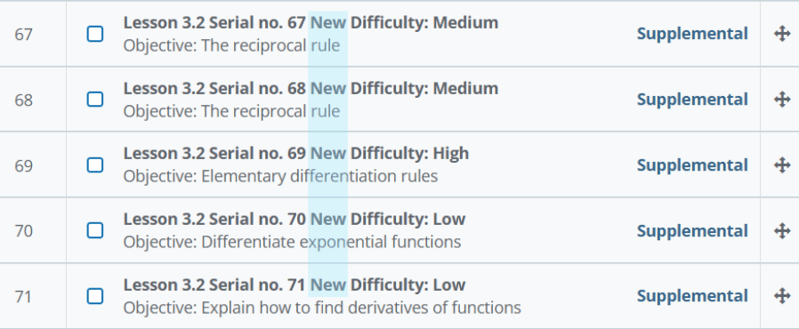
- New questions will be labeled “New” and displayed towards the bottom of the left column as highlighted in the screenshot below. Select the +Add button to include the questions in your assessment.
- Be sure to Save your changes.
How do I add these new questions to a custom curriculum?
- In your instructor dashboard, select Assignments > Manage > Curriculum.
- Select any course which has the Curriculum you would like to update assigned.
- Select a Lesson Name in the left column.
- New questions will be labeled “New” and displayed towards the bottom of the left column as highlighted in the screenshot below. Select the +Add button to include the questions in your Custom Curriculum.
- Be sure to Save your changes.

We know that every new question is another opportunity for students to practice, build confidence, and make progress toward mastery. These updates reflect your feedback and our shared focus on student success. More enhancements are always on the roadmap, and we look forward to continuing to build alongside instructors like you!
Recent posts