
Grading and student communication take up a lot of an instructor's week. Recent updates have streamlined these processes with fewer clicks to get what you need.
Three new features work together: Message Assistant, direct lesson score editing, and bulk editing for WebTest and Other Assignment scores. All three live in the new Grades area of the instructor platform.
Where do I Find These New Grade Management Features?
Grading tools now sit in one place: the new Grades dropdown in the left-hand navigation of the instructor platform. This updated section includes:
- Detailed Student Grades (formerly Edit Scores)
- All Student Scores Report
- Edit Attendance
- Import Scores
- Grade Settings
The Help menu is also always visible, so support resources and training materials are never more than a click away.
Message Assistant: Individualized Emails, Without Starting From a Blank Page
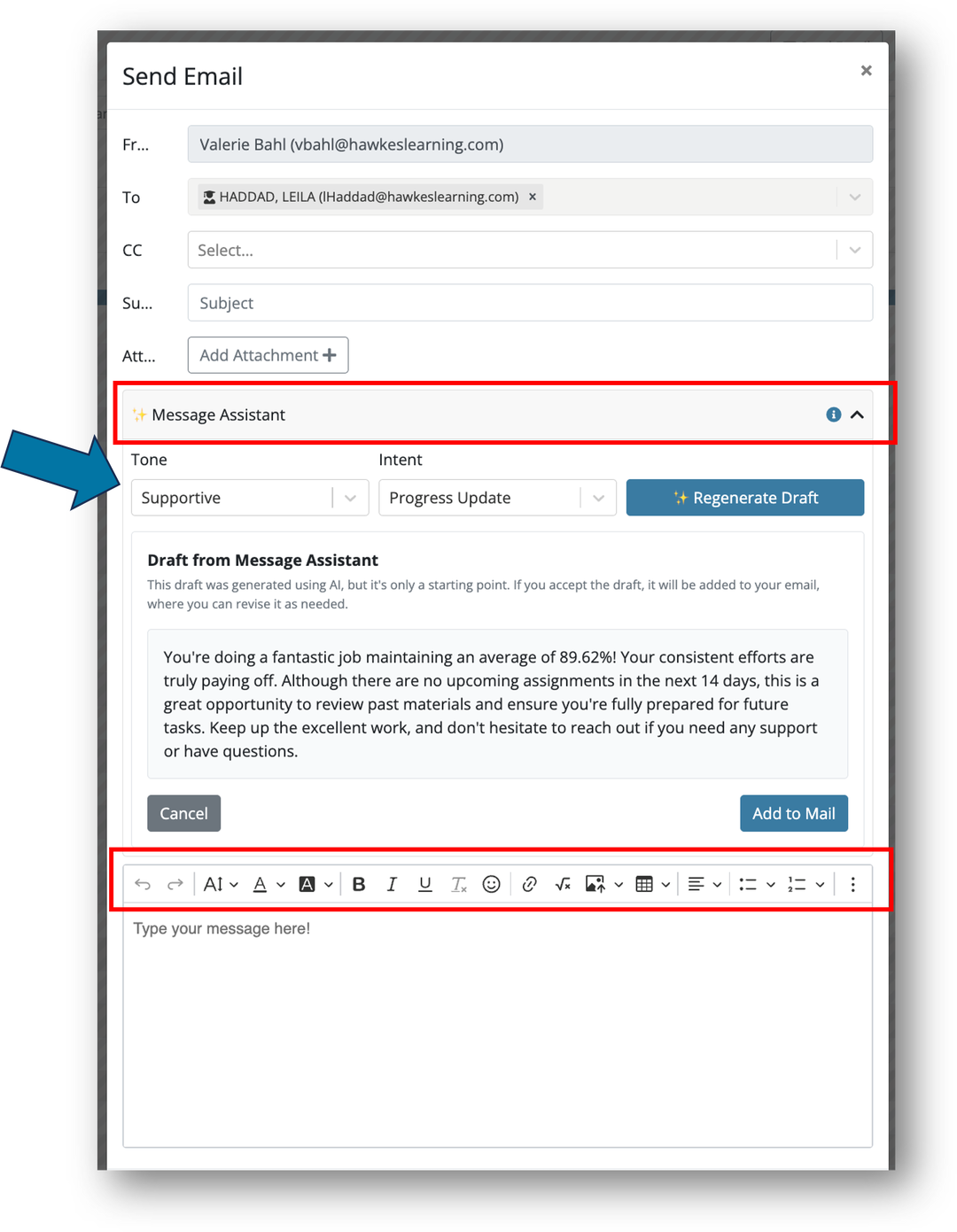
Reaching out to a student who is falling behind, or congratulating one who is thriving, works best when the message feels personal. A built-in AI-powered Message Assistant helps you write these messages quickly, using information from the student's scores, so each email is personalized. You stay in control: the assistant generates a draft that you review, edit, and send.
→ Watch this less than 2-minute video to learn more about Message Assistant.
How to find it:
-
- Log in to Teach and select your course.
- Open the Grades tab in the left-hand navigation.
- Select Detailed Student Grades.
- Click Send Email.
- Open the Message Assistant dropdown, choose the tone and intent of your message, and generate a draft.
- Edit the draft as needed and send.
Because it sits inside the grade view, you can check a student's scores and write to them in the same place. Individualized communication can support student engagement and sense of belonging, which both contribute to student success.
How to find it:
-
- Log in to Teach and select your course.
- Open the Grades tab in the left-hand navigation.
- Select Detailed Student Grades.
- Click Send Email.
- Open the Message Assistant dropdown, choose the tone and intent of your message, and generate a draft.
- Edit the draft as needed and send.
Because it sits inside the grade view, you can check a student's scores and write to them in the same place. Individualized communication can support student engagement and sense of belonging, which both contribute to student success.
Direct Lesson Score Editing: Adjust Scores Where You See Them
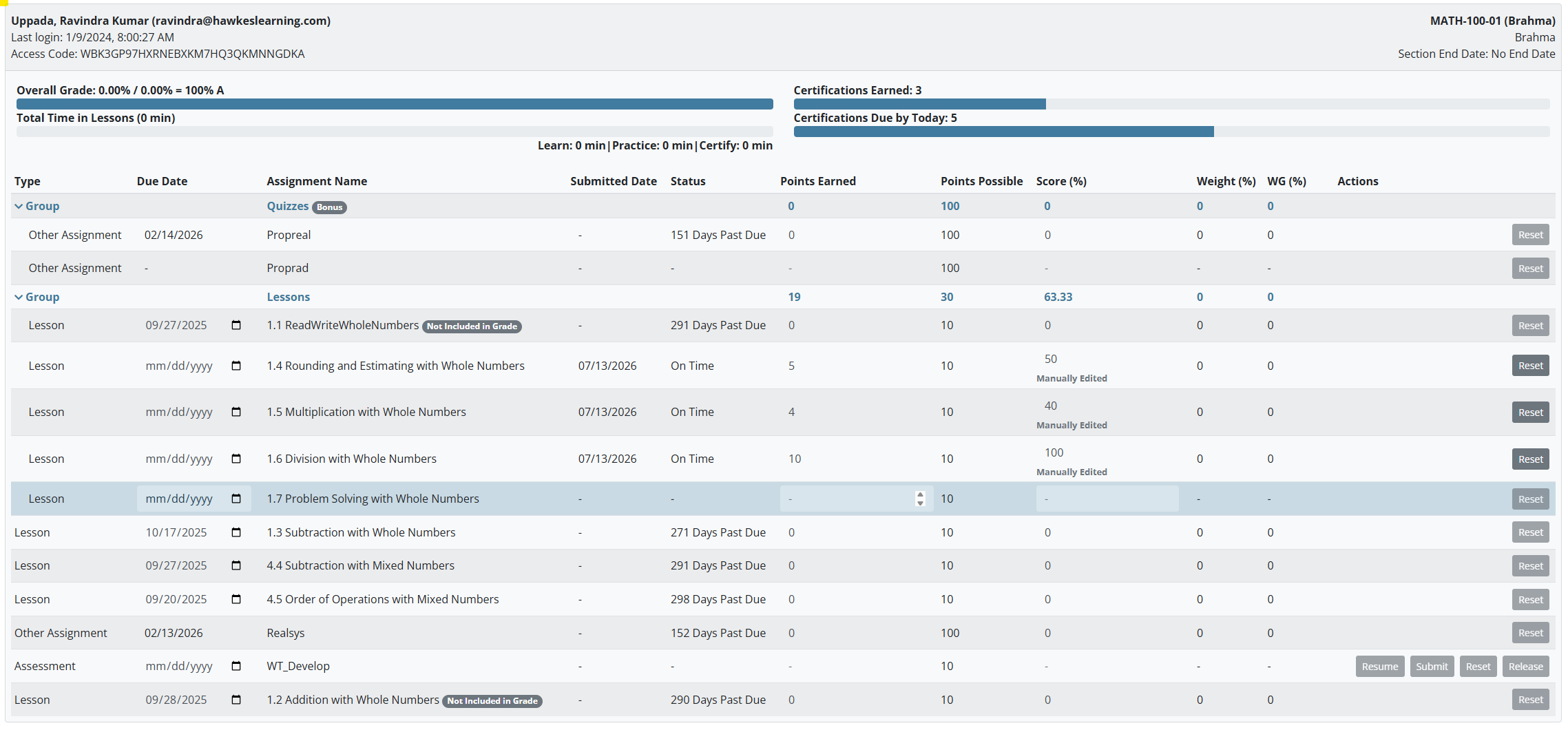
You can now adjust a student's lesson score directly on Detailed Student Grades or from the All Student Scores Report, meaning there is no separate screen to open when a score needs a correction.
.png)
Detailed Student Grades also gives you:
- In-report editing. WebTest and Other Assignment scores can be edited in-line and save automatically when you click elsewhere on the page. A Reset button next to an assignment clears its score.
- A record of changes. Once a score is adjusted, a note appears below it, so you can see at a glance that it was manually edited.
- Clear status indicators. Manually edited scores, late submissions with a late penalty, customized due dates, and past due assignments are labeled on the page rather than shown as symbols you need a legend to decode.
- Assignment attempt review. Click an assignment name to review the student's attempts.
- Progress at a glance. See total time in Learn, Practice, and Certify, plus Certifications Earned compared with Certifications Due by Today.
- Better search and exports. Find students faster and export a clean PDF or CSV for printing, archiving, or sharing with a student.
Bulk Edit Grades: Update Many Students in One Step
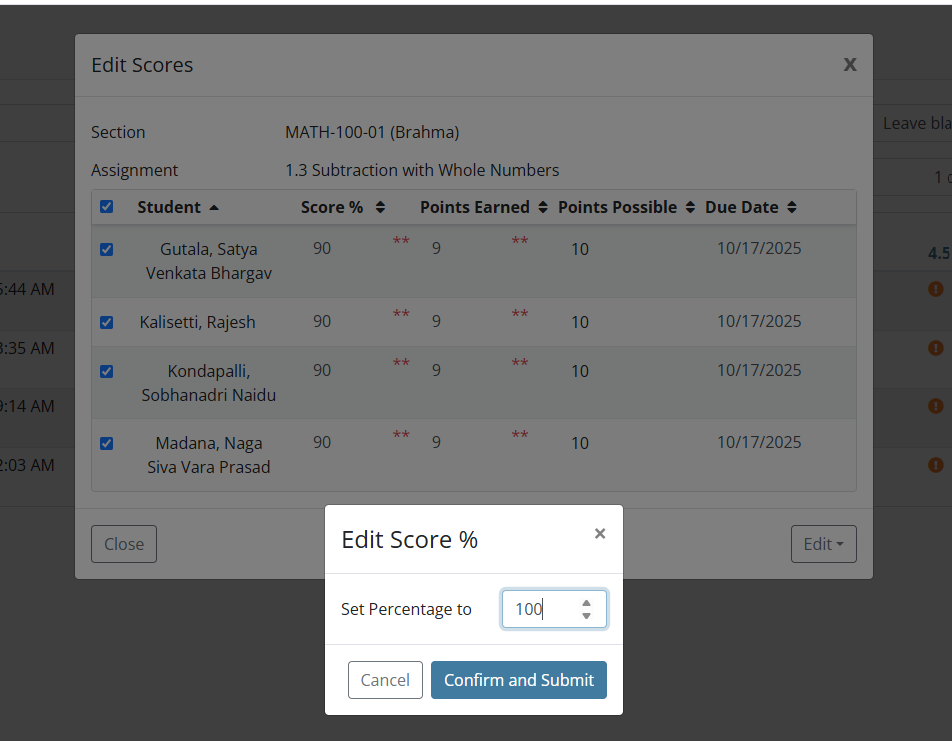
When the same change applies to several students, such as a corrected answer key or a one-time accommodation, editing each score separately adds up. With bulk editing, you can update scores for multiple students on the same assignment at once through the Edit Scores modal on the All Student Scores Report. Bulk editing is available for WebTest and Other Assignment grade types.
→ See how with this clickable walkthrough.
Putting It Together
Here is how the three features can fit into one workflow:
- Open the All Student Scores Report and use bulk editing to apply a change across a group of students.
- Open Detailed Student Grades to fine-tune an individual student's lesson score.
- Use Message Assistant to tell the student about the update or offer support.
We're excited about these new grading features and the time they can give back to you as the instructor. Message Assistant, direct lesson score editing, and bulk grade editing are all designed to make grading and communication simpler, so you can spend more of your energy on teaching and supporting your students.
We hope they make a real difference in your course this term! We look forward to hearing how they help you and your students.
Recent posts