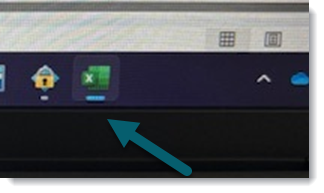
Your instructor may allow the use of Microsoft Excel while using Respondus Monitor. This feature can only be used from a Windows or Mac computer.
Before you begin your test, make sure you've checked the following:
-
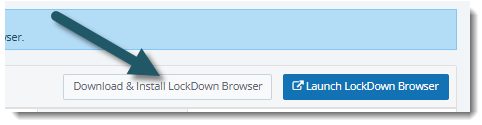
Make sure LockDown Browser is up to date. If it isn't, select Download & Install LockDown Browser on your Hawkes WebTest intro page.
-
Make sure you have Microsoft Excel installed on your computer.
Using Excel with Respondus Monitor and Hawkes
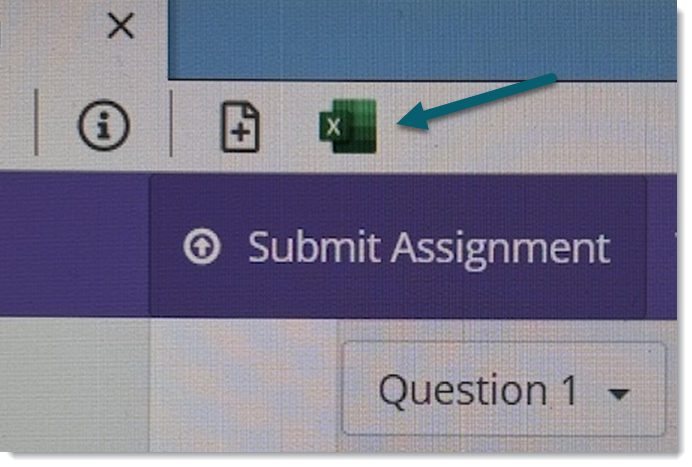
After you begin your WebTest in Hawkes and Respondus Monitor is running, you'll see an Excel icon in the Respondus toolbar. Select it to switch to Excel during the test.
You can switch back to your test in Respondus Monitor by selecting the Respondus LockDown Browser icon in your computer's taskbar.