Standard Account Creation
- Go to learn.hawkeslearning.com.
- Select Create an Account.
- Enter your name, an email address that you have access to, set your password, and enter your phone number (optional).
- Select Submit.
- Check your email to activate your Hawkes account.
- Log in to your account. Select Add Course. Select your school, product, instructor, and section, then select Continue.
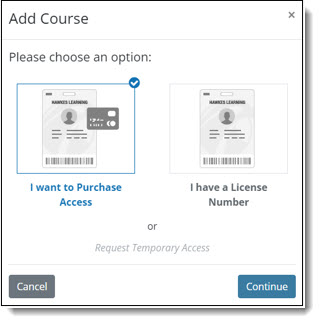
- Choose one of the following options, then select Continue.
- I want to Purchase Access
- I have a License Number
- Request Temporary Access
You’ve just created your Hawkes account. Remember to log in using the same email and password to access any of your Hawkes courses. If you forget your password, select Forgot Password? We’ll text a password reset code to the phone number you provided during account setup or send you a password reset link via email if selected.
Activating your Temporary Access
If you have temporary access to your course in Hawkes, click the Activate button before your access expires.
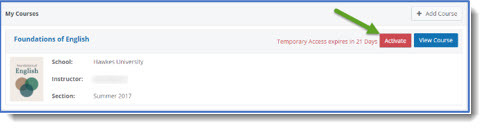
Complete one of the following steps:
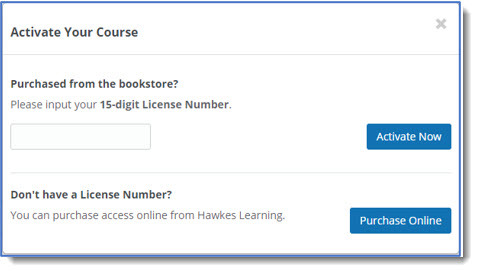
- If you've purchased a 15-digit License Number from your school bookstore, enter it, and select Activate Now.
- If you need to purchase directly from Hawkes Learning, select Purchase Online.