
Note: Before Respondus Monitor can be used by instructors, a Hawkes Course Administrator must configure the Monitor settings.
Hawkes Learning does not have access to a school's Respondus Monitor License. If needed, we recommend contacting your school's Helpdesk or IT Team to obtain the license.
Once the Respondus Monitor License is entered, the integration will be available to all instructors for all Hawkes Learning products in use by the school.
How To Configure Respondus Monitor
-
As a Course Administrator, log in to your Hawkes Teach Account.
-
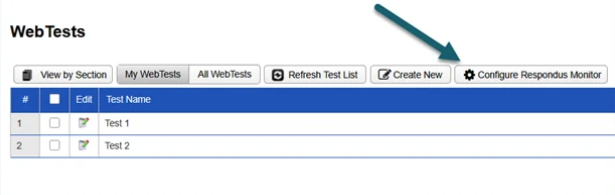
Enter any course you are a Course Administrator for and go to Assignments > WebTests.
-
Select Configure Respondus Monitor.
-
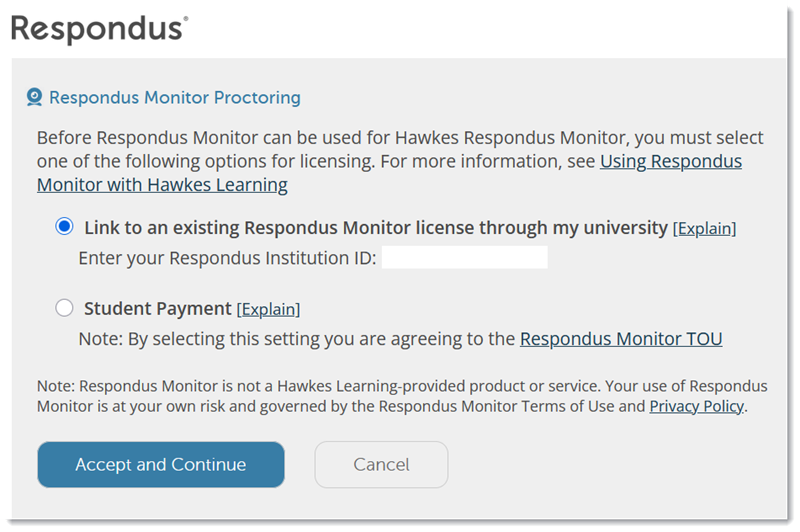
Configure the integration for your school by choosing one of the following options:
- Enter your school's existing Respondus Monitor License. Note: Hawkes does not have access to this license and cannot enter it on the school's behalf.
- Select Student Payment, which prompts students to pay for a license when taking a test requiring Respondus Monitor.
- Note: The student license cost is $10 for unlimited use of Respondus Monitor with one Hawkes course. This license doesn't apply to other courses with Hawkes or to other publisher materials.
- Note: The student license cost is $10 for unlimited use of Respondus Monitor with one Hawkes course. This license doesn't apply to other courses with Hawkes or to other publisher materials.
- Select Accept and Continue. This configures Respondus Monitor for all Hawkes products for the school.
For instructions on assigning a test with Monitor enabled and applying your Monitor settings, see Respondus Monitor Instructor Setup Instructions.