
Note: Respondus LockDown Browser can only be installed on a desktop or laptop computer running a Windows, Mac, or ChromeOS operating system. Phones, iPads, and Android tablets are not supported.
A list of compatible devices and operating systems can be found here.
How to Require Respondus LockDown Browser
-
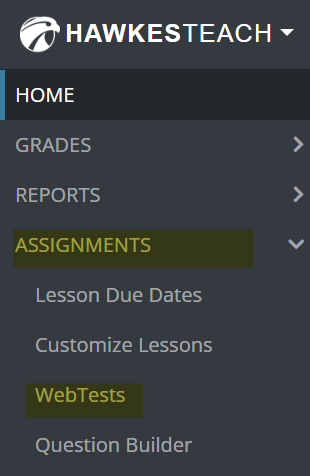
In your Hawkes instructor course, go to Assignments > WebTests.
-
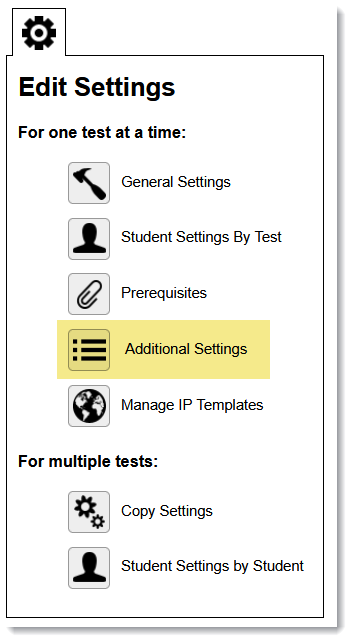
Select a WebTest and select Additional Settings.
-
Select Require Respondus LockDown Browser.
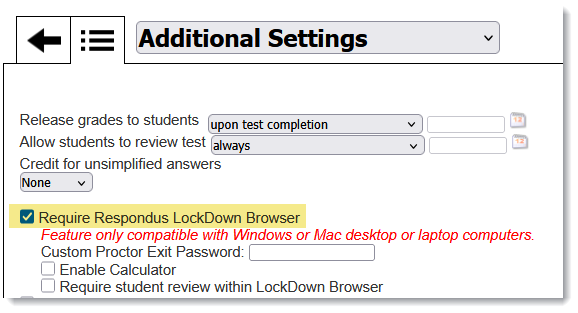
Additional options include:- A custom proctor exit password a test administrator can enter while Respondus LockDown Browser is running to exit the student from LockDown Browser.
- Access to a basic or scientific calculator within Respondus LockDown Browser.
- Requiring a student to review their Hawkes WebTest attempt through Respondus LockDown Browser.
-
Select Save Changes.
-
Select Assign in the top-right corner and assign the WebTest to your section(s). You can also apply any General Settings to the WebTest (start date/time, password, test length, etc.).
How to Allow Access to External Web Domains (Multiple Websites)
If the intention is to provide access to an entire website, a setting needs to be applied to allow the student to access multiple pages within that site.
-
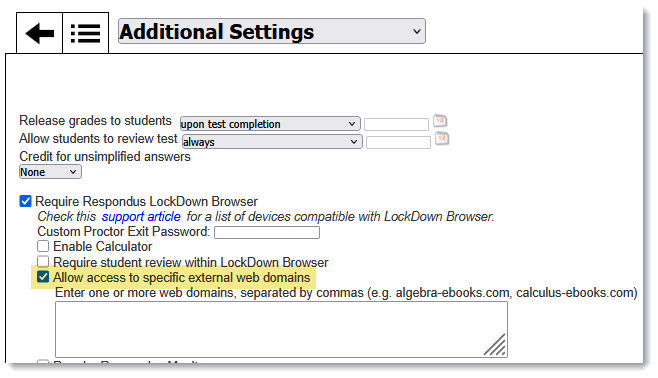
After enabling LockDown Browser, select Allow access to specific external web domains.
-
In the text box below the setting, enter the list, separated by commas, of all external webpages for students to access during their WebTest with LockDown Browser enabled.

-
Once done, select Save Changes.
Links to the external webpages must then be added to a WebTest question for students to open the link while in the test running LockDown Browser. Please visit Adding External Link to a Question for instructions to do this.
For more information about using external web domains in Respondus LockDown Browser, please visit the Respondus support article on external web domains.
How to Enable Monitor with Respondus LockDown Browser
Please visit the Respondus Monitor Instructor Guide for more information about how to request the Monitor feature and configure it for a WebTest.
Respondus LockDown Browser Lab Version
If Respondus LockDown Browser is required for use in a lab environment, please email support@hawkeslearning.com and include the Lab Admin's email address to request the lab version installation file.
Respondus LockDown Browser Student Directions
For instructions about how students install and run Respondus LockDown Browser with Hawkes, please visit Respondus LockDown Browser Student Directions.