
One you've enabled Allow access to specific external web domains and entered the external webpages, you will need to add the external link(s) to a custom WebTest question by creating using Question Builder.
Creating a Custom Question
1. In your course, navigate to Assignments > Question Builder.
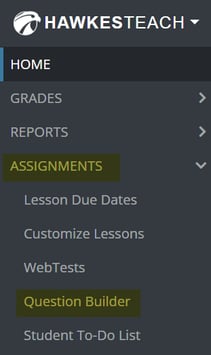
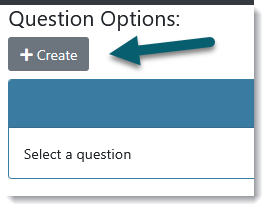
2. Create a folder or select an existing question folder, and click +Create under Question Options.

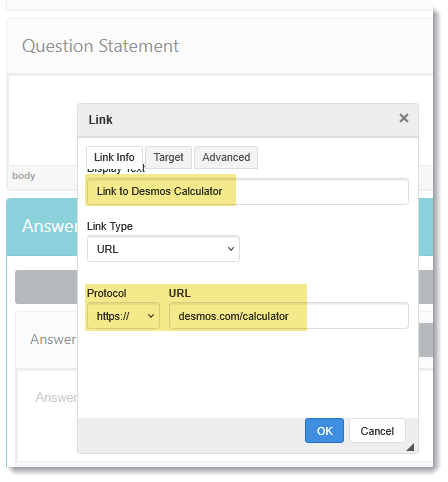
3. Click anywhere in the "Question Statement" box and press "CTRL + K" on your keyboard. A "Link" modal will display to add the external link.
4. Enter a custom name for the link if needed and enter the link URL (website).
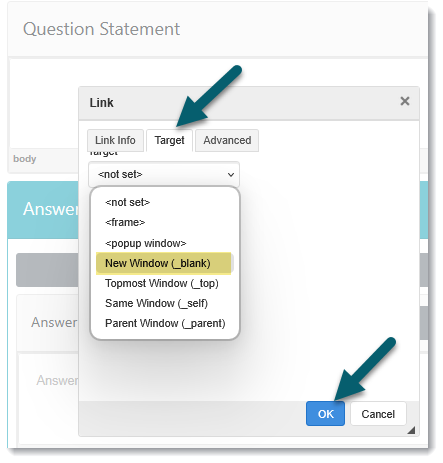
5. Click the “Target” tab and select “New Window” to ensure the link opens in a new tab, which is required for it to work in LockDown Browser.
6. In the “Answer(s)” section, mark the question type as “Open Ended”.
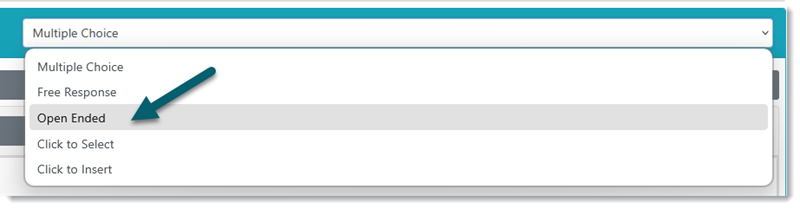
7. Click Save in the bottom right corner, name the question, choose a difficulty, and click OK.
Your custom question is now saved in your question folder and can be added to a WebTest.
Adding the Custom Question to your WebTest
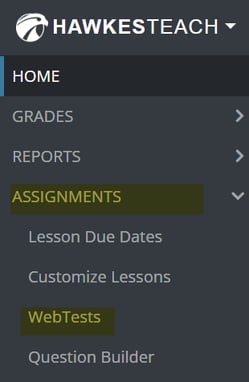
1. In your course, navigate to Assignments > WebTests.
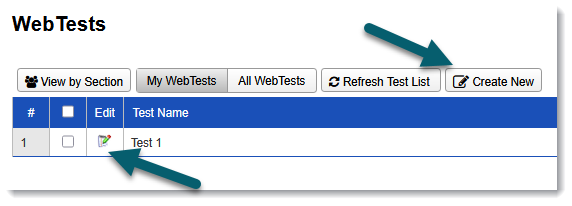
2. Click Create New if creating a new WebTest or click the edit icon to open an existing WebTest.
- Note: If an existing WebTest is assigned, it must be un-assigned first to add new questions to it.
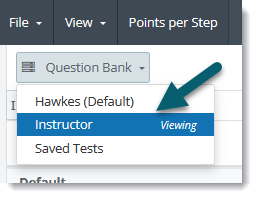
3. Assignment Builder will open in a new tab. Click on the "Question Bank" dropdown in the top left and select "Instructor".
4. Click on the question folder the custom question is located in, and Add the custom question to your WebTest.
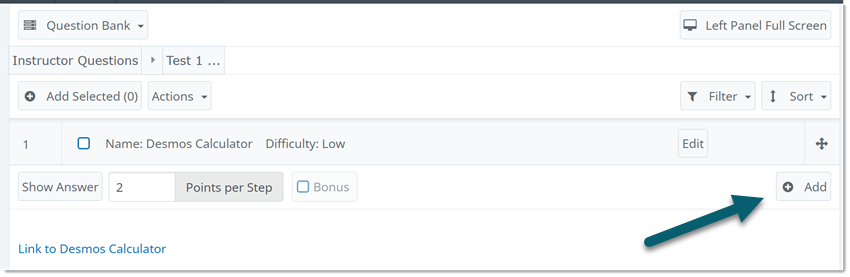
5. Click Save in the top-right corner.
Once you're finished creating or editing your WebTest, return to Assignments > WebTests to assign your WebTest and apply any settings to it.