How to Transition to a Points-Based Course
-
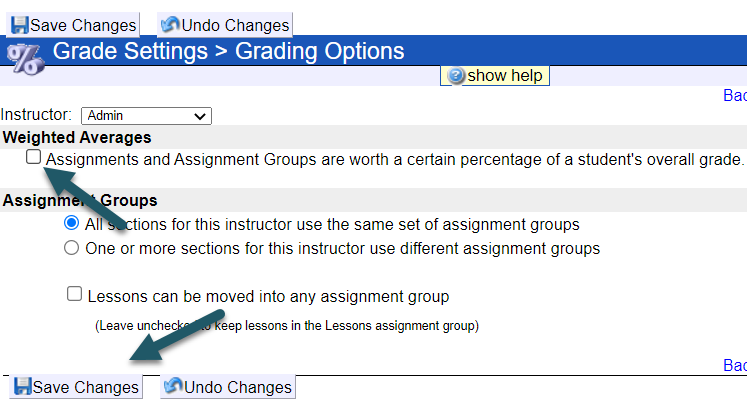
Go to the Grades > Grade Settings > Grading Options.
-
If you are a Course Administrator, select the instructor.
-
Uncheck the box Assignments and Assignment Groups are worth a certain percentage of a student's overall grade.
-
Save Changes.
Once updated, the Assignment Groups page will only display the assignment groups and number of assignments contained in each group.

Updating Reports View Settings
To ensure instructor and student reports reflect in points rather than percentages:
-
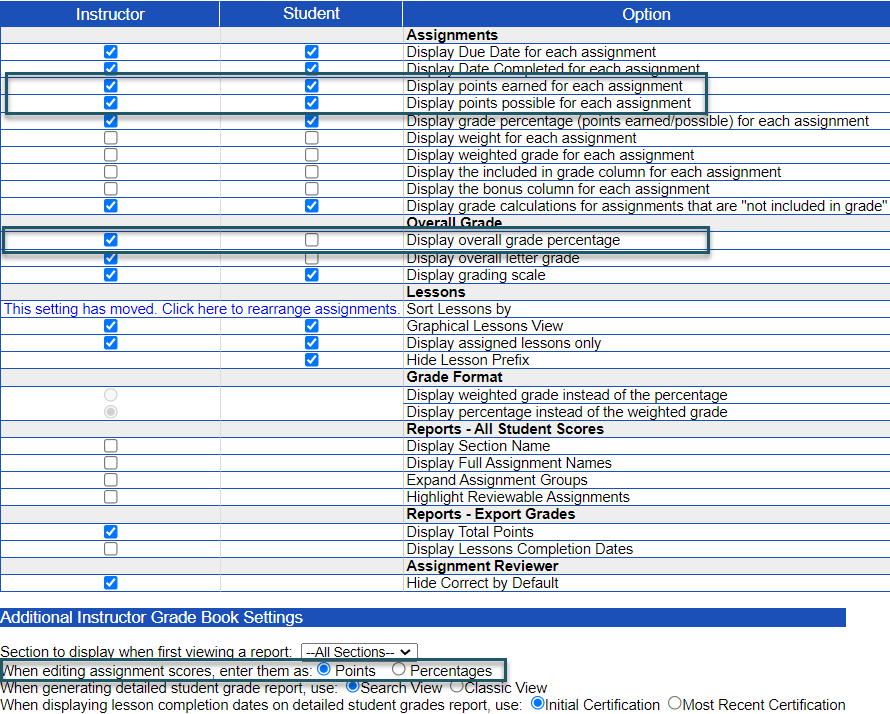
Go to the Course Management > Display Options.
-
Select Display points earned for each assignment.
-
Select Display points possible for each assignment.
-
(OPTIONAL) Un-select Display overall grade percentage.
-
(OPTIONAL) Un-select Display grade percentage (points earned/possible) for each assignment.
-
Select Points radio button under When editing assignment scores, enter them as:
Points-Based Grade Book Caveats
- Students and instructors cannot see all the points possible to earn in the course until all the due dates of assignments have passed. As due dates pass or students complete assignments, the running totals of points possible and earned updates, but you won't be able to see how many points are possible to earn until all assignments are graded.
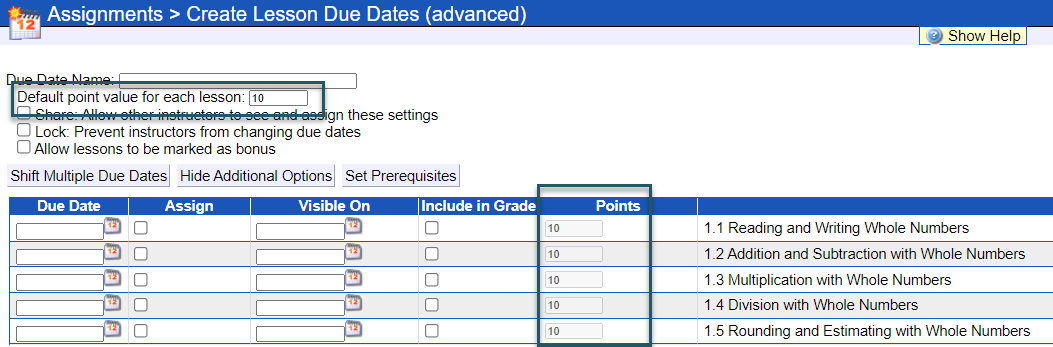
- You may need to adjust the point value assigned to Lessons. By default, each Lesson is worth 10 points. To change the point value for all Lessons in a due date template, go to Assignments > Lesson Due Dates and open the desired due date template. Enter the new value in the Default point value for each lesson field. To update point values for individual Lessons, select Show Additional Options and modify the values in the Points column.
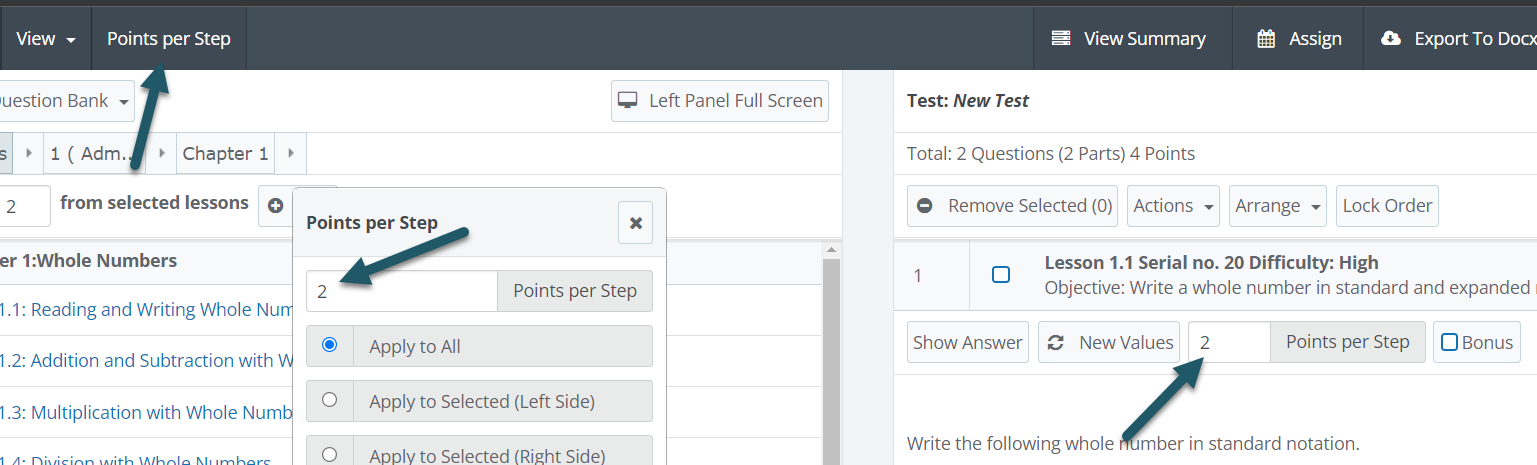
- You may need to modify the total points possible on any assigned WebTests if you want them worth a certain number of points. To do this, go to the Assignments tab > WebTests and open the test to update the points per step