
What is Inclusive Access
Schools using the Inclusive Access Program charge students for the cost of their Hawkes Learning materials through tuition.
How To Get Access in Hawkes
Students create their Hawkes Learning accounts using the Hawkes Single Sign On link located in their LMS course.
- Canvas Single Sign On
- Brightspace Single Sign On
- Blackboard Single Sign On
- Moodle Single Sign On
Opting Out of Inclusive Access
Students are allowed to opt out of the Inclusive Access Program with the school's bookstore and purchase their materials directly from Hawkes. Opting out means the student will not be charged for the cost of their materials through tuition.
- The window to opt out of a course varies by school and is fully operated and controlled by the school's bookstore or bookstore vendor.
- Your access to your Hawkes course will be suspended if reported as opted out by your school bookstore or bookstore vendor.
- If you've opted out of your course by mistake, please contact your school bookstore to see if you're still able to opt back into the course.
- If you are successfully opted back in, please have the school bookstore email inclusiveaccess@hawkeslearning.com with confirmation and Hawkes will restore your course access.
Restoring your Hawkes Access after Opting Out
If you opted out and can no longer opt back in with your school bookstore, you can purchase directly within your Hawkes Learning account to restore your course access.
-
Access your Hawkes Learning student account using Single Sign On through your school's LMS course (Canvas, Brightspace, Blackboard, or Moodle).
-
Select Purchase on your Dashboard.
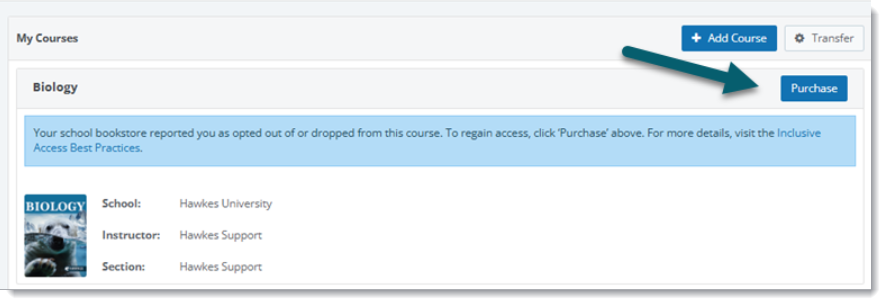
Once your purchase is completed, return to your Dashboard and your course access will be restored along with any completed assignment grades.
If you've received a 15-digit License Number from your school bookstore, select Add Course and re-enroll into your instructor's section using the License Number.