
*Some instructors may receive the following authorization message when first accessing the Hawkes Sync Tool. This is a one-time authorization allowing grade, due date, and point value syncing.

1. As an instructor in Brightspace, enter your course, then open the Hawkes Learning Sync Tool.
Note: If you don't see the Hawkes Learning link, add it to your course.
2. Sign in to your Hawkes Teach account.
3. Select the (1) Hawkes Course that matches the Brightspace course you are working in, (2) your name as the Instructor, and (3) the corresponding Hawkes section to link to.
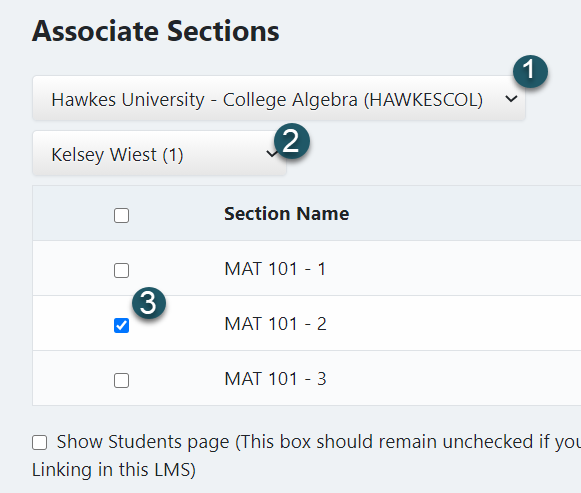
Note: In most cases, you should only link a single Hawkes section to a single Brightspace course..
4. Click Continue.
Brightspace LTI-Advantage SchoolsIf you're using the LTI-Advantage version of the Hawkes tools, you'll receive a warning about Assignment Deep Links and Assignment Mapping. If you plan to create Assignment Deep Links, please follow the instructions to create these first before mapping assignments in the Hawkes Sync Tool.

Once you complete the above steps, your Hawkes section will be linked to your Brightspace course.
Next, please return to the Brightspace Support Page to sync assignment with or without assignment Deep Links.