Hiding Students from Key Reports
- Log in to your Hawkes Teach Account, open your course from the Instructor Dashboard, and go to Course Management > Manage Students.
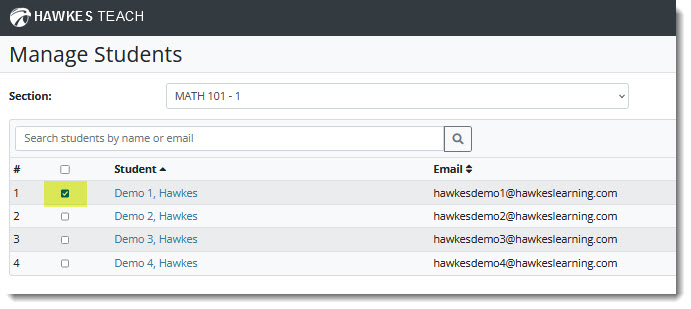
- Choose your section from the Section drop-down and select the checkbox for the student(s) you want to hide from Key Reports.
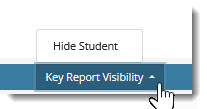
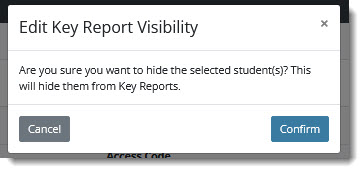
- Select Key Report Visibility in the bottom right toolbar, choose Hide Student, and select Confirm.
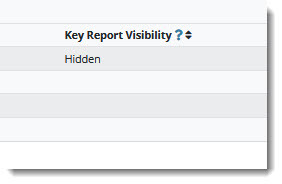
- A new column will display on the page showing which students are hidden.
Note: Hidden students will not display or calculate into the grade statistics or data in the All Student Scores Report, Search by Criteria, and Assignment Reviewer. They will still display in the Detailed Student Grades Report.
Showing a Hidden Student
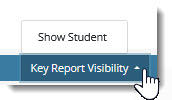
- Select the hidden student, select Key Report Visibility, choose Show Student, and select Confirm.