
Why would I want to manually sync grades?
You will need to manually sync grades if you have not set up automatic daily grade sync or you prefer to control when grades are synced from Canvas or Hawkes.
How to Manually Sync Grades
1. As an instructor in Canvas, select your course then open the Hawkes Sync Tool.
2. Select the Assignment Grades tab.
3. Select the checkbox next to Student Name/Assignment Name to select all students and all assignments.
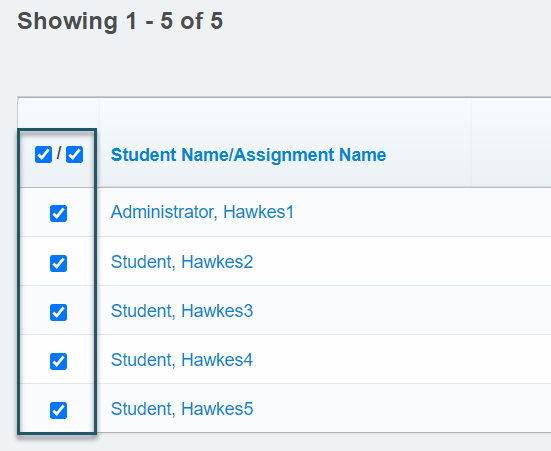
- If you have more than 40 students, you must open the Results drop-down and select Show All to view all students. Otherwise, all student grades will not be synced over.
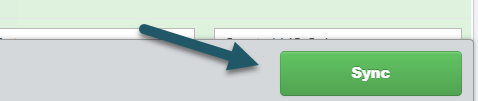
4. Select Sync to sync all grades over to Canvas.
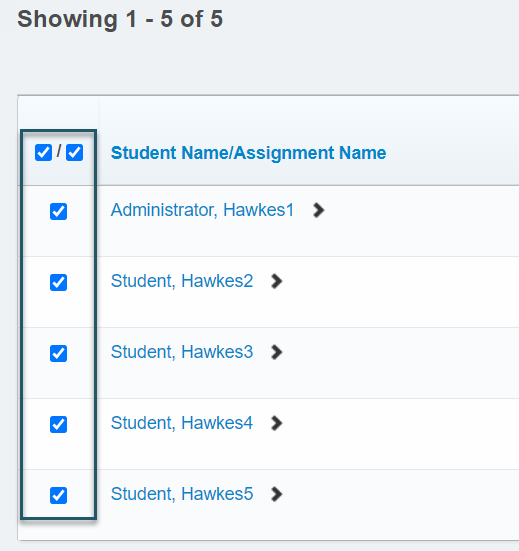
5. A confirmation page will load displaying what will be synced. Select all students and assignments again.
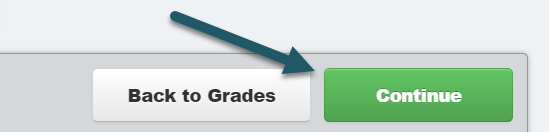
6. Select Continue.
7. Select Confirm, and the grade sync process will begin.