
LTI-Advantage uses the same Hawkes Learning link for instructors and students. Depending on your LMS role, the link will launch the Hawkes Sync Tool or student Single Sign On.
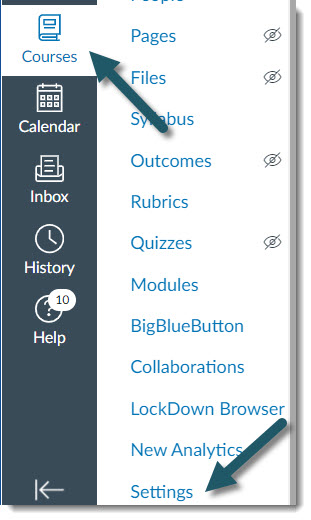
Adding the Hawkes Sync Tool and Student Single Sign On Link1. As an instructor in your Canvas course, select Courses and Settings.
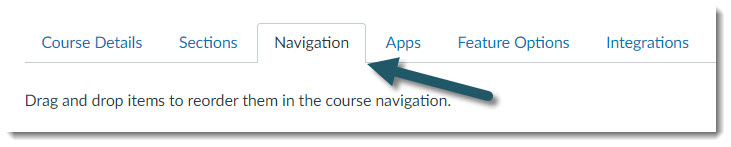
2. Select the Navigation tab, and scroll down to the disabled items area. You should see a Hawkes Learning item.
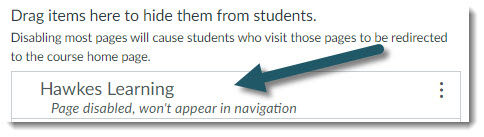
3. Drag the Hawkes Learning item in to your course navigation list and Save. The Hawkes Learning link will now be placed in your course navigation.
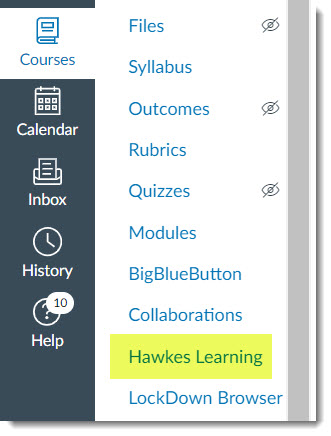
Depending on your Canvas role, this single link will launch the Hawkes Sync Tool as an instructor or launch Single Sign On as a student.
- Please note, "Instructor" roles in Canvas cannot launch into the Hawke Student Platform even when switching to student view in Canvas. When switching to student view in your Canvas course, Canvas removes the user's email address from their Canvas profile which doesn't allow an instructor to use student Single Sign On as an actual student would.
Next, please visit Link Sections to link your Hawkes section to your corresponding Canvas course.