
What is Single Sign On?
Hawkes Single Sign On (SSO) bypasses the Hawkes account creation and sign in process by automatically creating the student's Hawkes account, enrolling them in the correct Hawkes section, and automatically providing them with temporary access (if available) to Hawkes the first time they select the Single Sign On link.
Notes:
- If you set up Assignment Deep Links, it automatically enables Hawkes Single Sign On. This means you do not need to add the Hawkes Single Sign On Tool when using Assignment Deep Links. However, we do recommend adding the standard Hawkes Single Sign On link in addition to setting up Assignment Deep Links.
- Instructors need to enter section start and end dates in their Hawkes Course for students to receive temporary access at the start of the term.
- Students will receive a permanent code if the school is using the Inclusive Access Program.
How to Set Up Single Sign On
1. Before students can use the Single Sign On link, your Canvas course needs to be linked to the corresponding Hawkes section using the Hawkes Sync Tool.
2. In your Canvas course, select Modules.
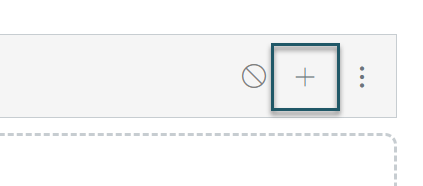
3. From the Hawkes module you created, select +.
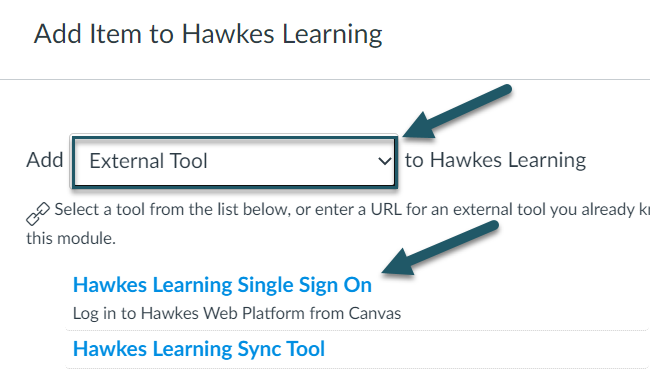
4. Select External Tool from the drop-down menu. Then select the Hawkes Learning Single Sign On tool.
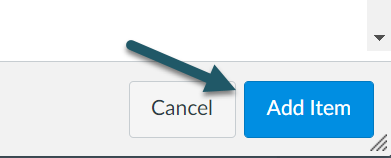
5. Select Add Item.
- To make sure Single Sign On is working properly for you students, select the link after adding it to a module. If working properly, it will take you directly to your Hawkes student account.
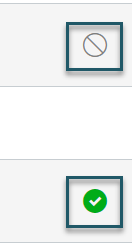
- Reminder: The Hawkes Learning Sync Tool should remain unpublished, while the Hawkes Learning SSO tool should be published.
Single Sign On Notes & Best Practices
We recommend you set up Single Sign On to open in a new tab to help prevent potential browser errors. To do so, please follow the steps below:
- Select the three vertical dots next to the SSO entry
- Select Edit
- Select Load in a new tab
- Select Update