
Why would I want to manually sync grades?
You will only need to manually sync grades if you have not set up auto daily sync or have a need to sync grades over immediately.
How to Manually Sync Grades
1. Select your course D2L/Brightspace, then open the Hawkes Sync Tool.
2. Select the Assignment Grades tab.
3. Select the checkbox next to Student Name/Assignment Name to select all students and all assignments.
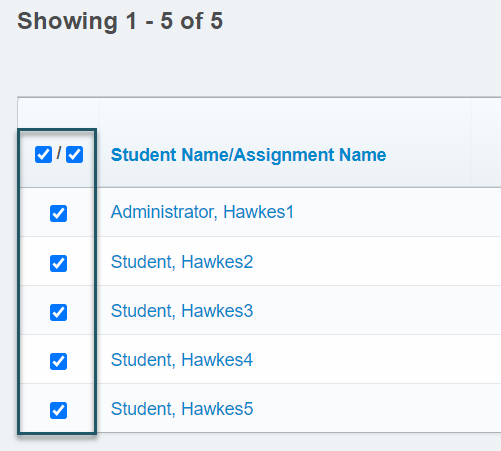
- If you have more than 40 students, you must open the Results drop-down menu and select Show All to view all students. Otherwise, all student grades will not be synced over.
4. Select Sync to sync all grades over to D2L/Brightspace.
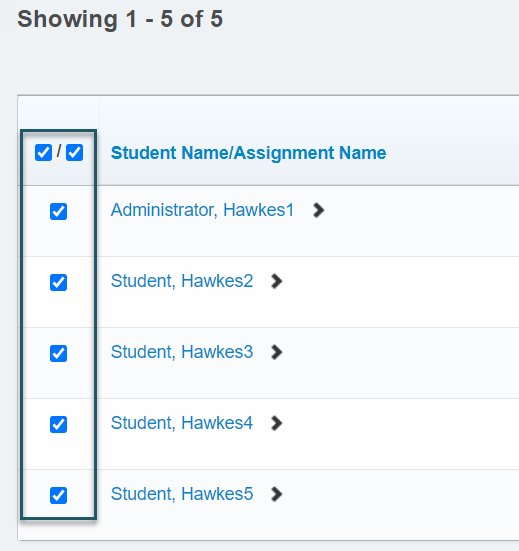
5. A confirmation page will load displaying what will be synced. Select all students again.
6. Select Continue.
7. Select Confirm, and the grade sync process will begin.

Assignment Grades Tab Notes & Best Practices
- If you decide to manually sync grades over to D2L/Brightspace, it is best practice to sync at least once per week to minimize the time it takes for the grade syncing to be completed.
- We recommend setting up your assignment groups in D2L and categorizing the Hawkes assignments within them so that students see their accurate grade in D2L/Brightspace.