
What is Automatic Grade Sync?
Student grades will automatically transfer from Hawkes to D2L/Brightspace. Depending on which version of the LMS tools you use, there are different options to automatically sync grades.
LTI-Advantage
- Daily Sync: Automatically syncs grades every 24 hours, normally overnight.
- Immediate Sync: Automatically syncs assignment grade a few seconds after assignment is completed in Hawkes.
LTI-1.1
- Daily Sync: Automatically syncs grades every 24 hours, normally overnight.
How to Set Up Automatic Grade Sync
1. Select a D2l?Brightspace course and open the Hawkes Sync Tool.
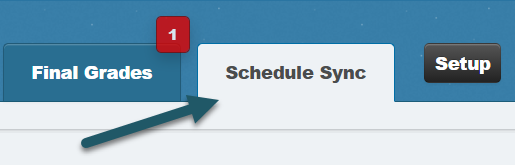
2. Select the Schedule Sync tab.
LTI-Advantage
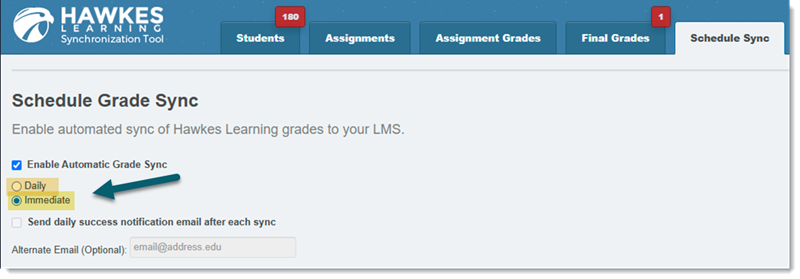
1. Select Enable Automatic Grade Sync and choose between "Daily" or "Immediate" sync.
Note: You cannot receive a daily success notification email for "Immediate" sync. This option is only available for "Daily" sync.
Note: If you toggle on "Immediate" sync after assignments have already been completed in Hawkes, grades will not retroactively sync. Please perform a manual sync to capture these assignment grades.
2. Click Save.
LTI-1.1
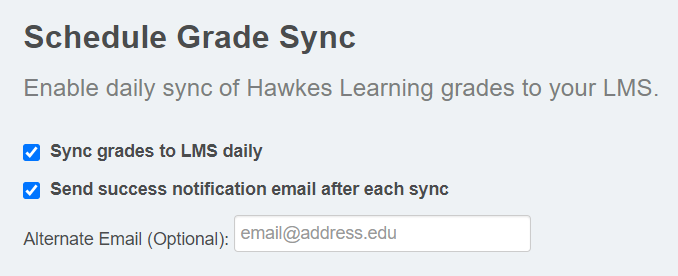
1. Select Enable Automatic Grade Sync and choose "Daily" sync.
Optional: Select the second checkbox to receive a sync confirmation email with each successful daily automatic sync to the email address associated with your D2L/Brightspace account. You can have this notification sent to an email address that is different from the one associated with your D2L/Brightspace account by entering an alternate email.
2. Click Save.