
Using Single Sign On
Single Sign On (SSO) is a link to Hawkes embedded directly within your Blackboard course. After clicking the link, your Hawkes account is automatically created and you're enrolled in your Hawkes course.
Single Sign On may not work correctly on phones or tablets. Please use a computer and recommended web browsers Chrome or Firefox.
-
Log into Blackboard and enter your course.
-
Click on the Hawkes Learning Single Sign On link which is normally located under Content or in the left-hand side course navigation.
Permanent Course Access
If your course is through the Inclusive Access Program, you'll receive permanent access to your Hawkes course once Single Sign On is used.
Temporary Course Access
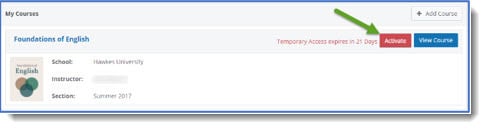
If your course isn't through Inclusive Access, you may automatically receive temporary course access in Hawkes after first using Single Sign On. Please make sure to activate your course before your temporary access ends.
-
Click the Activate button.
-
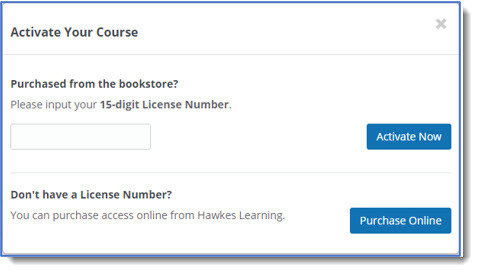
Complete one of the following:
- If you've purchased a License Number from your school bookstore, enter it and click Activate Now.
- If you need to purchase directly from Hawkes Learning, select Purchase Online.
Logging Directly into Hawkes
This option can be used if you no longer have access to your Blackboard course or if you're unable to access your Blackboard account.
-
Go to https://learn.hawkeslearning.com.
Note: If you're redirected from Hawkes back to Blackboard, you'll need to fully clear your browser cached files and cookies for all time or use a private browser window
-
Select Forgot Password?.
-
Enter your school email address and click Submit.
-
Use the password reset email sent to your email to reset your account password and log directly into Hawkes.